


Electrik.AI exports data from your marketing data source in a file and uploads the file to a storage destination of your choice. It is important to note that Electrik.AI itself is not a destination. A destination is required to export data from various marketing data sources using Electrik.AI
File Storage Destinations
Google Cloud Storage
Google Cloud Storage is a RESTful online file storage web service for storing and accessing data on Google Cloud Platform infrastructure. The service combines the performance and scalability of Google’s cloud with advanced security and sharing capabilities.
Do not have a Google Cloud Storage account? Refer this link.
Create a Google Cloud Storage connection in Electrik.AI
Step 1: Ensure you have following prerequisites to create a Google Analytics Connection in Electrik.AI
- Google Cloud Platform Account UserId and Password.
- Google Cloud Platform Project
- Google Cloud Storage Bucket
Step 2: Signup for your Electrik.AI account
Step 3: Sign-in into your Electrik.AI account
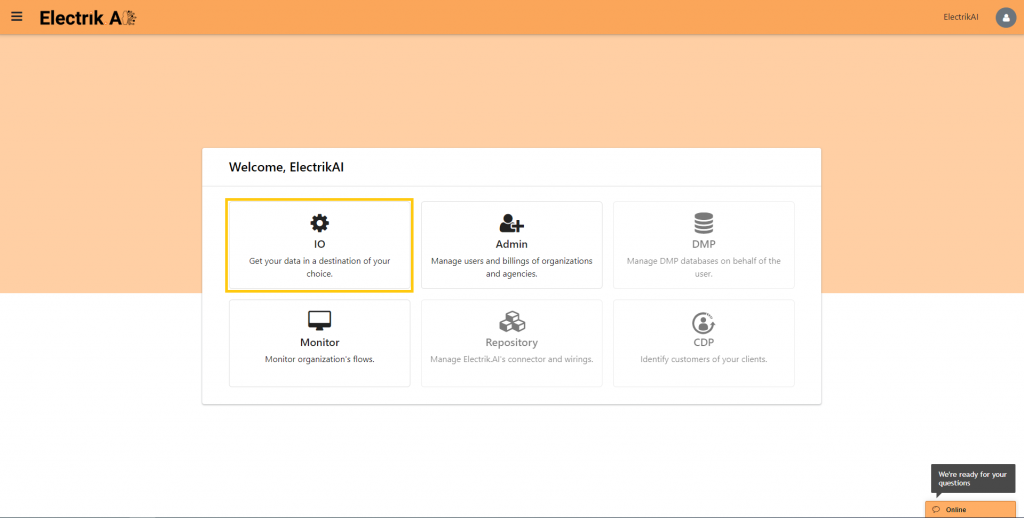
Step 4: Select IO in Electrik.AI dashboard
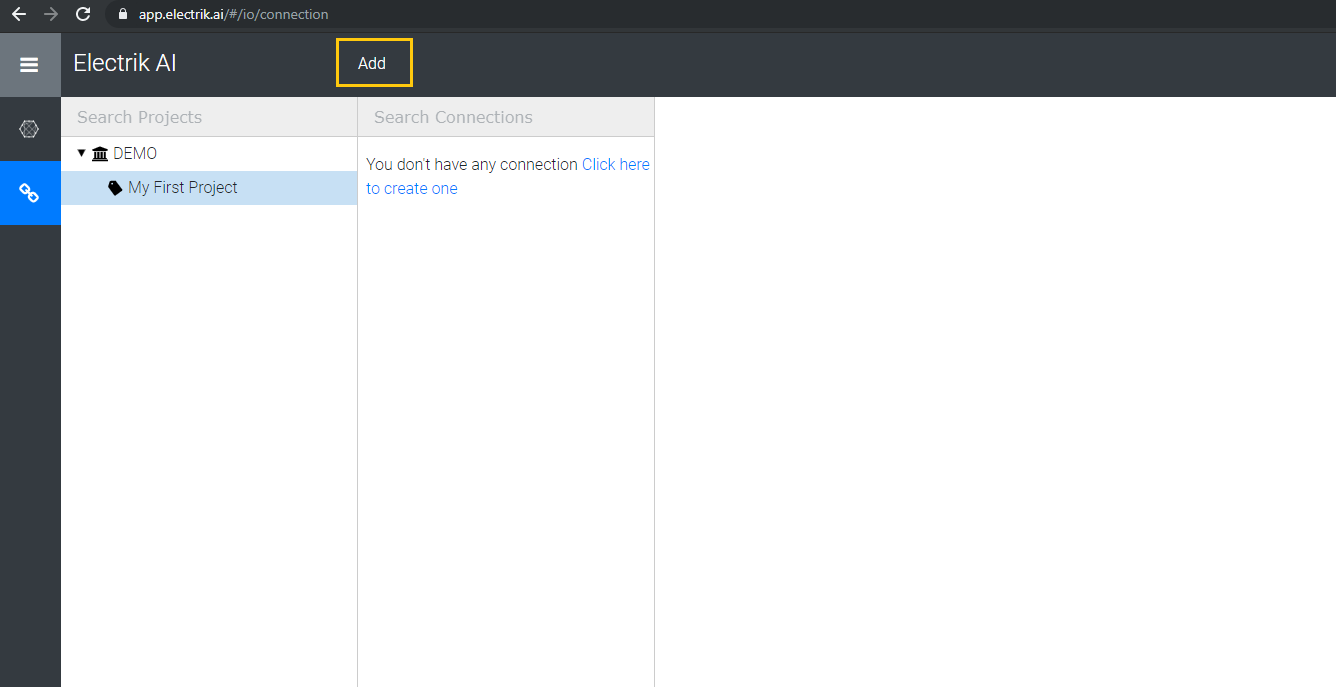
Step 5: Select the Connections Icon in the left most panel and Click on “Add” button the top.
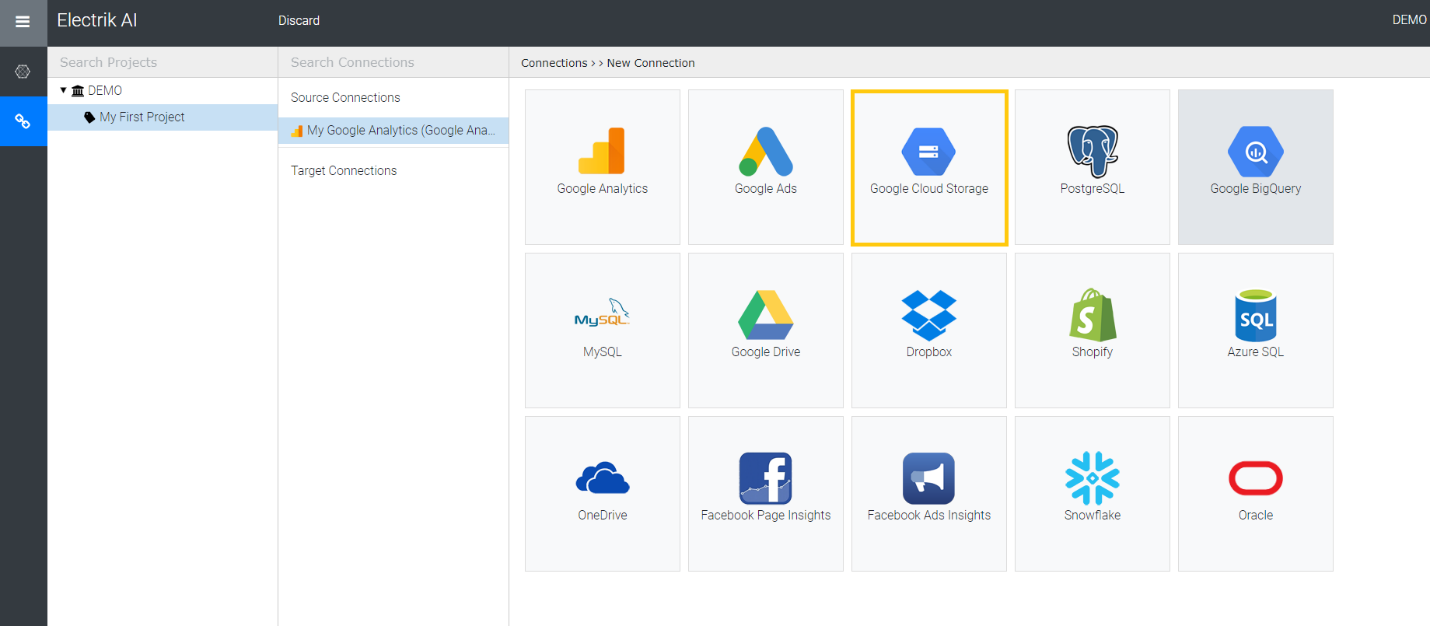
Step 6: Click on “Google Cloud Storage” icon to create a Google Cloud Storage connection.
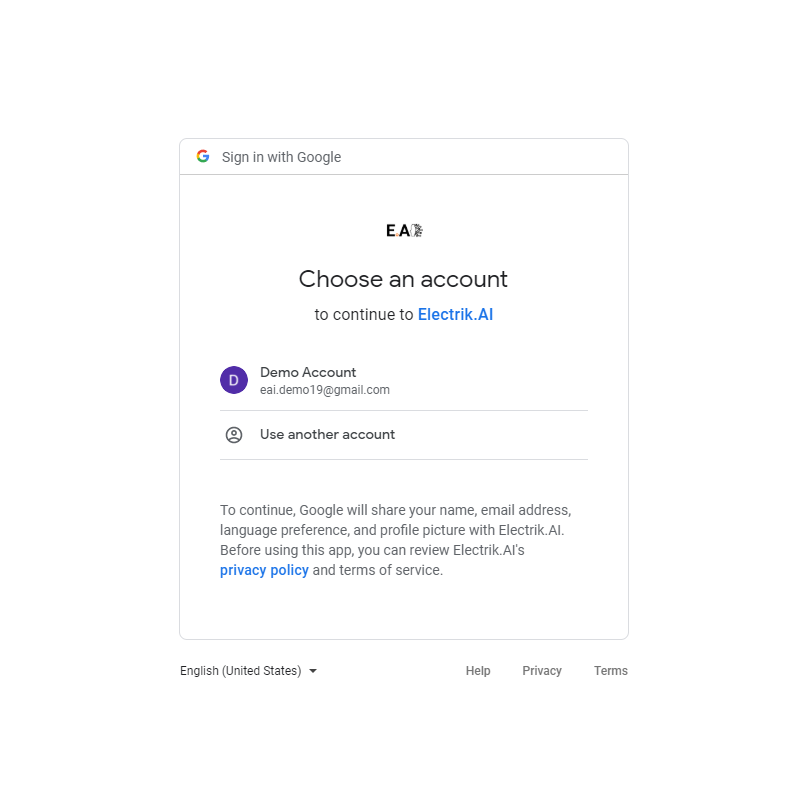
Step 7: Enter your Google Cloud Platform UserId and Password.
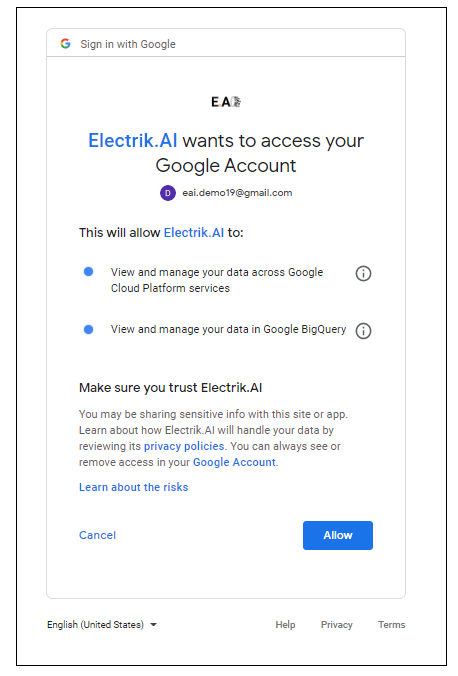
Step 8: Allow Electrik.AI to access your Google Cloud Storage account.
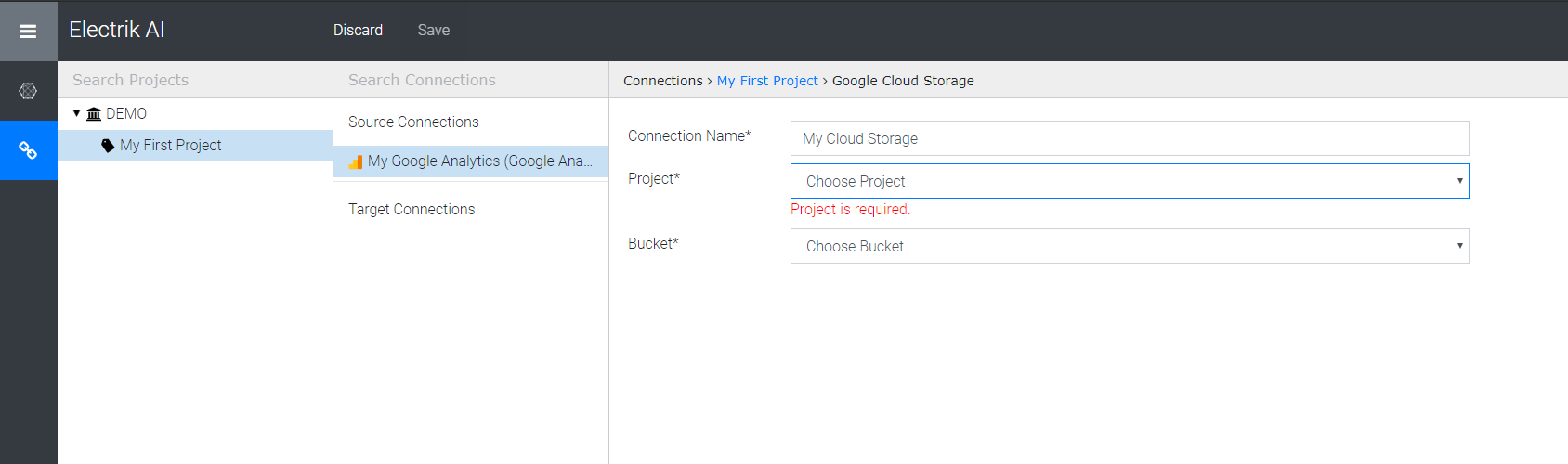
Step 9: Choose your Google Cloud Storage Project and Bucket.
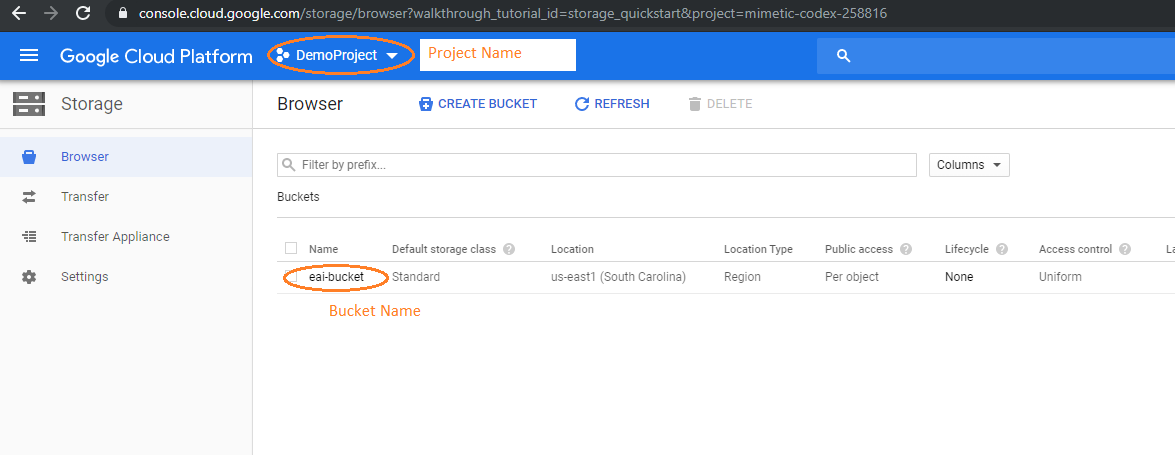
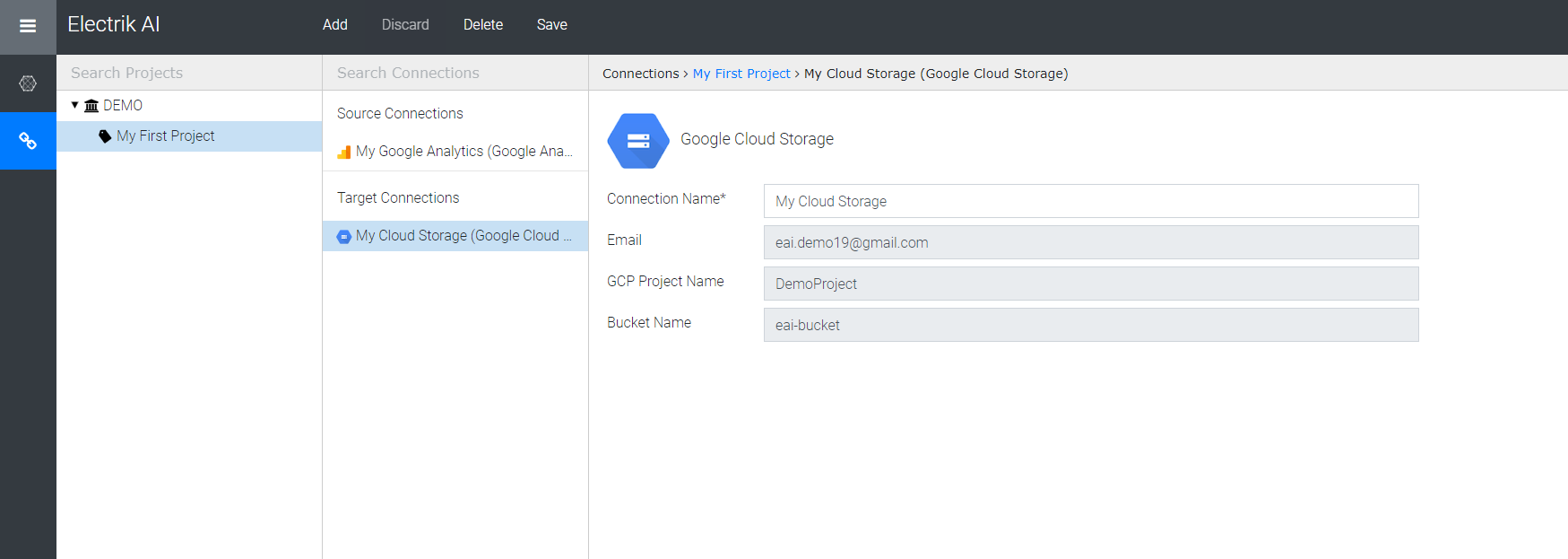
Project Name and Bucket Name can be found in your Google Storage Console. Refer screenshot for details.
Step 10: Click on Save button on the top.
Step 11: Congratulations, you have successfully created a Google Cloud Storage connection in Electrik.AI
Onedrive
OneDrive is a cloud storage service from Microsoft that allows you to store all your important files securely in one place and then access them virtually anywhere. It works just like a traditional hard drive, but it’s on the internet. Also, OneDrive makes it easy to share content with other people, and collaborate in real-time using its Office 365 integration.
Don’t have a OneDrive account? Refer this link.
Create a Microsoft OneDrive connection in Electrik.AI
Step 5: Select the Connections Icon in the left most panel and Click on “Add” button the top.
Step 6: Click on “OneDrive” icon to create a Microsoft One Drive connection.
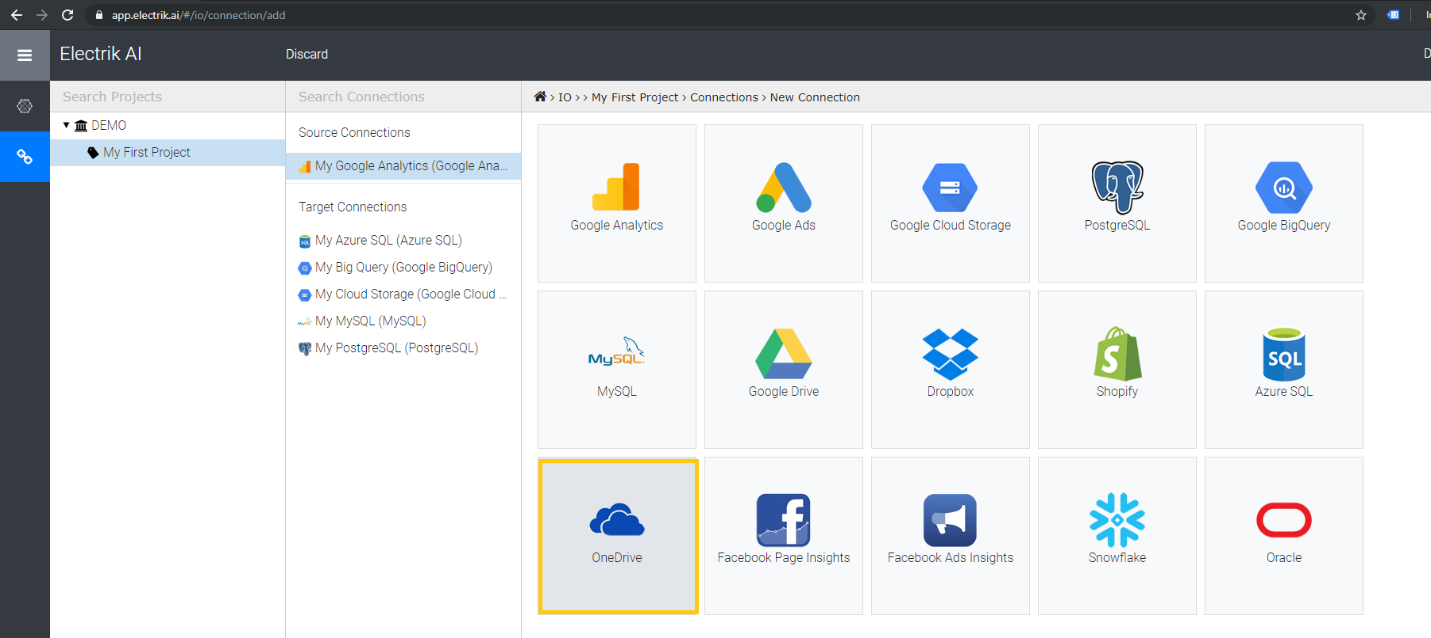
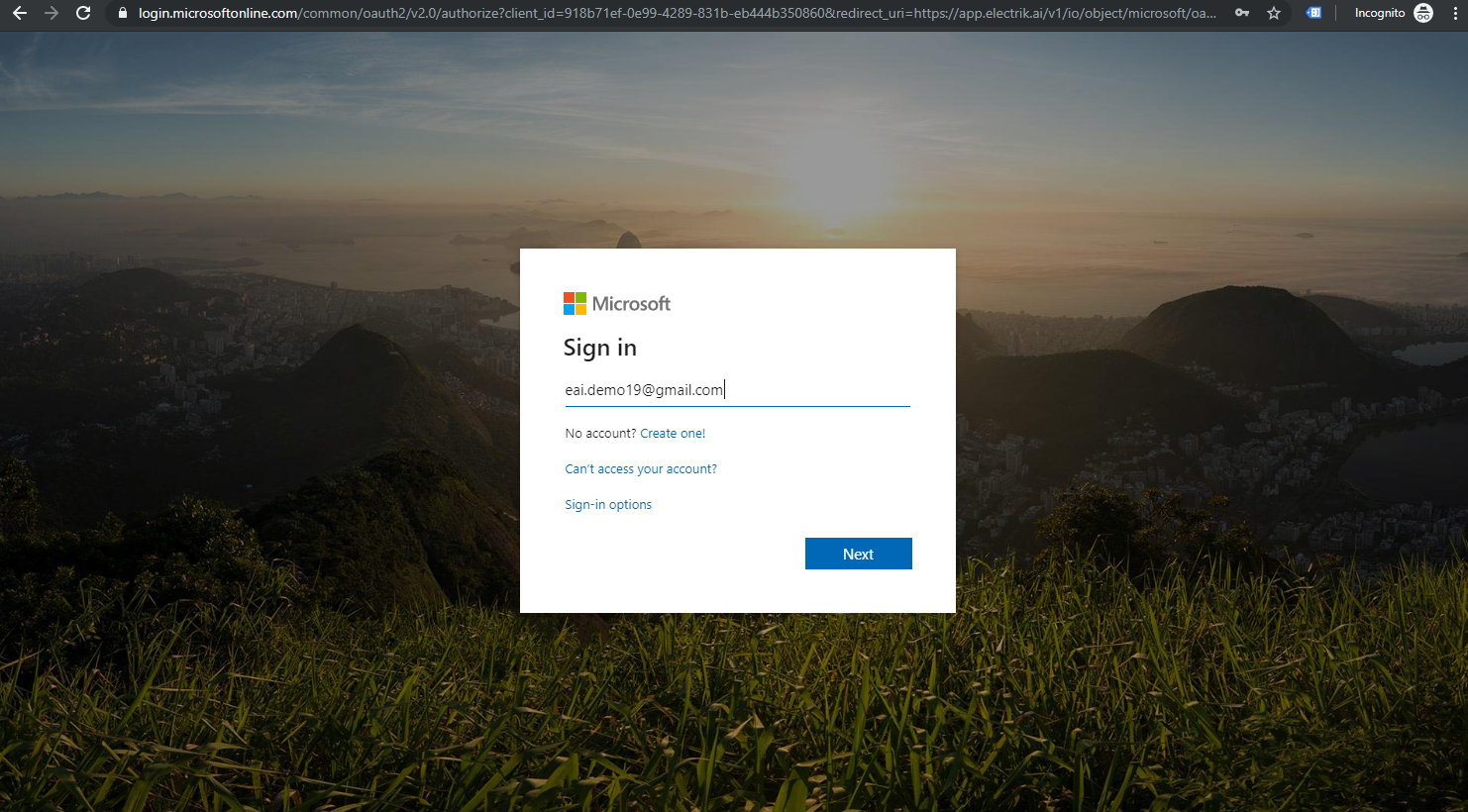
Step 7: Enter your OneDrive UserId and Password
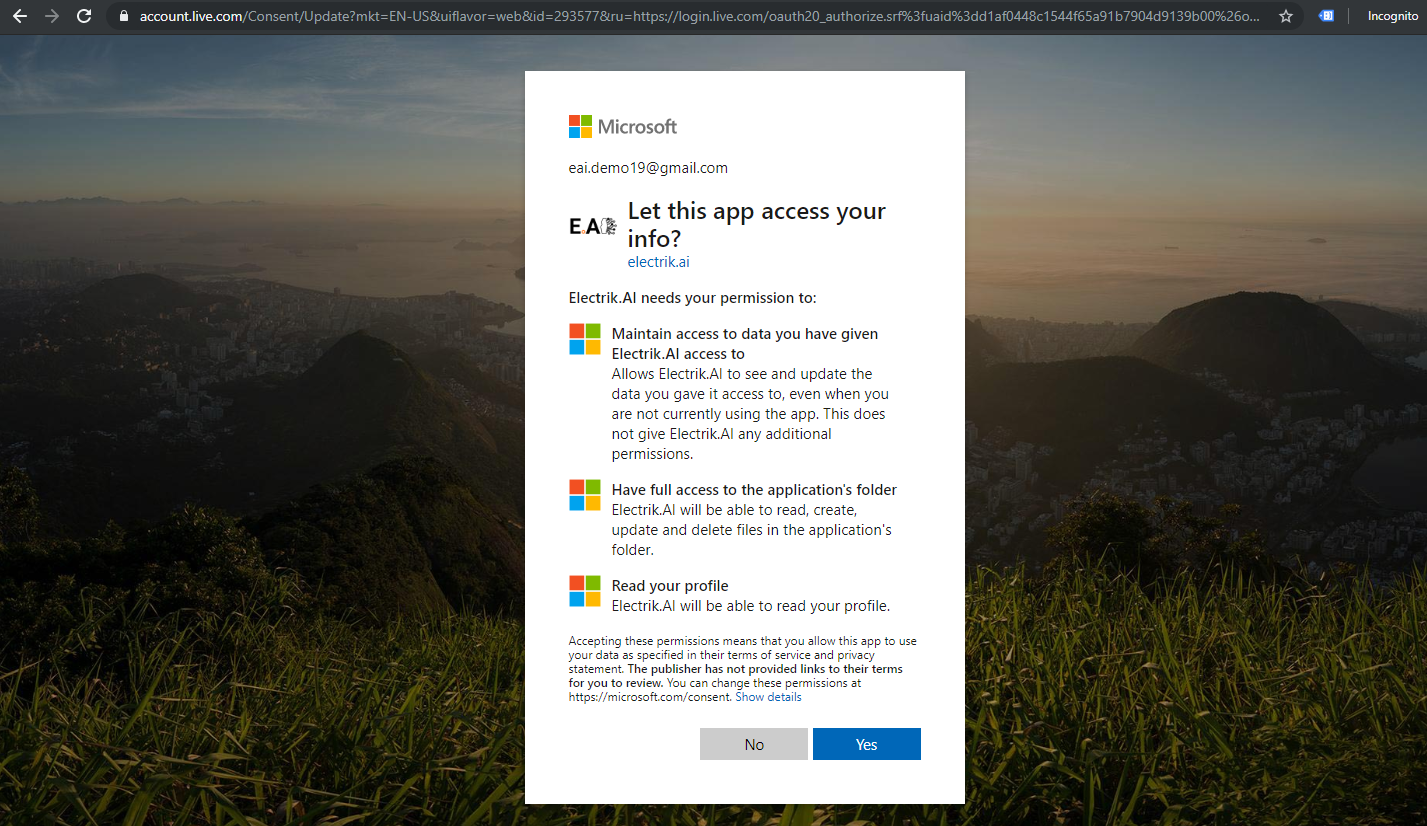
Step 8: Allow Electrik.AI to access your OneDrive Account.
Step 9: Click on Save button on the top.
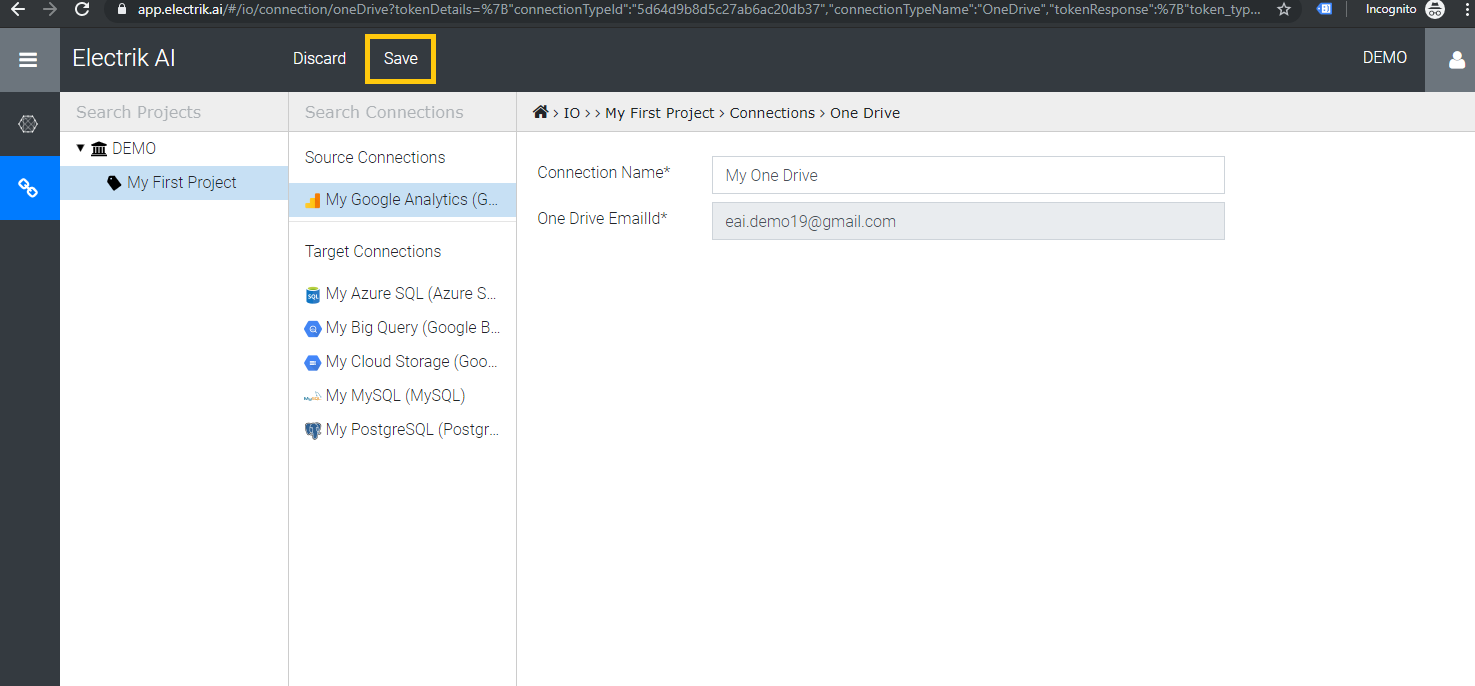
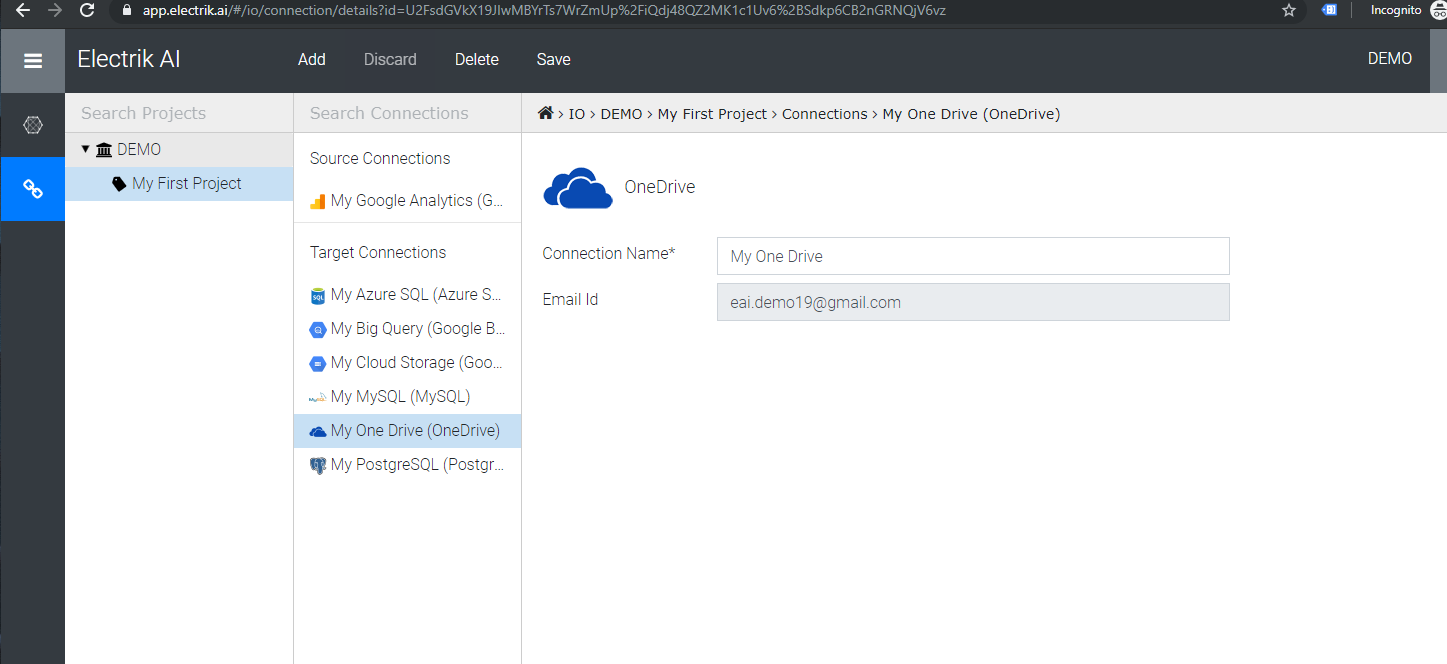
Step 10: Congratulations, you have successfully created a Microsoft OneDrive connection in Electrik.AI
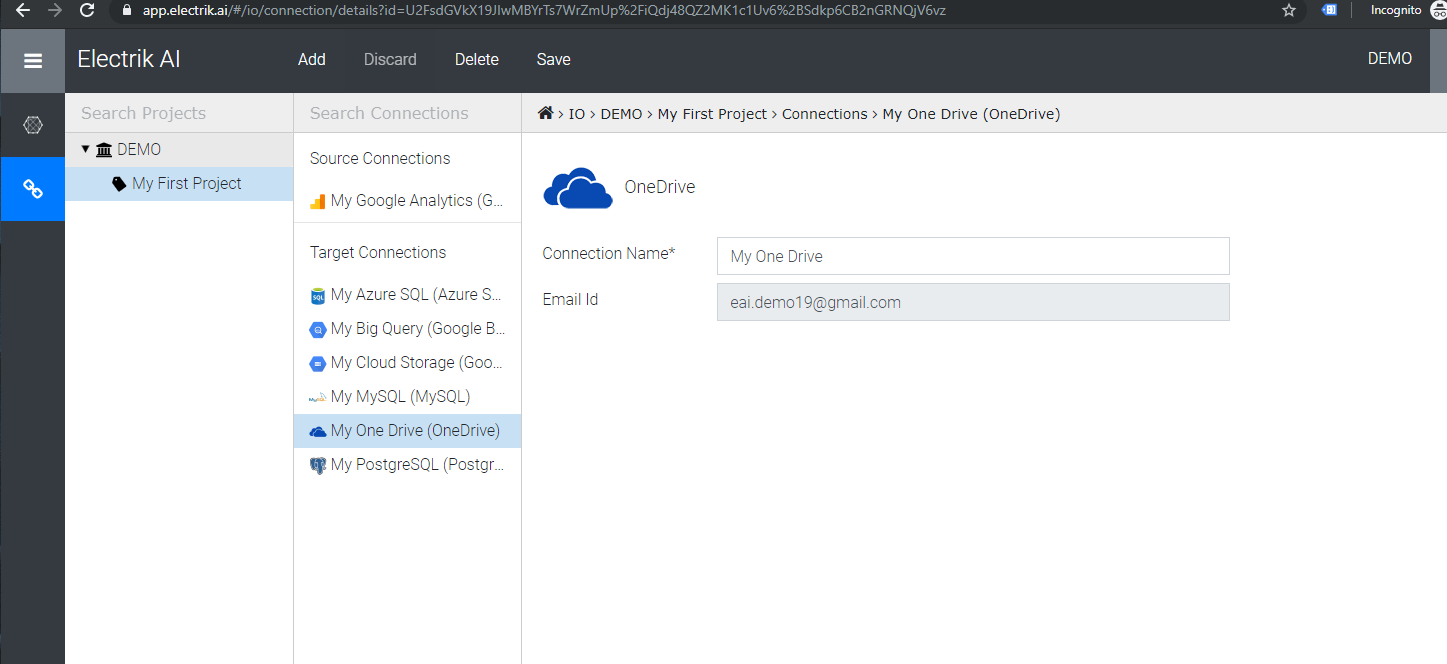
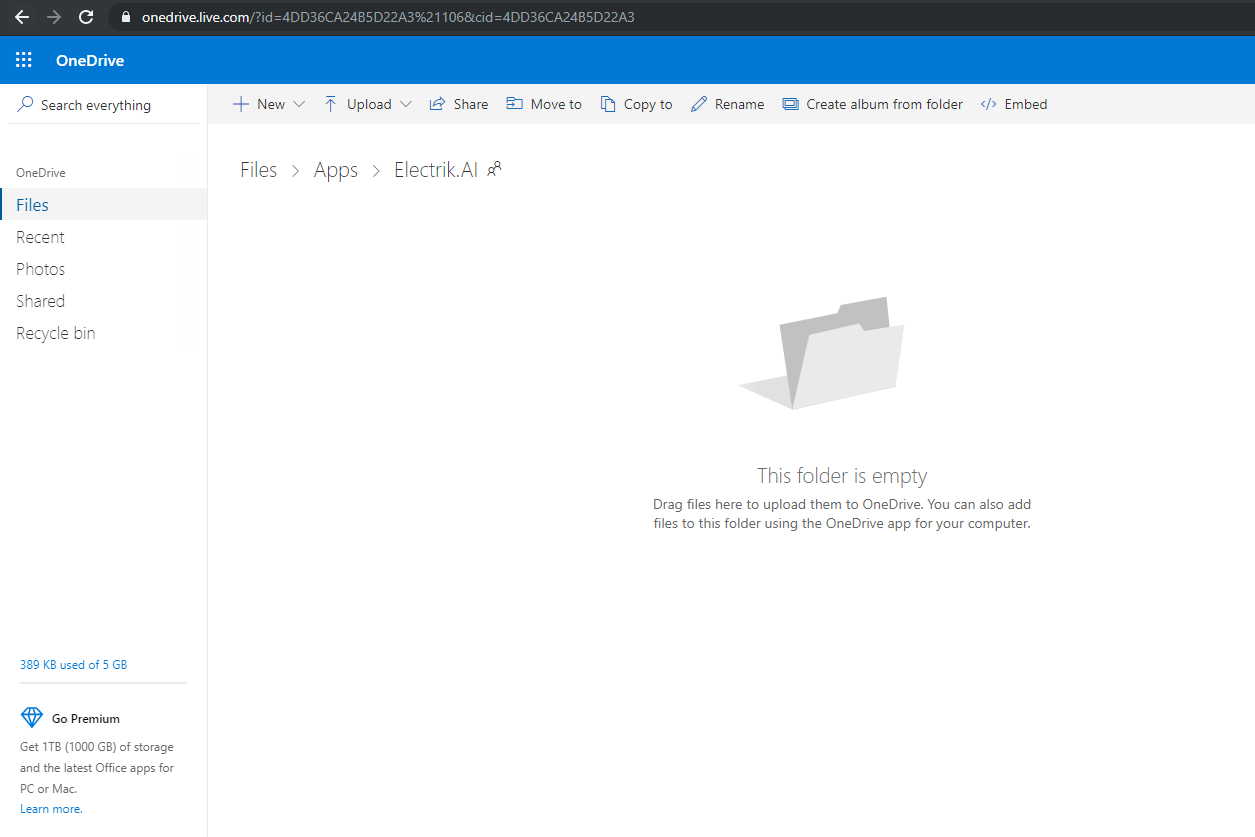
Note: You should now see a folder named Electrik.AI in your One Drive account as shown below.
Dropbox
Dropbox is a storage service that lets you save various files online and then access them from your smartphone, tablet, or computer. You can store documents, images, videos, and even back up your entire PC. The service provides 2 gigabytes (GB) of storage for free and up to 100 GB on various for-fee plans.
Don’t have a DropBox account? Get a free DropBox account here.
Create a Dropbox connection in Electrik.AI
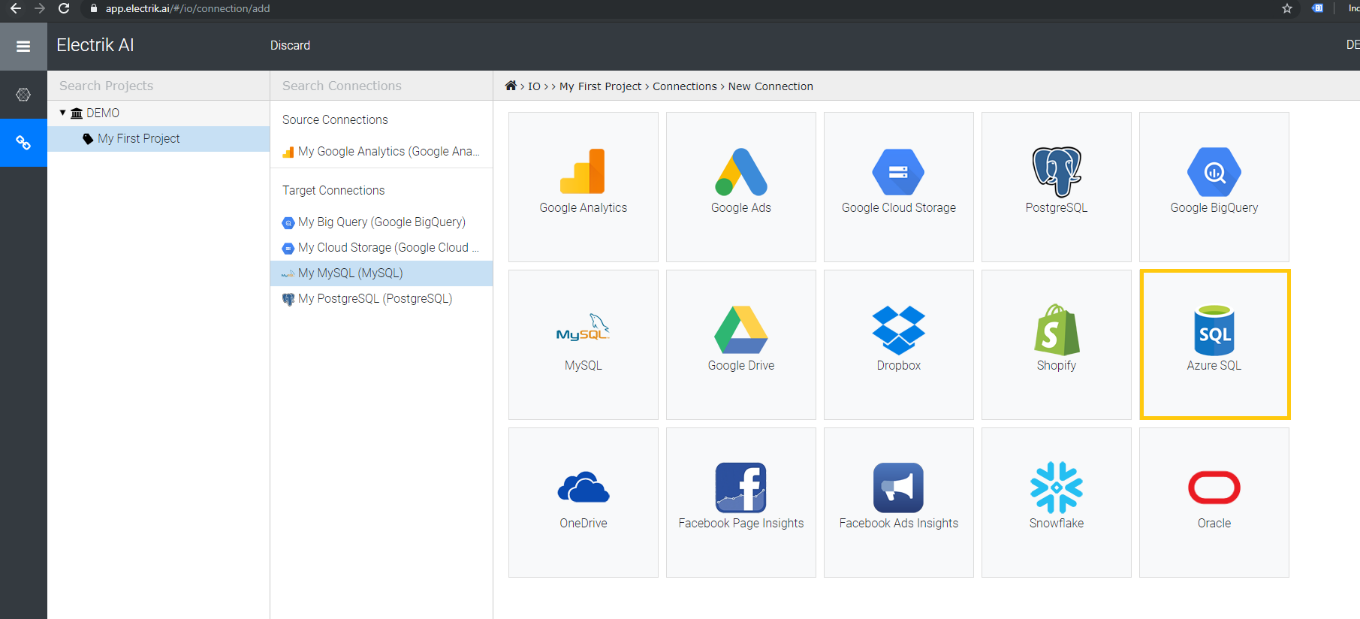
Step 5: Select the Connections Icon in the left most panel and Click on “Add” button the top.
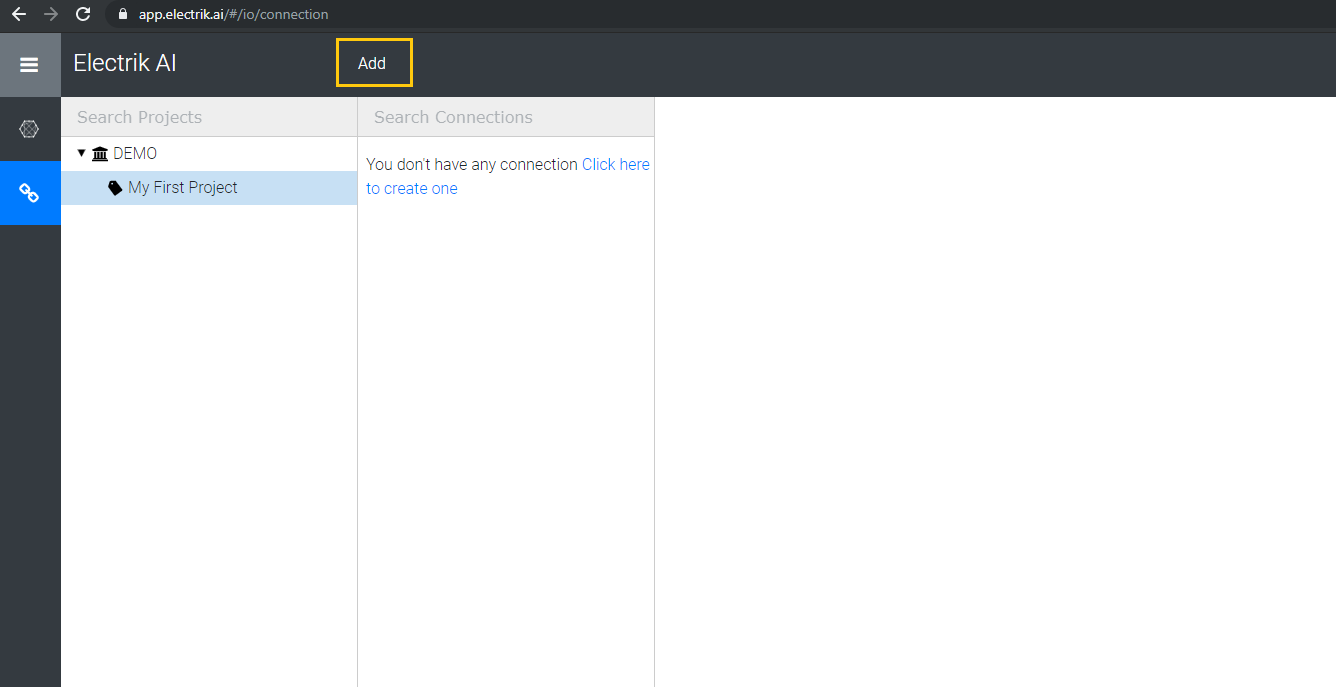
Step 6: Click on “Dropbox” icon to create a Dropbox connection.
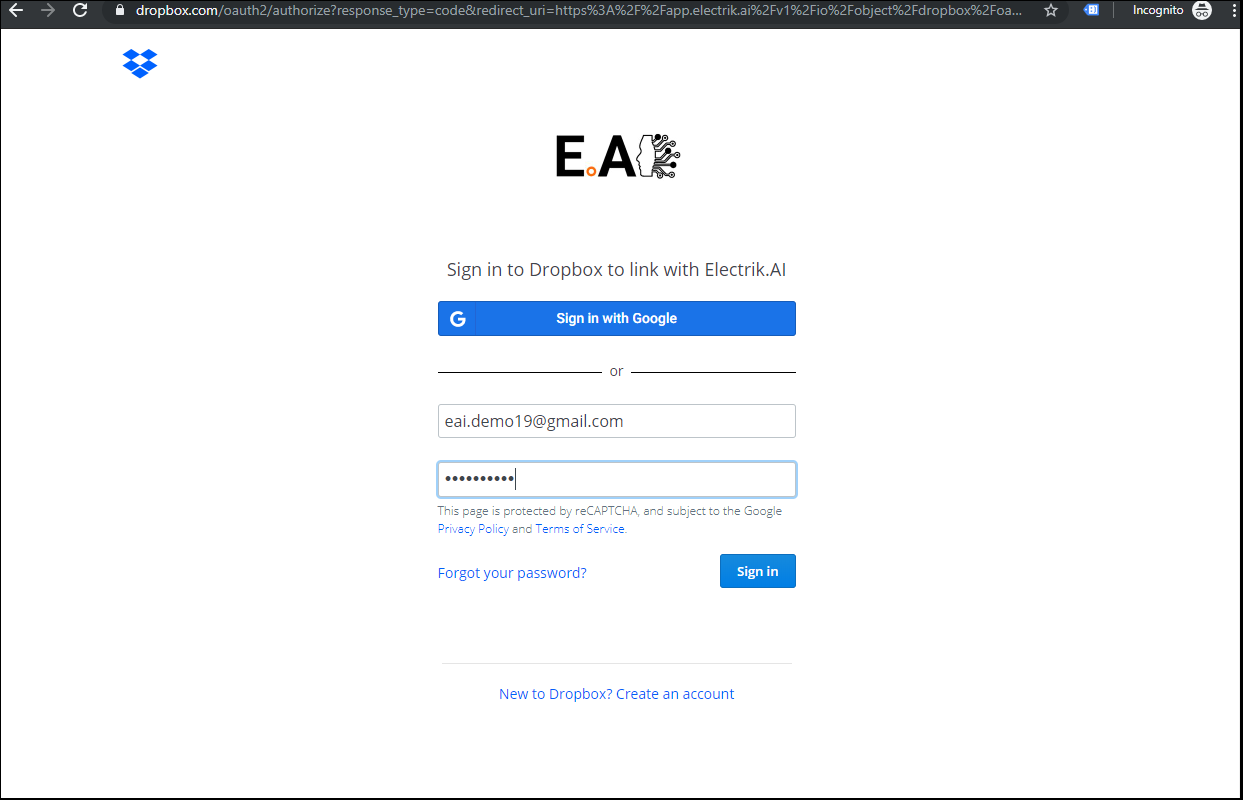
Step 7: Enter your Dropbox Email and Password
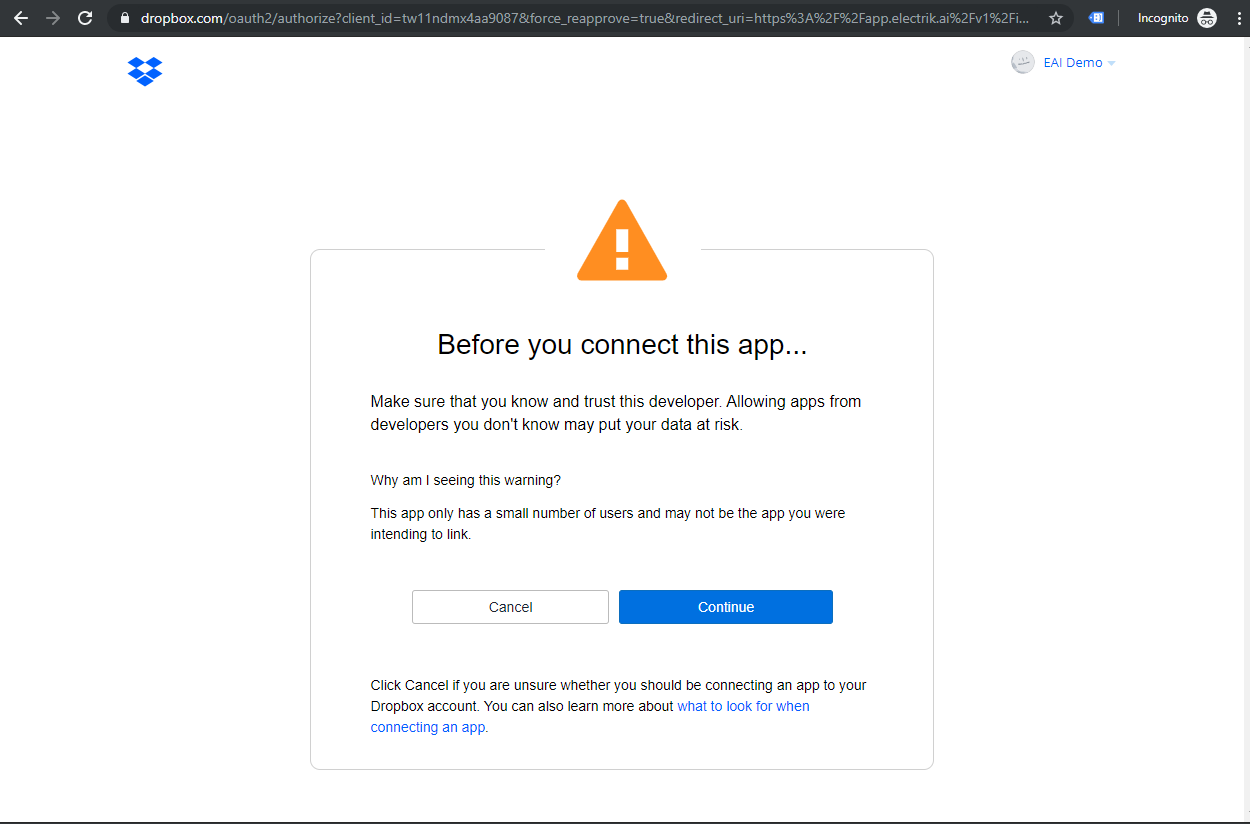
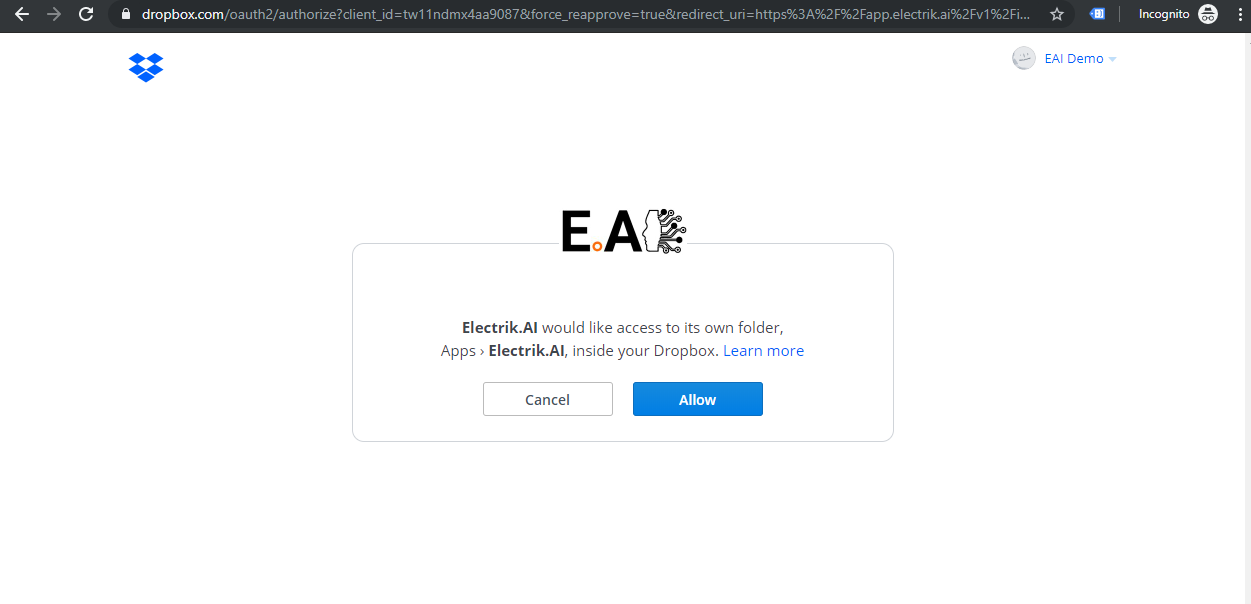
Step 8: Allow Electrik.AI to access your Dropbox Account.
Step 9: Click on Save button on the top.
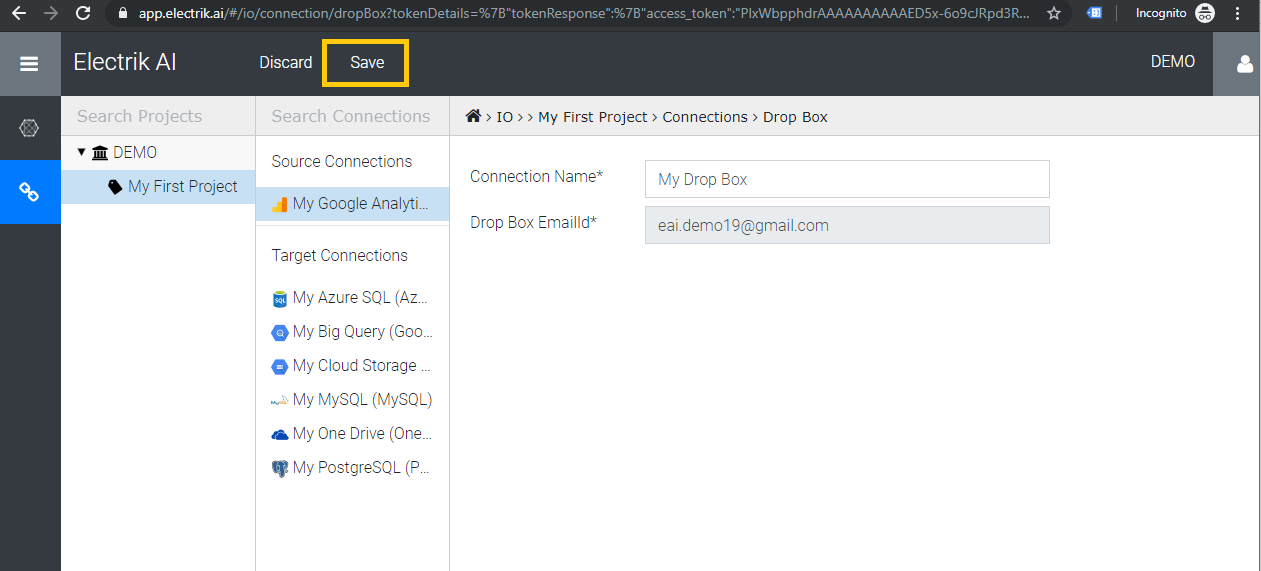
Step 10: Congratulations, you have successfully created a Dropbox connection in Electrik.AI
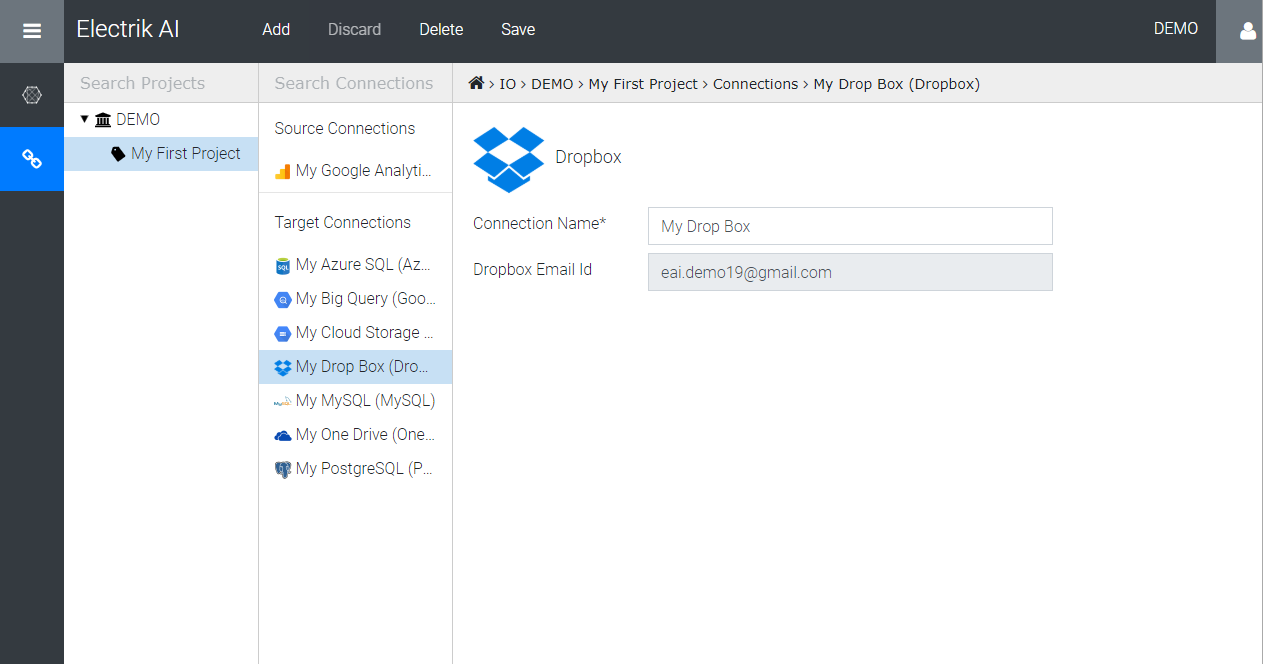
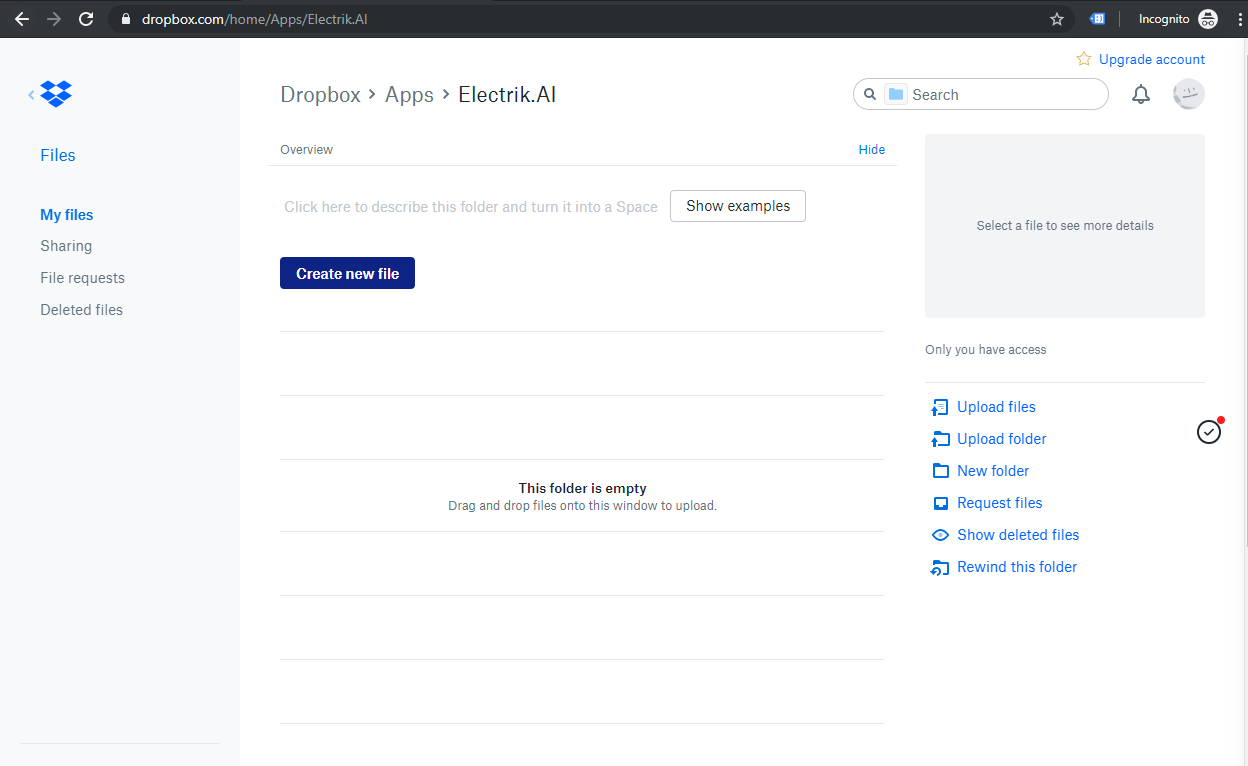
Note: You should now see a folder named Electrik.AI in your Dropbox account as shown below.
Amazon S3
Amazon Simple Storage Service (Amazon S3) facilitates storage and retrieval of any amount of data at any time, from anywhere on the web. It is accomplished with web interface of the AWS Management Console. Amazon S3 uses the same scalable storage infrastructure that Amazon.com uses to run its global e-commerce network.
Don’t have an Amazon S3 account? Refer this link.
Create an Amazon S3 connection in Electrik.AI
Step 5: Select the Connections tab in the left most panel and Click on “Add” button the top.
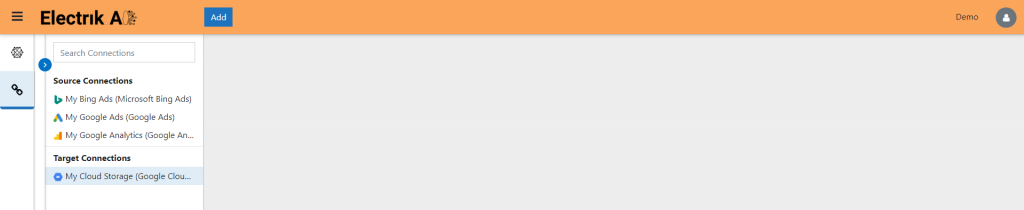
Step 6: Select Target tab and now click on “Amazon S3” icon to create a connection.
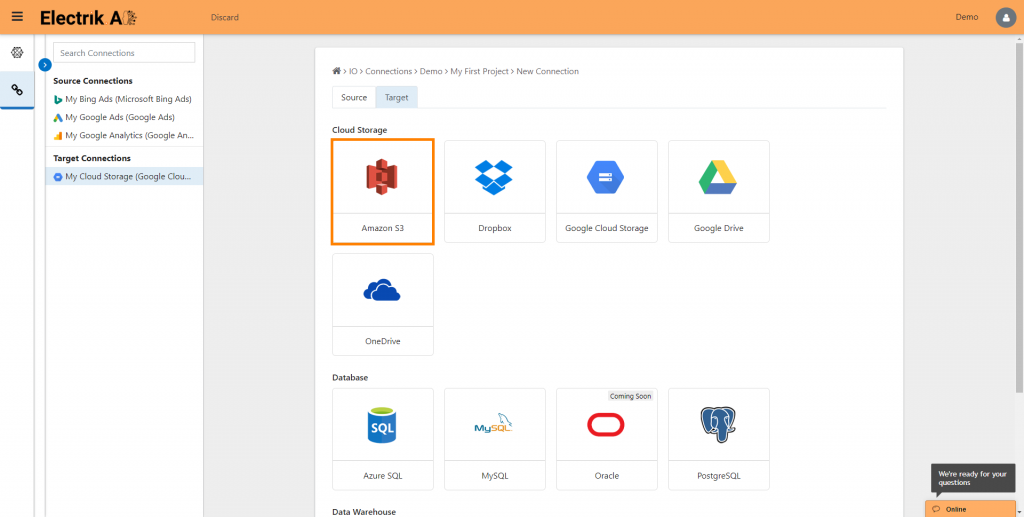
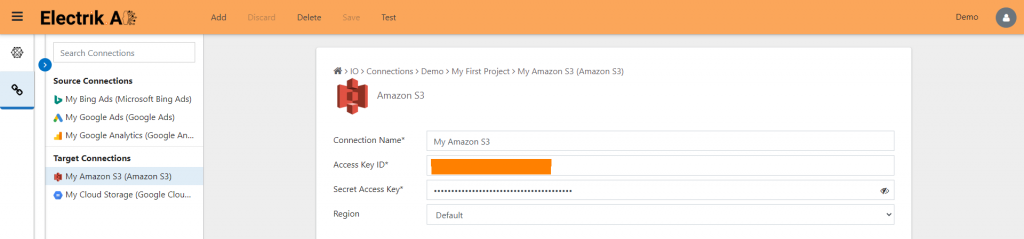
Step 7: Enter your Access key and Secret access key.

Step 8: Click on Save button on the top.

Step 9: Congratulations, you have successfully created Amazon S3 connection in Electrik.AI
Google Drive
Google Drive is a file storage and synchronization service developed by Google. It integrates seamlessly with Docs, Sheets, and Slides, cloud-native apps that enable your team to collaborate effectively in real time.
Do not have a Google Drive account? Refer this link.
Drop us a message, If you want to use Google Drive as a Destination in Electrik.AI
Azure Data Lake Storage Gen2
Azure Data Lake Storage Gen2 is a highly scalable and cost-effective data lake solution for big data analytics. It combines the power of a high-performance file system with massive scale and economy to help you speed your time to insight. Azure Data Lake enables you to capture data of any size, type, and ingestion speed in one single place for operational and exploratory analytics.
Drop us a message if you want to use Azure Data Lake as a Destination in Electrik.AI
Azure Blob Storage
Azure Blob storage is Microsoft’s object storage solution for the cloud. Blob storage is optimized for storing massive amounts of unstructured data. Unstructured data is data that does not adhere to a data model or definition, such as text or binary data.
Drop us a message if you want to use Azure Data Lake as a Destination in Electrik.AI