

Sign into Azure Portal and follow the below steps for registering an app in Azure portal and generating the Application access key and providing the access permission on the registered app
Register an App
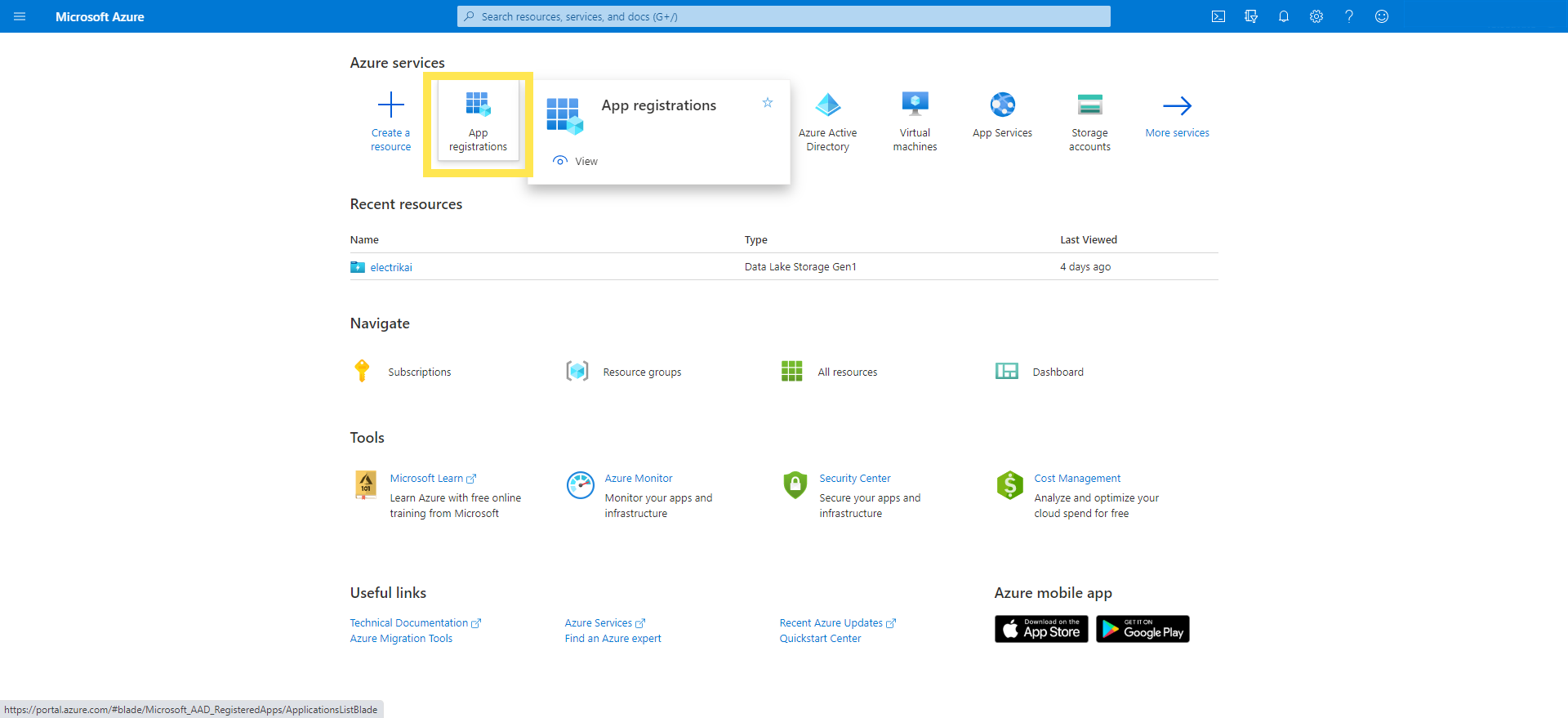
1. Click on App registration to view existing app or to register a new app
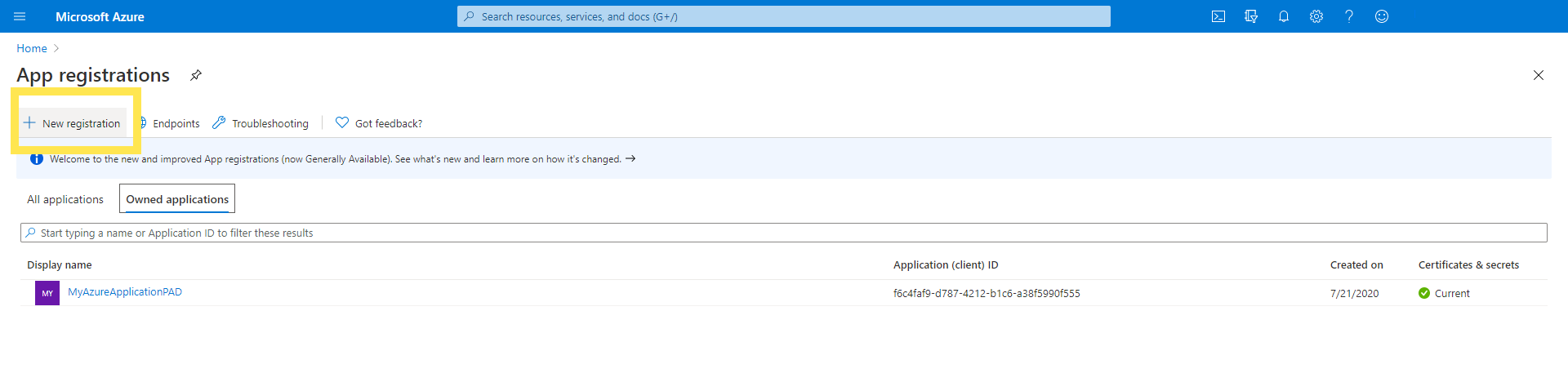
2. Click on New registration to register a new app
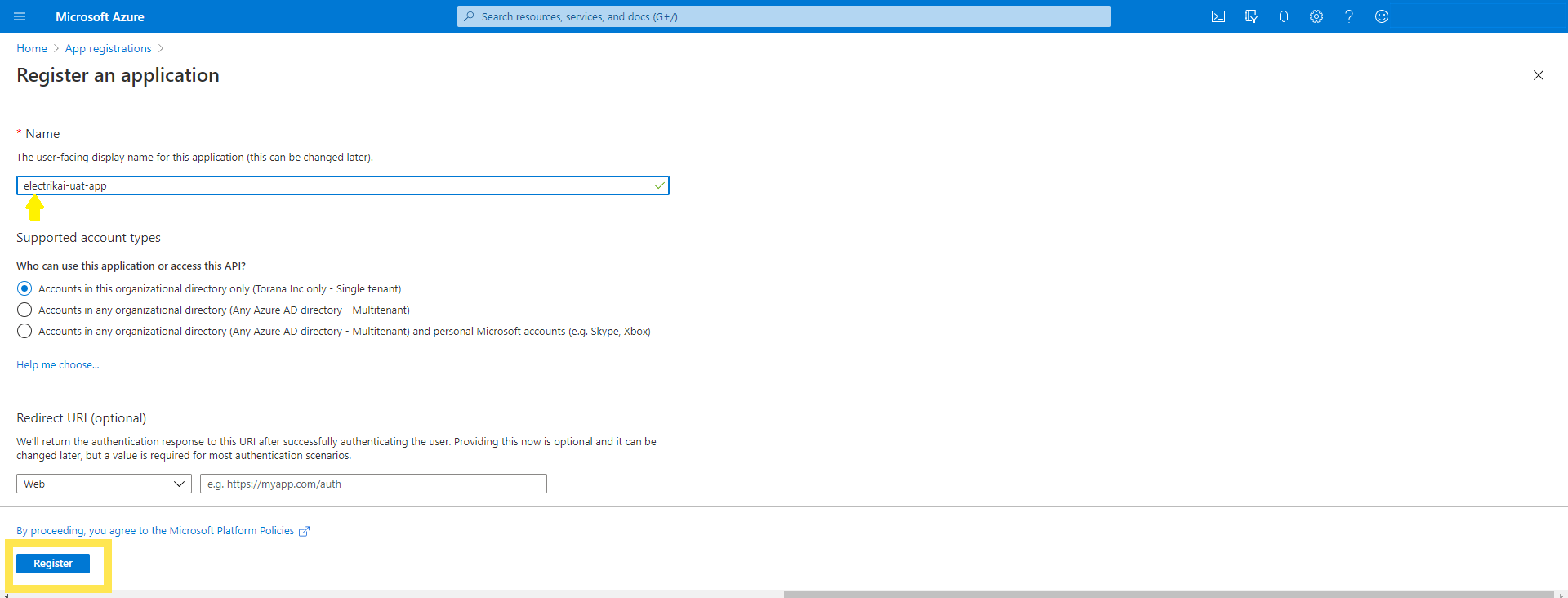
3. Provide the name of your choice to new app and click on Register
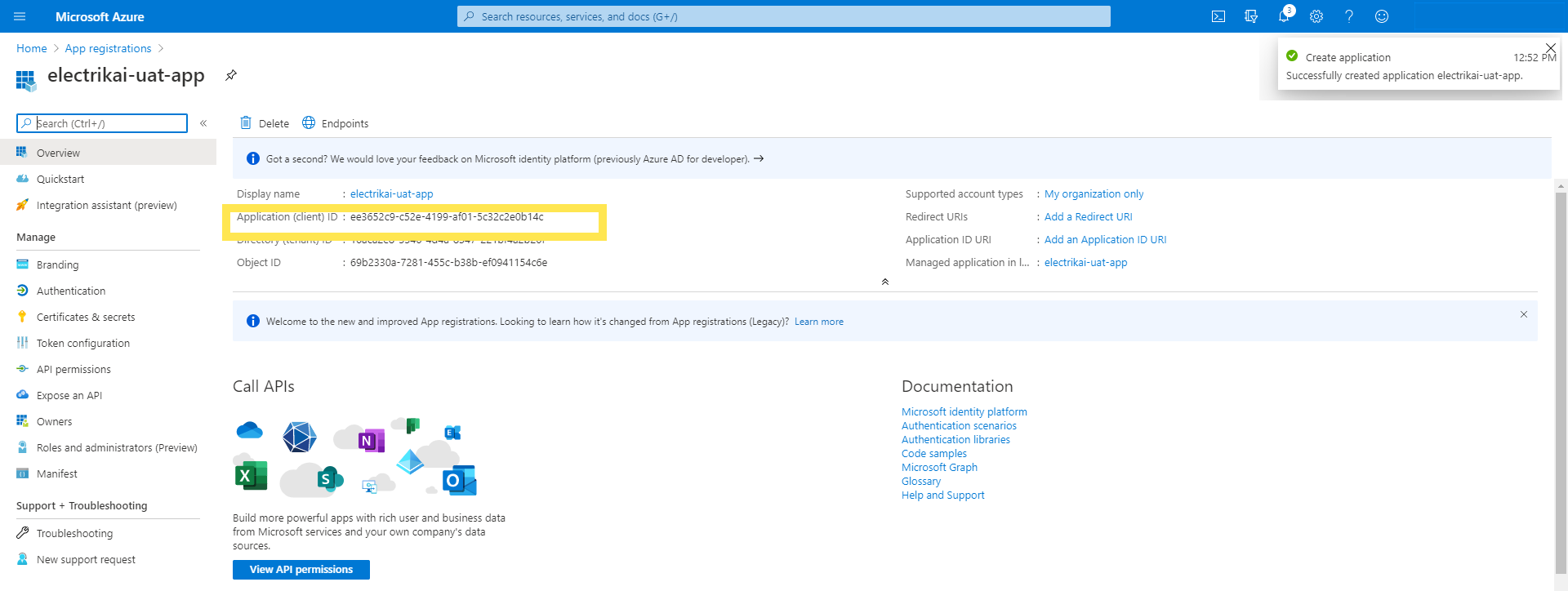
4. The new app got created with a Display name provided at the time of creation.
a. Copy the Application ID
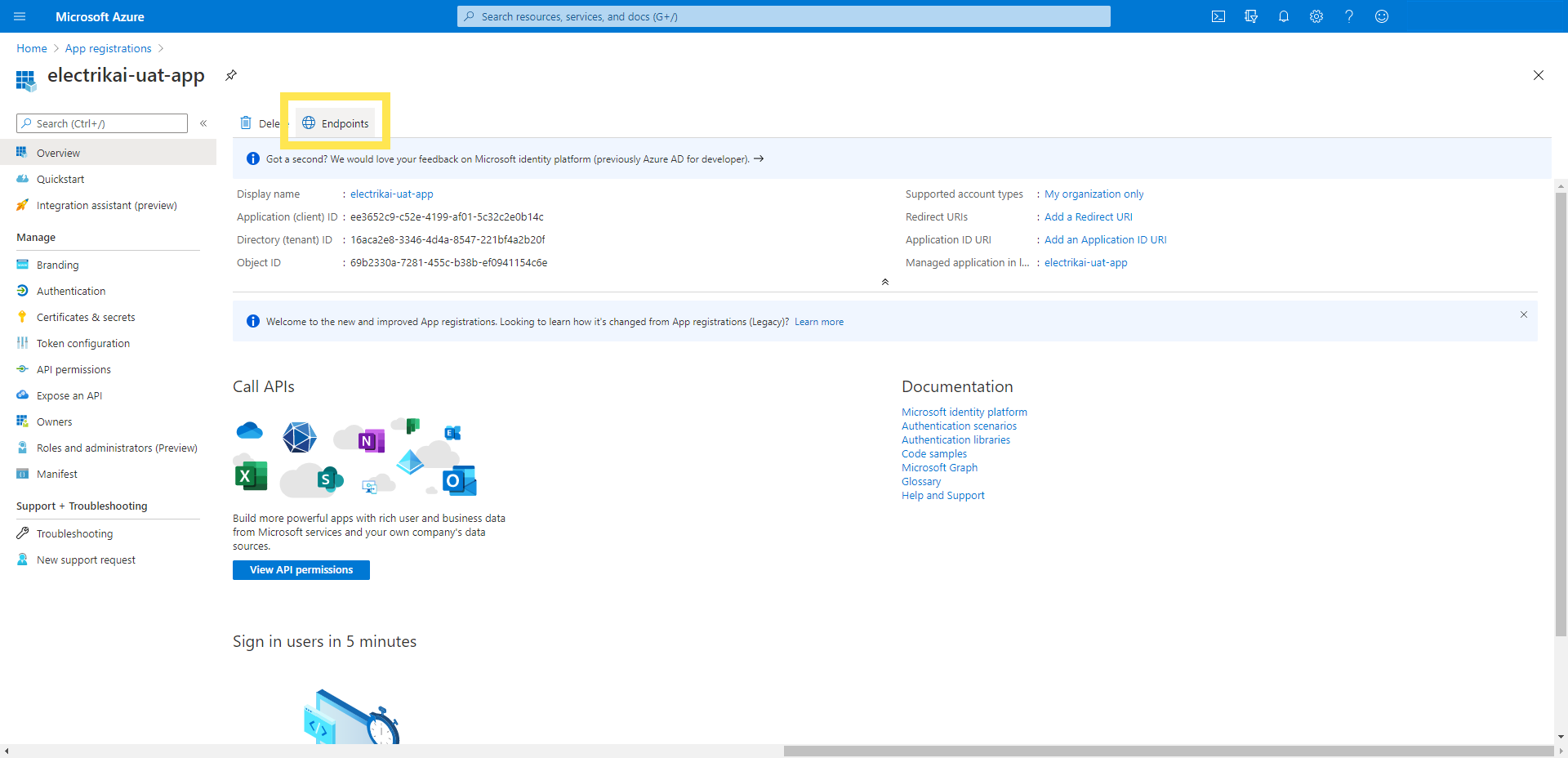
b. Click on Endpoint to copy Token Endpoint
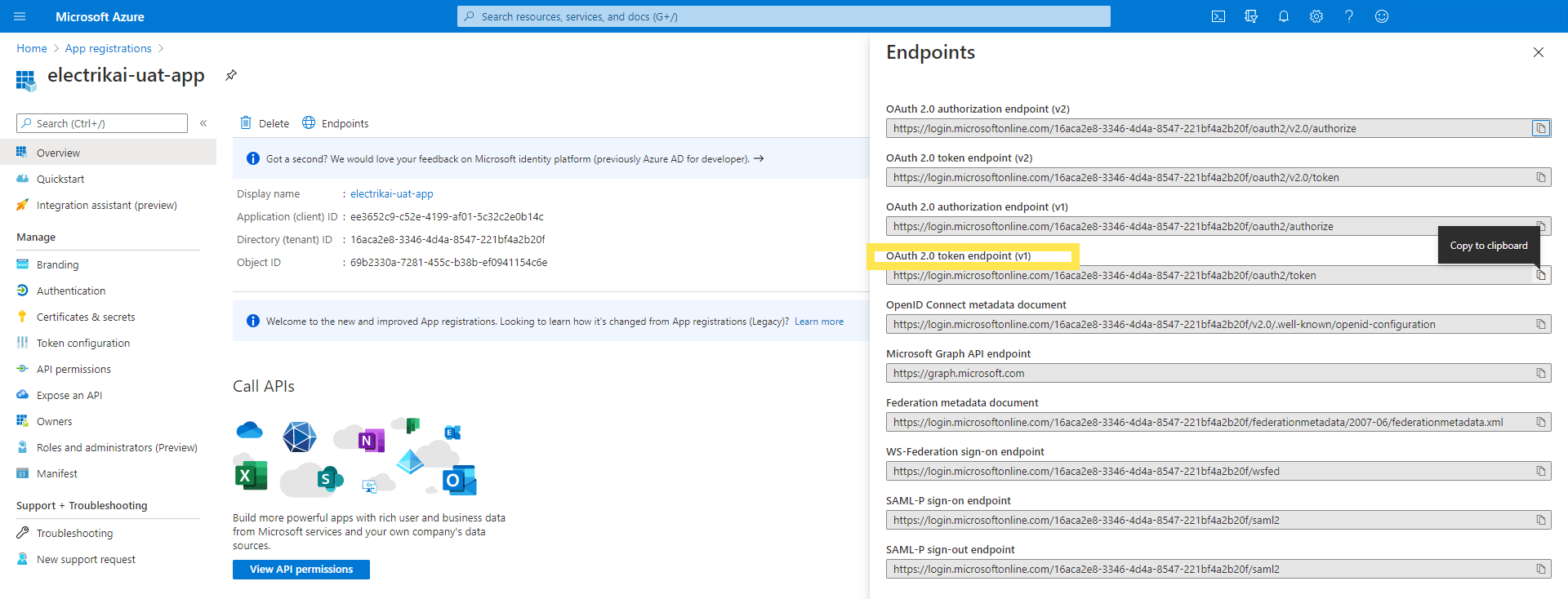
c. Copy the OAuth 2.0 token endpoint v1
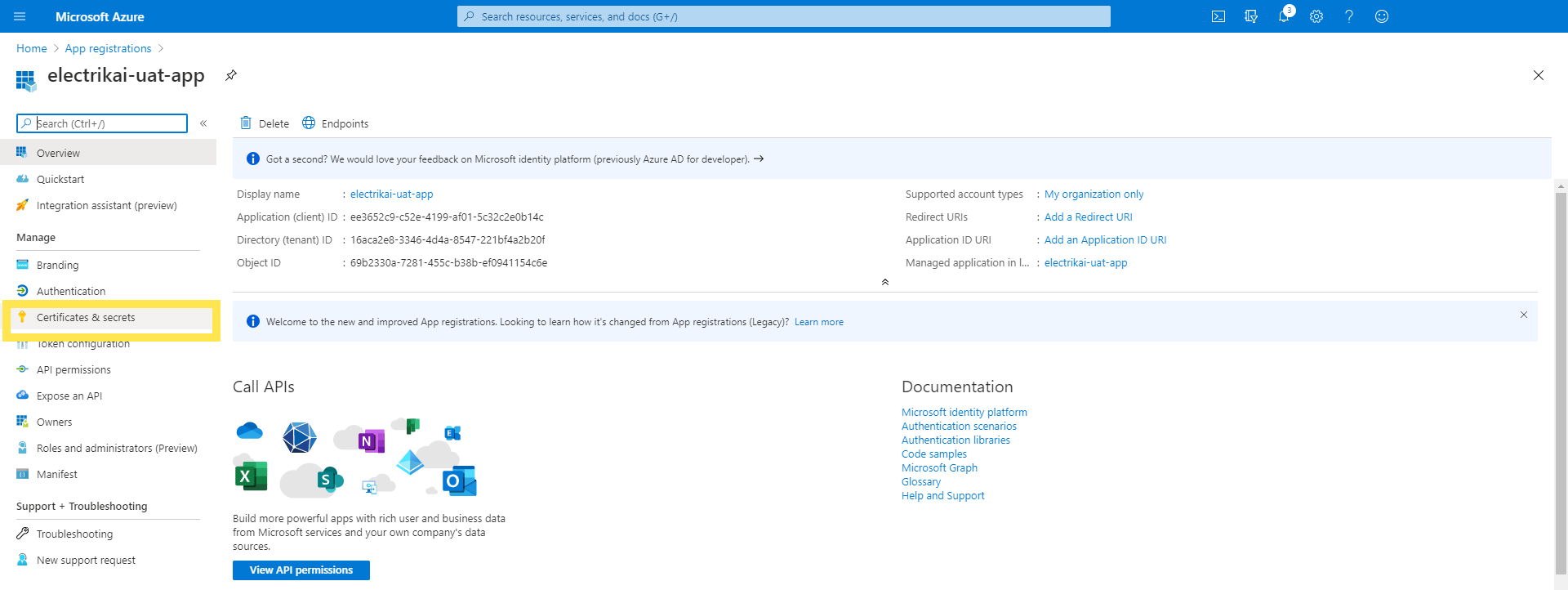
5. Click on Certificates & secrets to generate the application access key.
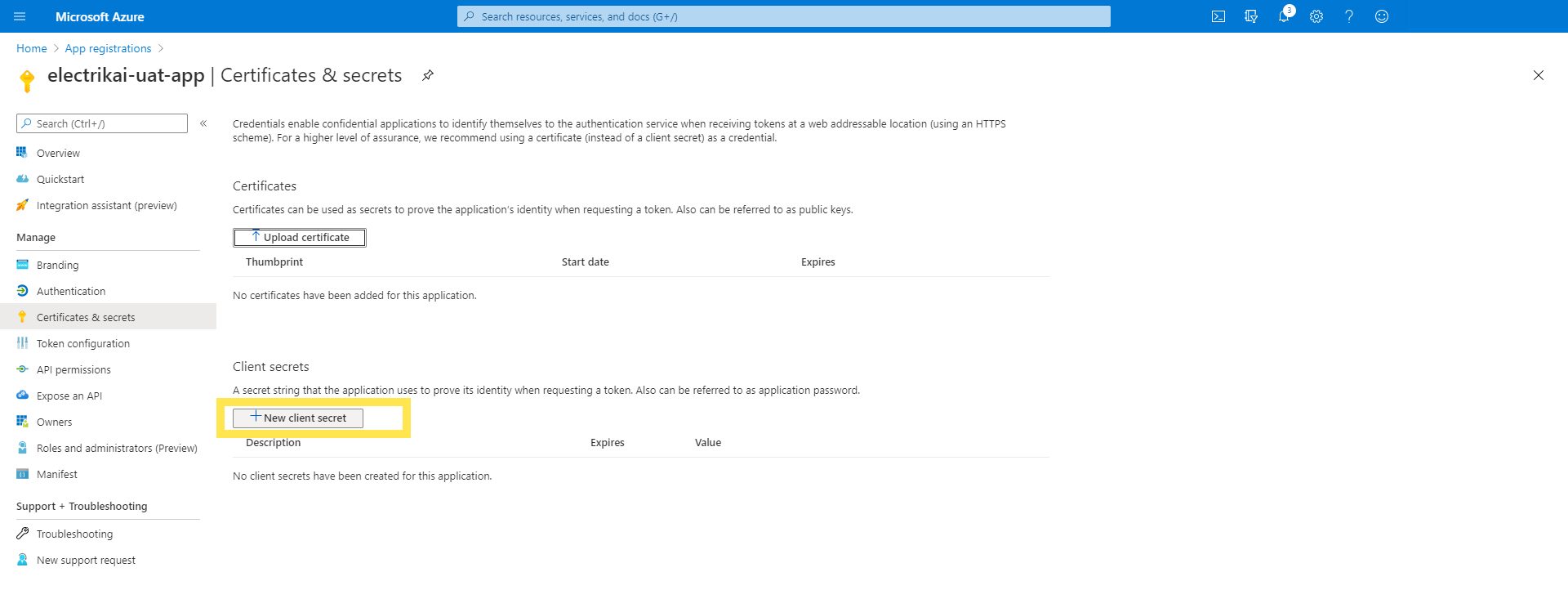
6. Click on New client secret
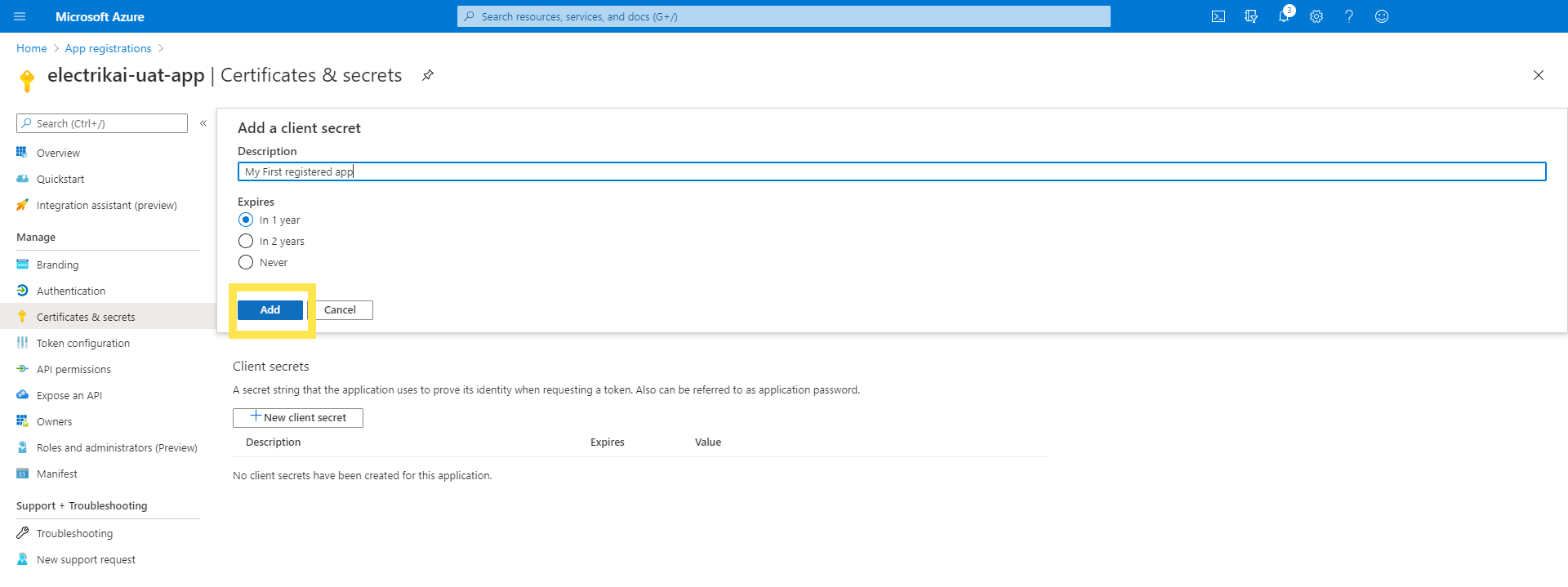
7. Provide a description if you wish to, choose the expires option and click on Add
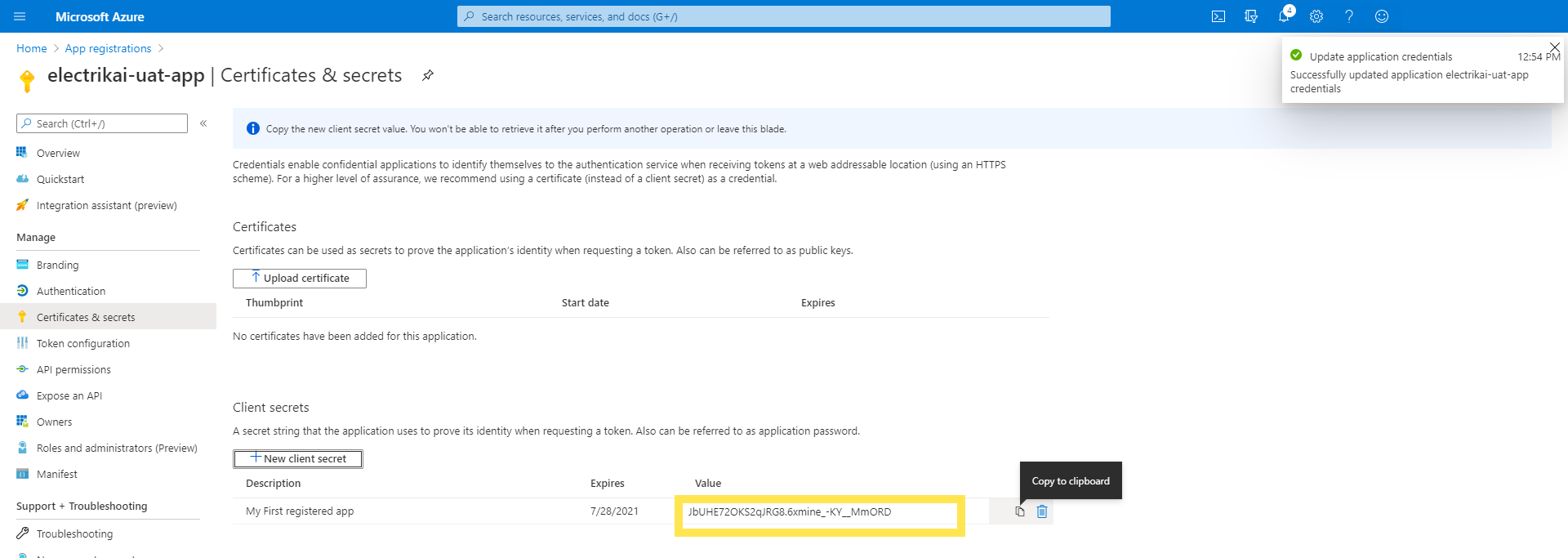
8. Application access key is generated copy it to use it in your connection
Provide access to the Registered App
Make sure to provide the access to your registered app on the Data Lake without this connection will fail to connect
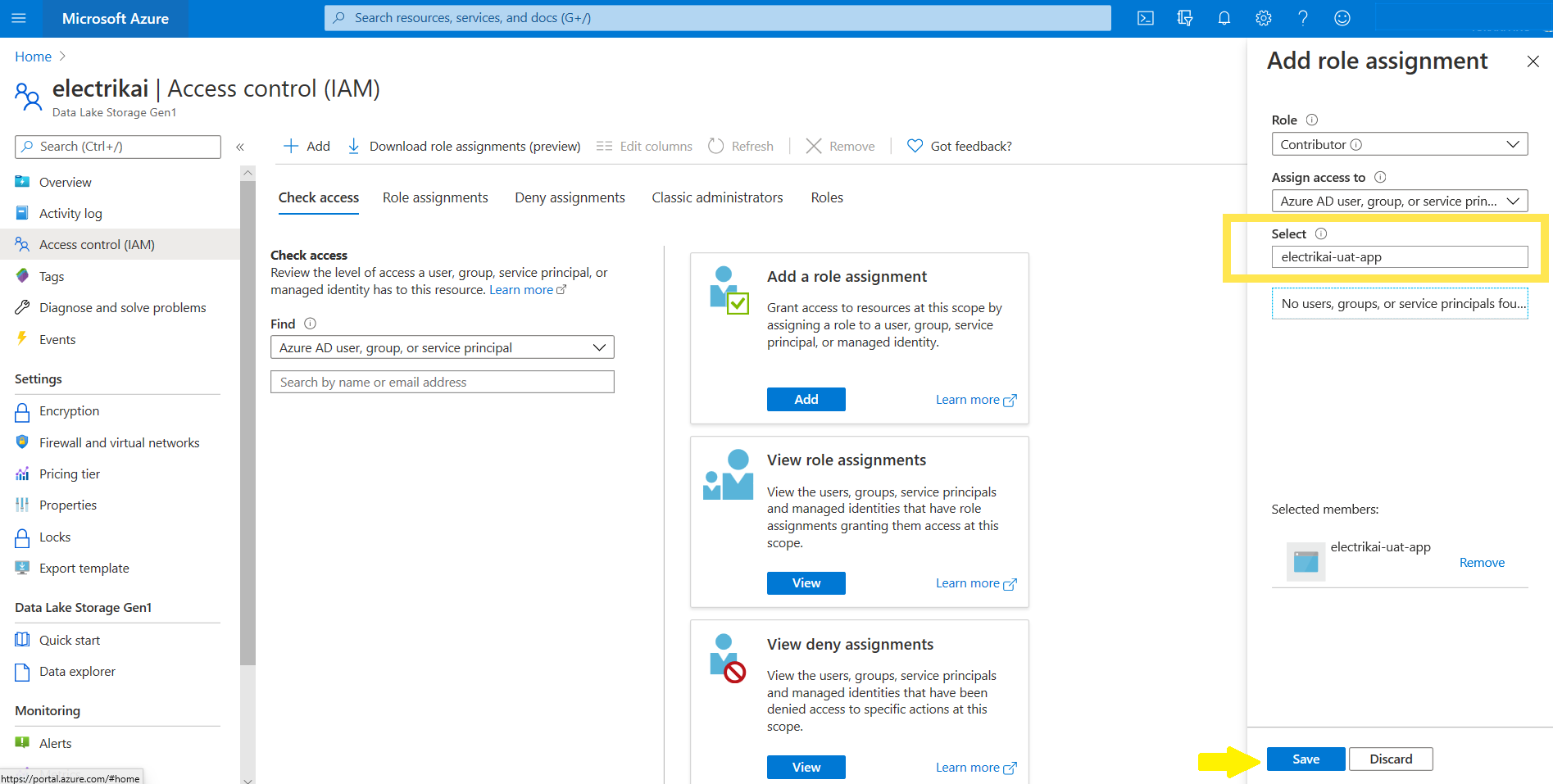
1. Adding Role Assignment.
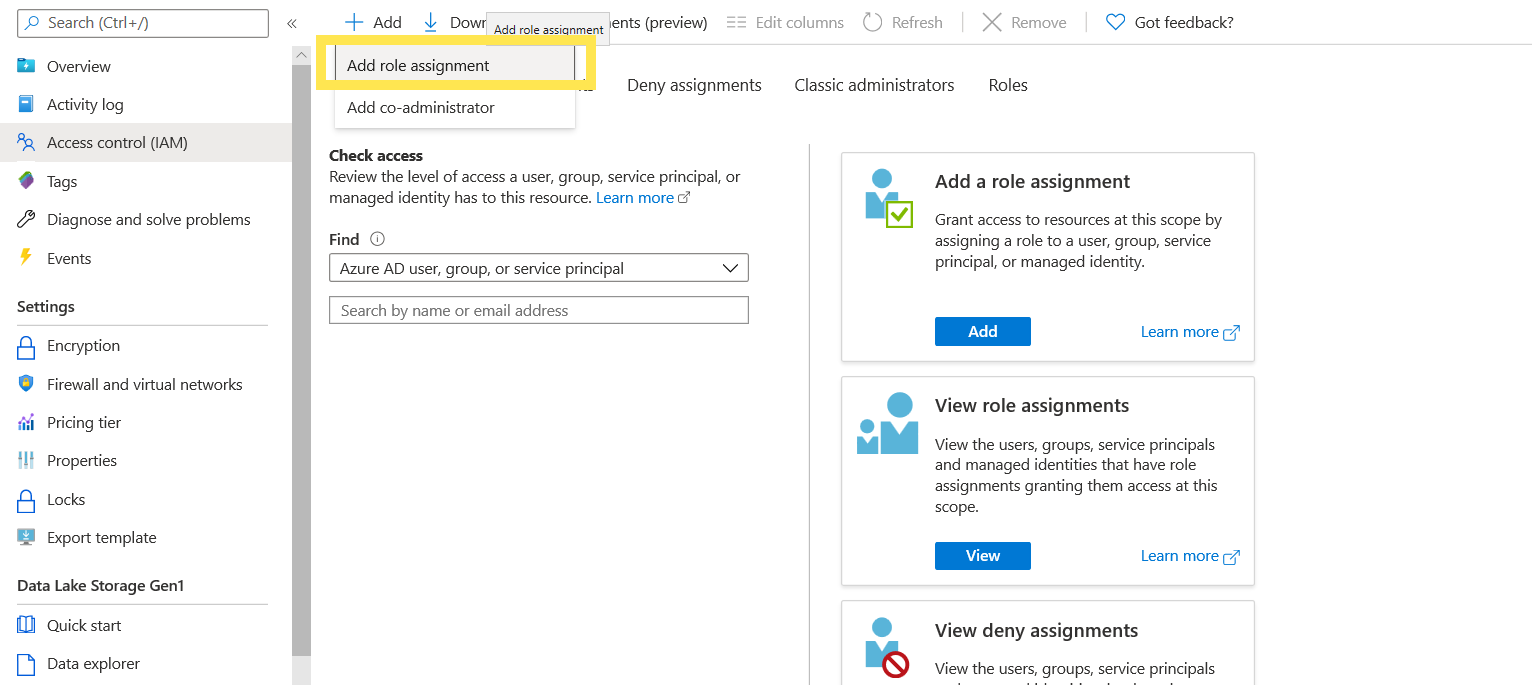
a. Goto Access control and click on Add and choose Add role assignments.
b. Select the Role and member and click on save
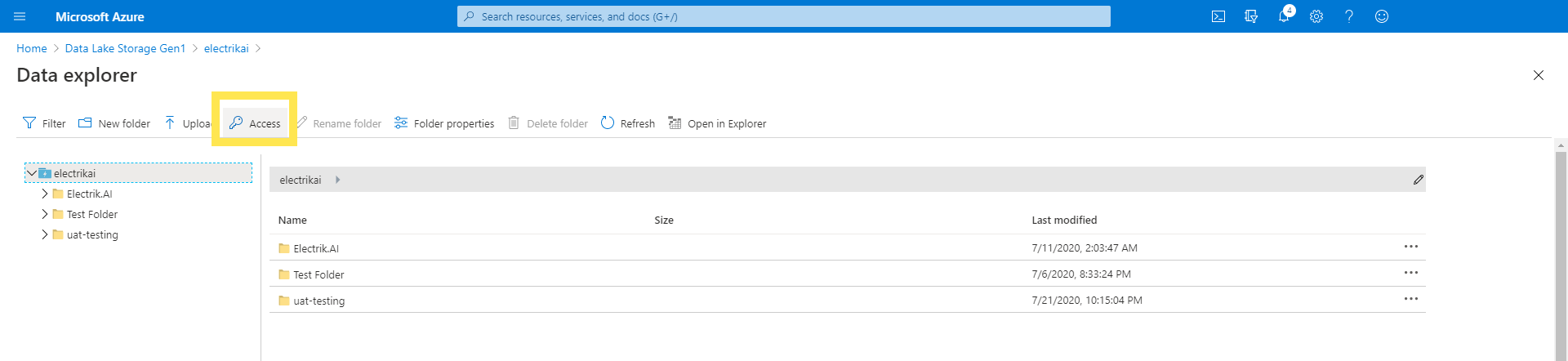
2. Adding Permissions
a. Click on Access
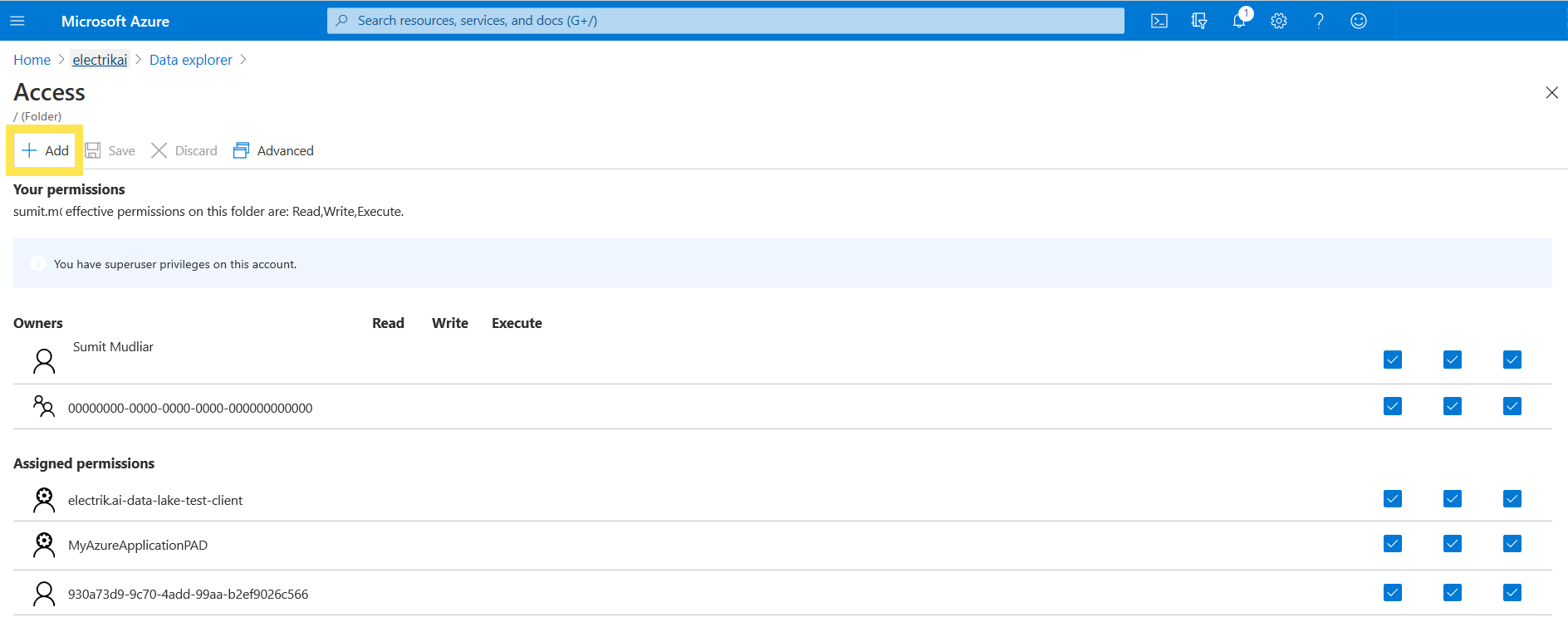
b. Click on Add
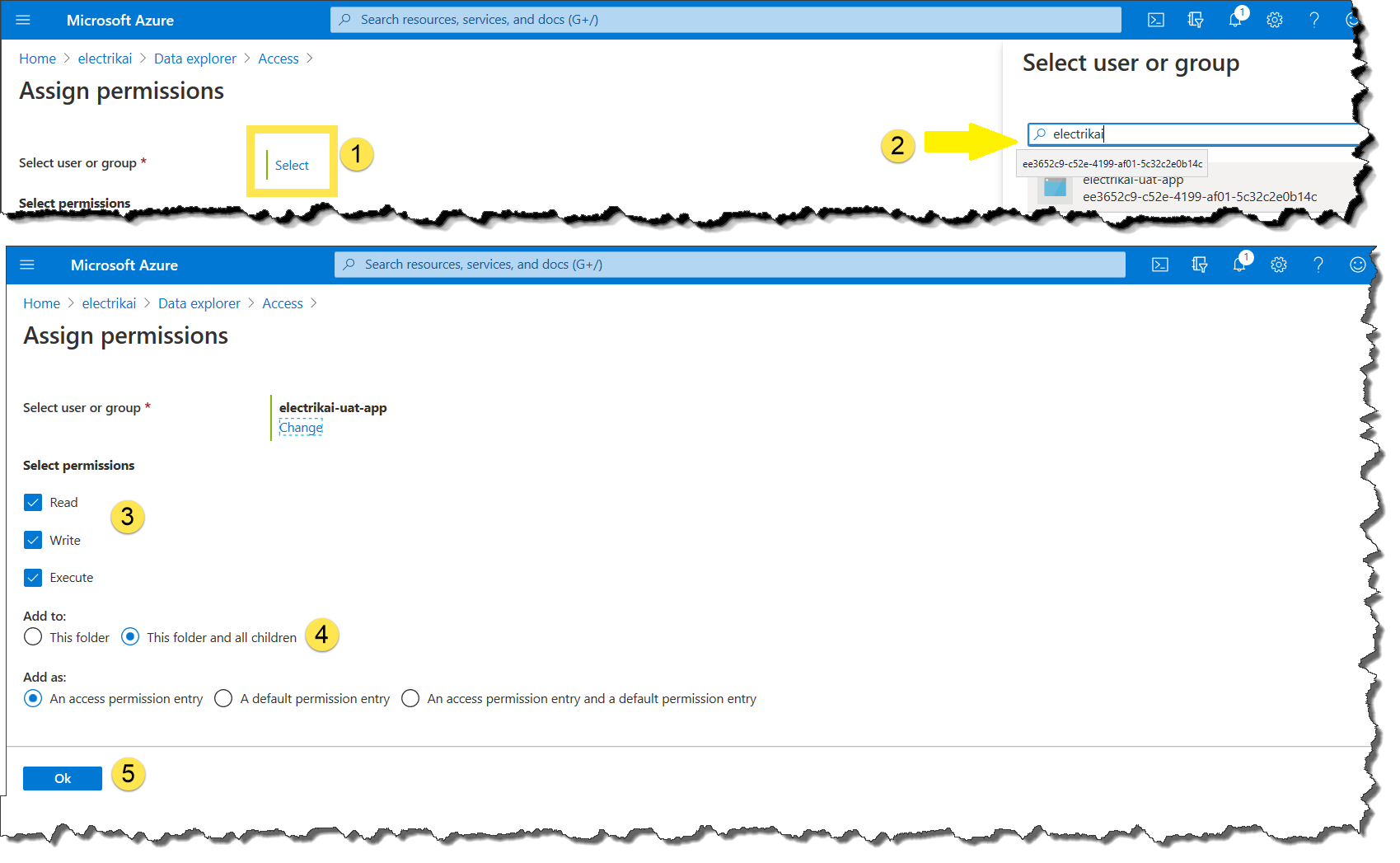
c. Select the resource, provide the permissions, and click on ok
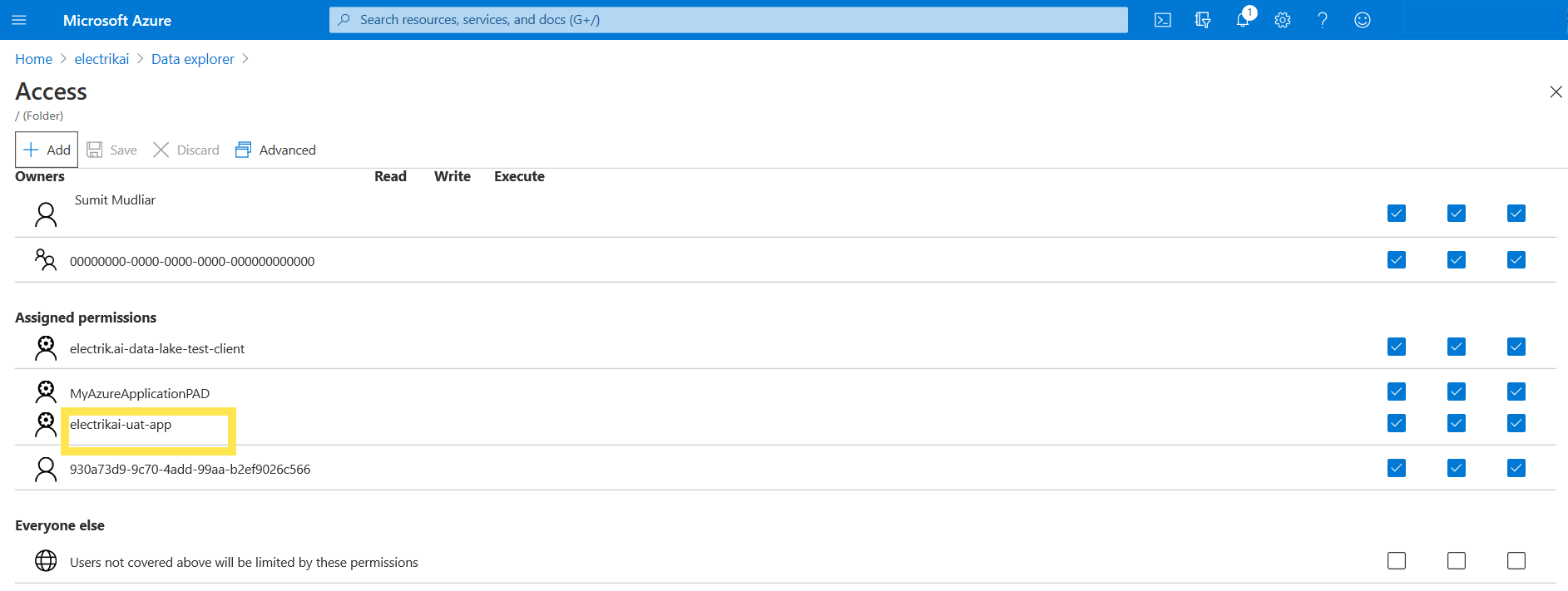
d. The newly added app, with the associated permissions, are listed in the access blade