
Instagram, being the social network platform that allows users to edit and upload photos and short videos through a mobile app, it allows extracting the publicly available data from Instagram. Extracting from the public account only and never from the private account. To improve your Instagram performance and learn from your competing influencers, Instagram Public Data connector will help you to know about the popular Instagram account, foresee the trends, and track brand awareness. It lets you access all the important metrics viz follower count, follows count, media count, like count etc. Also, to know or study the top and recent hashtag posts, you can search and extract the performance metrics for hashtags of your choice.
Instagram Public Data Export
What is an Instagram Public Data Connector?
How to add an Instagram Public Data Source in Electrik.AI?
Follow these steps to connect your Instagram account to Electrik.AI
Step 1: Ensure you have the following prerequisites to create a Instagram Public Data Connection in Electrik.AI
- Instagram Account User Id & Password.
- Facebook Account User Id & Password.
- Access to Facebook Page.
- Facebook Page must be linked to Instagram Business Account.
Step 2: Sign-in into your Electrik.AI account.
Step 3: Select IO in Electrik.AI dashboard.

Step 4: Select the Connections Icon in the left most panel and click on “Add” button the top.

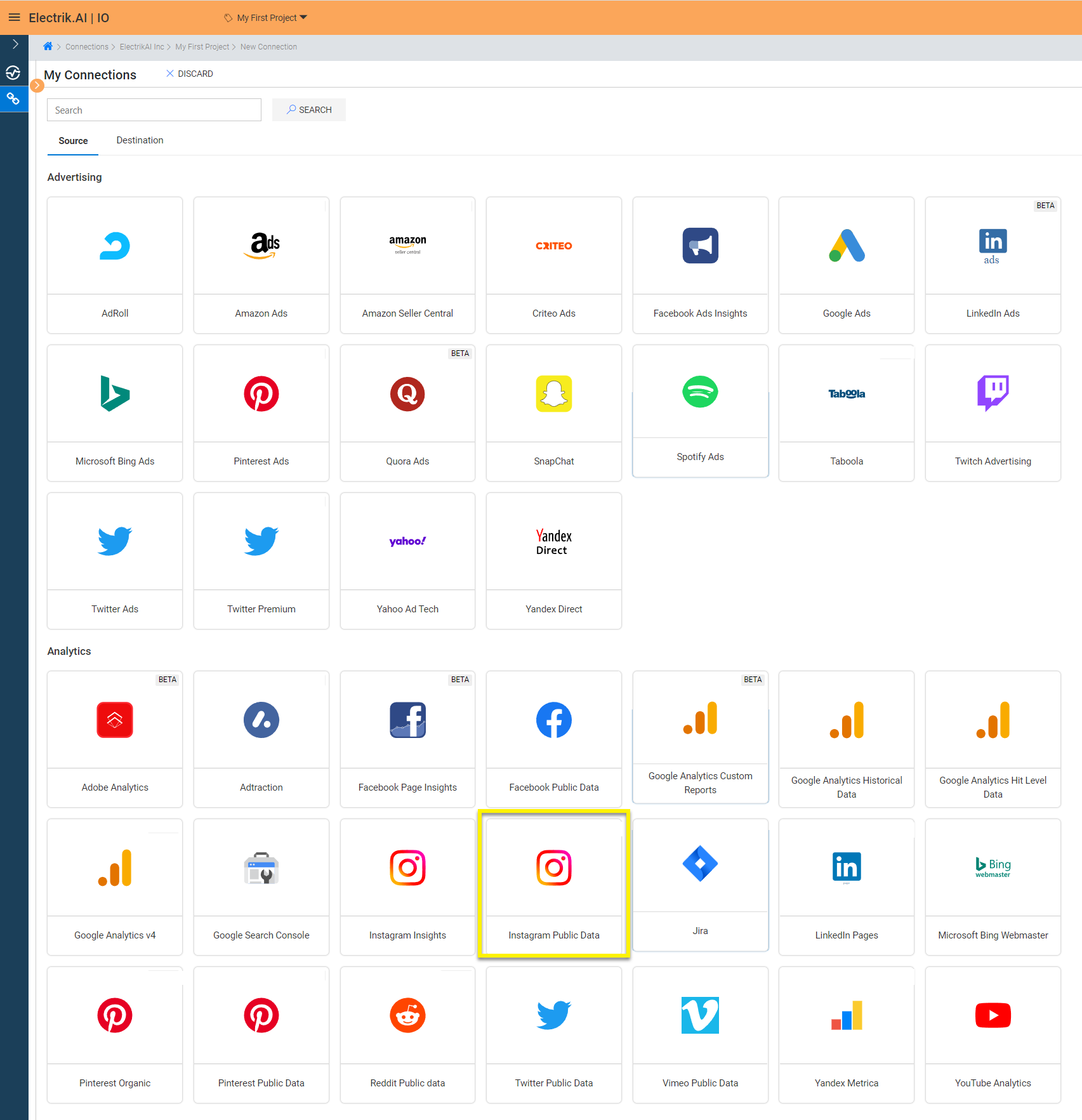
Step 5: The Source default tab is selected just click on “Instagram Public Data” connection.
Step 6: Enter your Instagram an account User Id and Password.
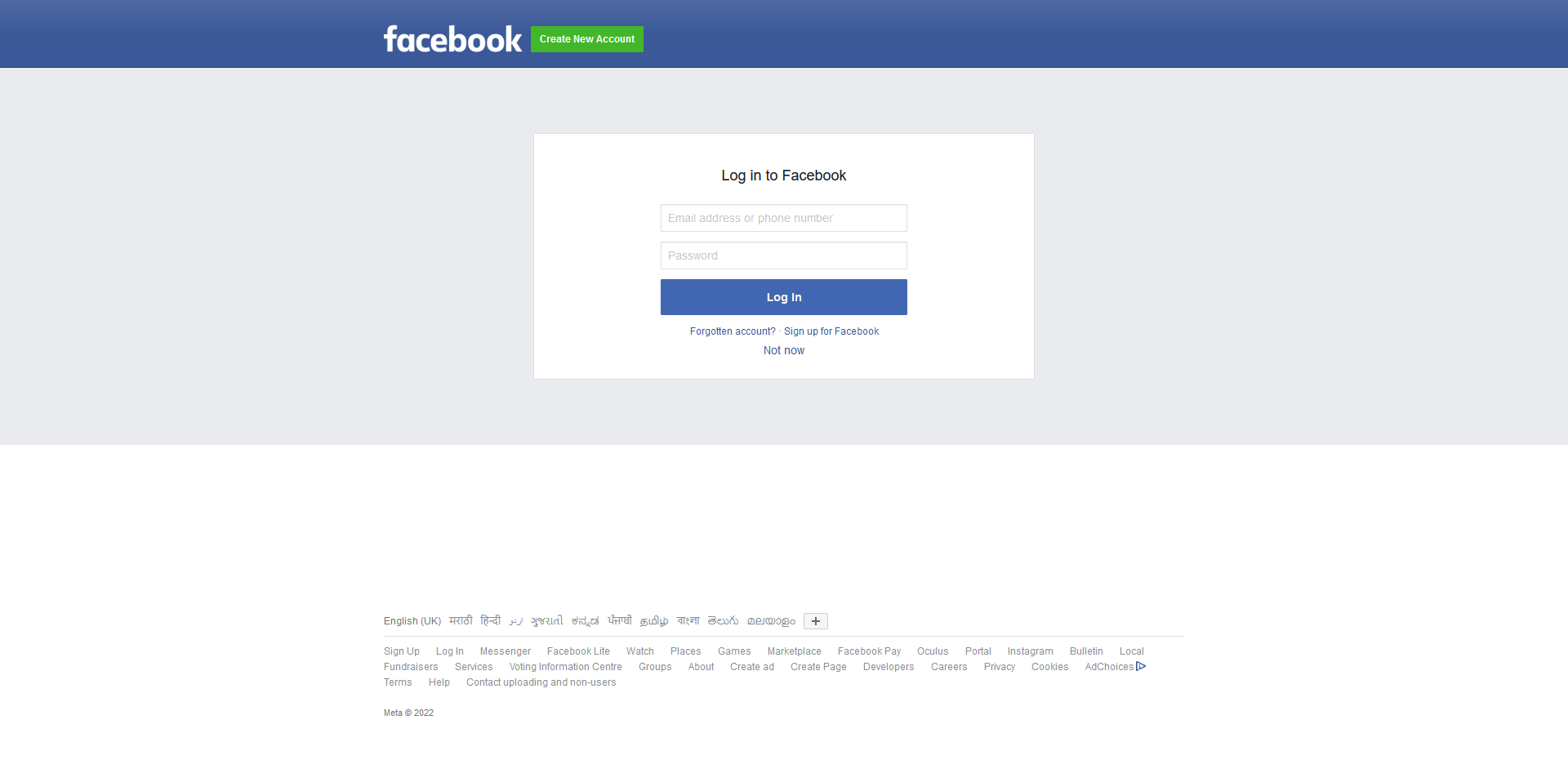
Step 7: Allow Electrik.AI to access your Instagram Account.
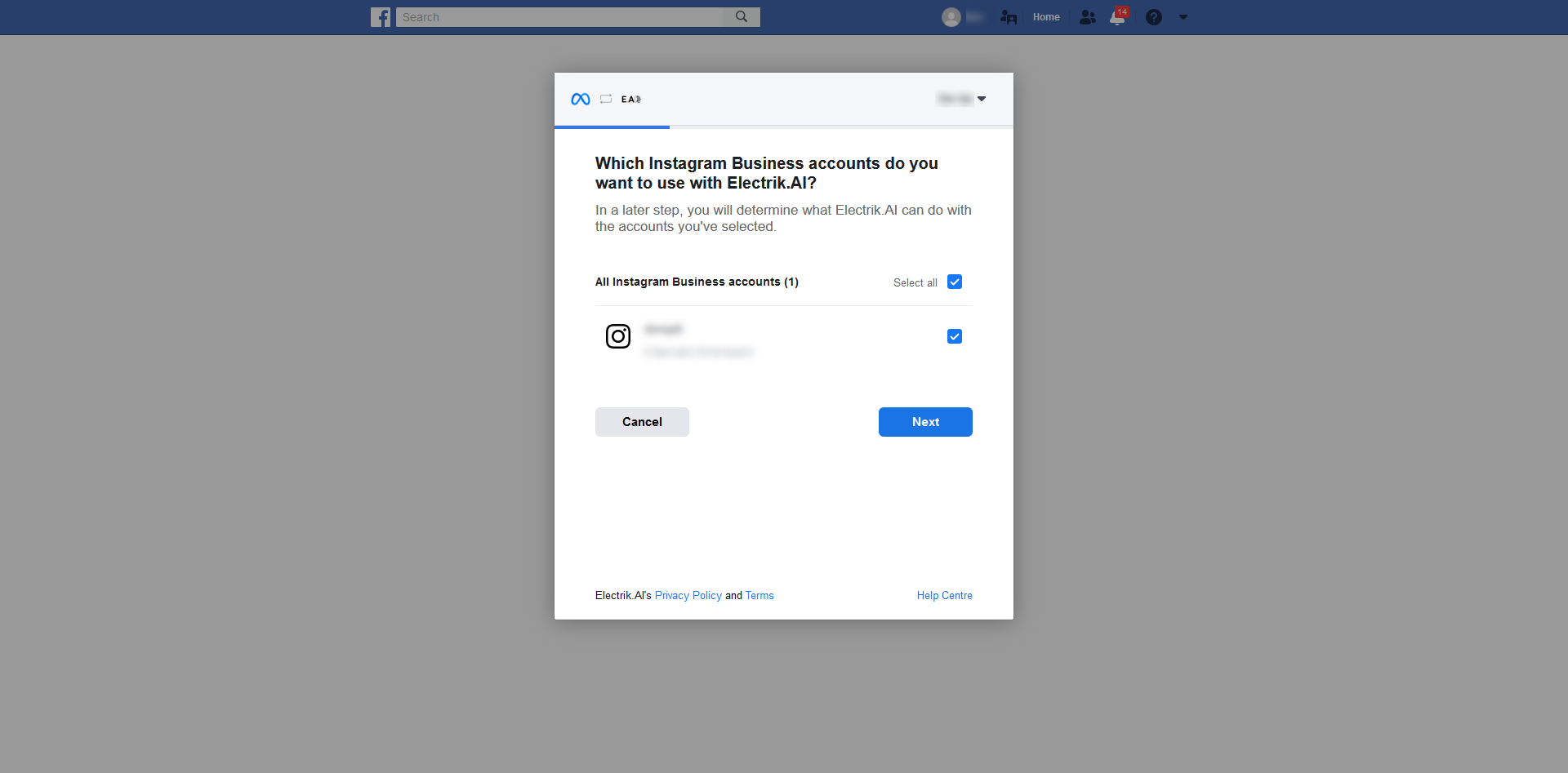
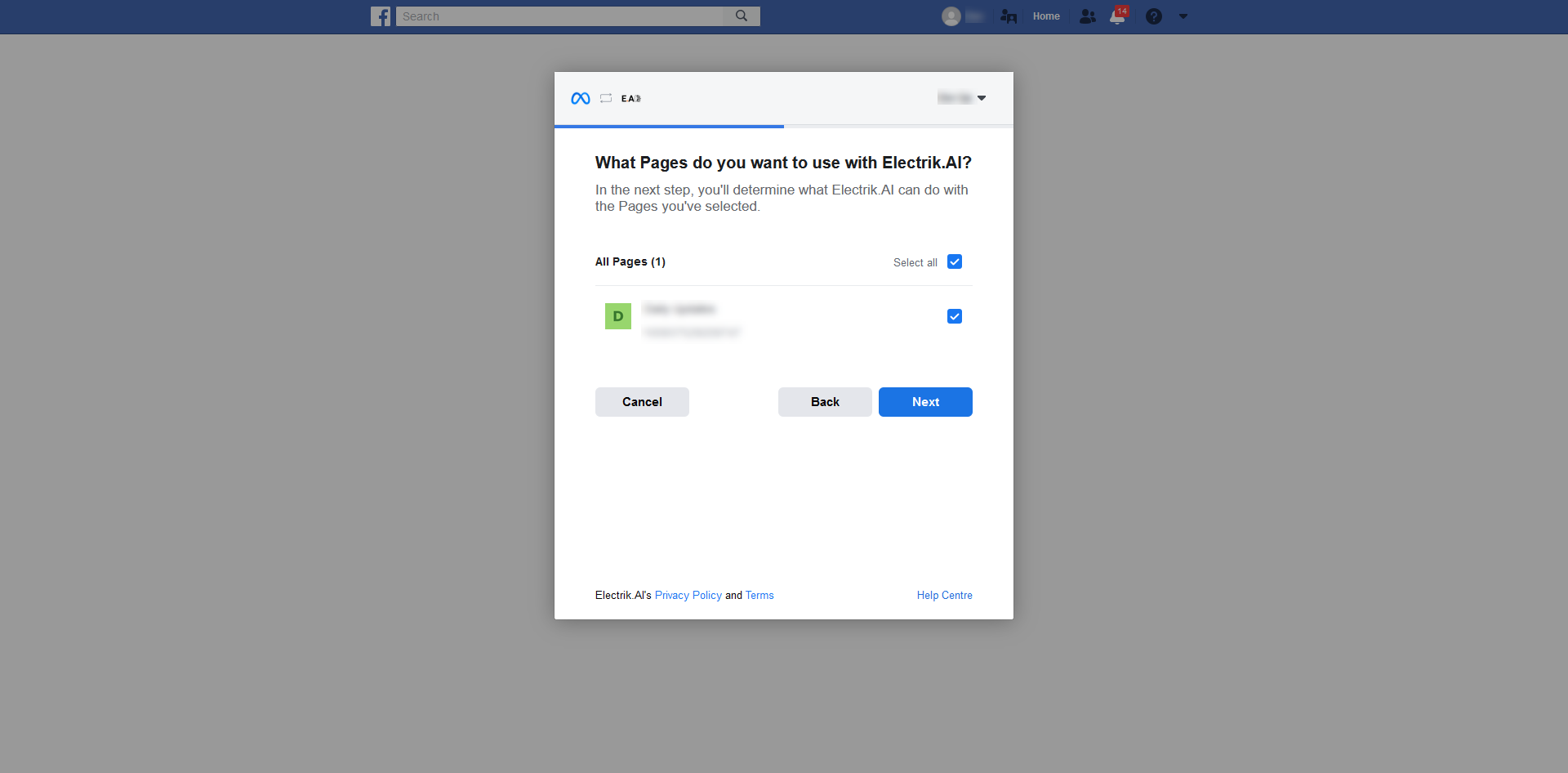
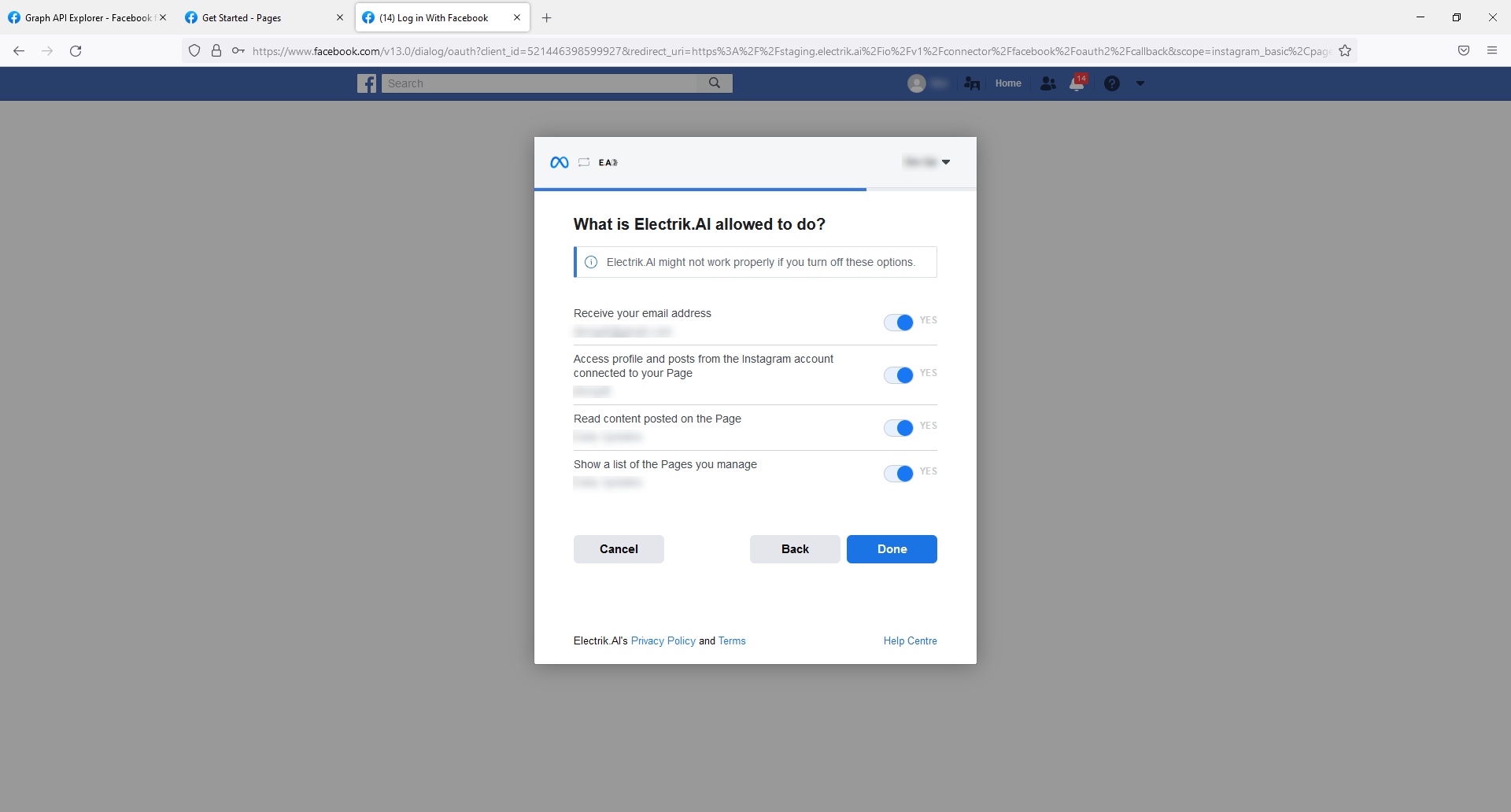
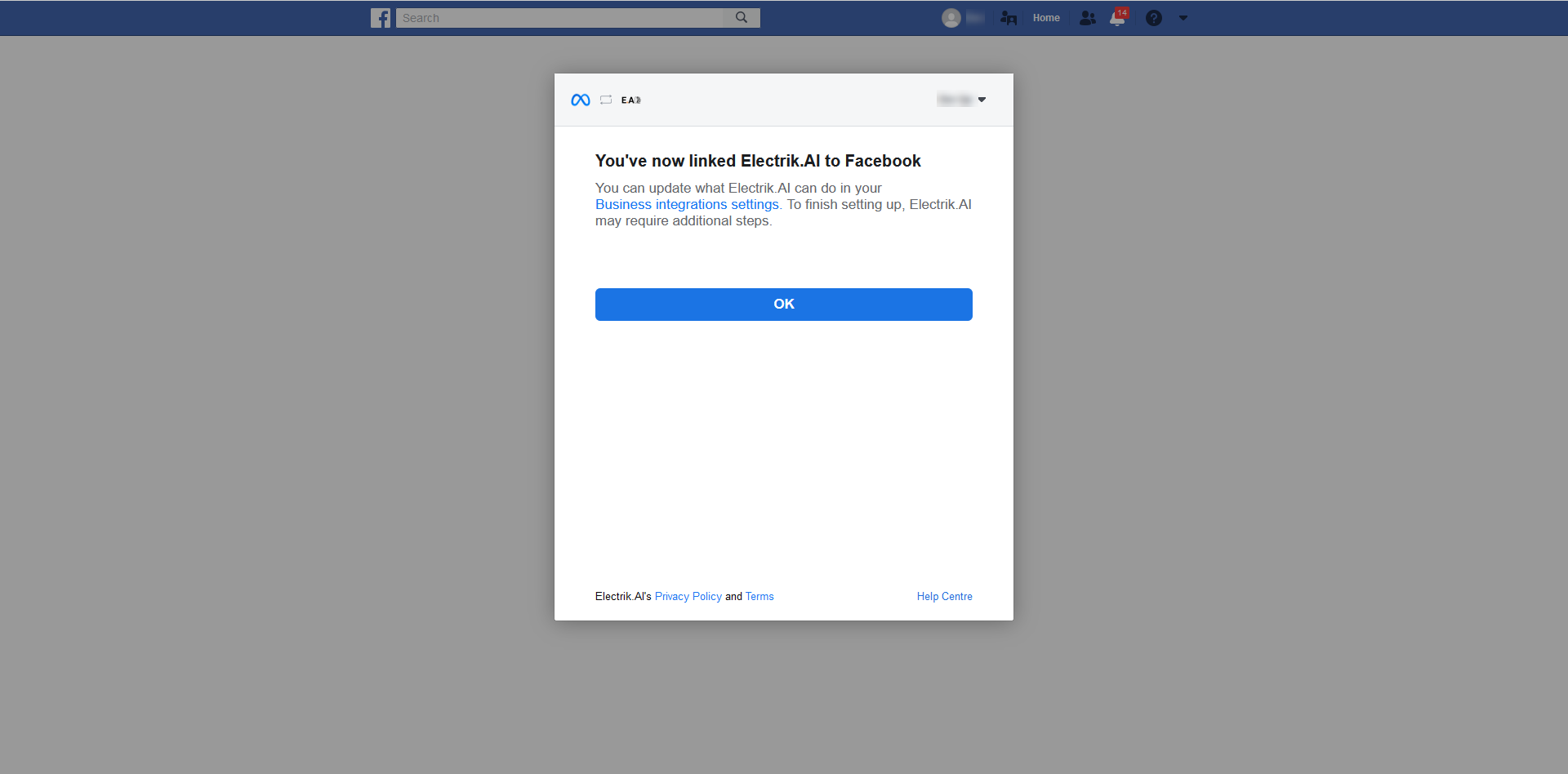
Step 8: Select the required page.
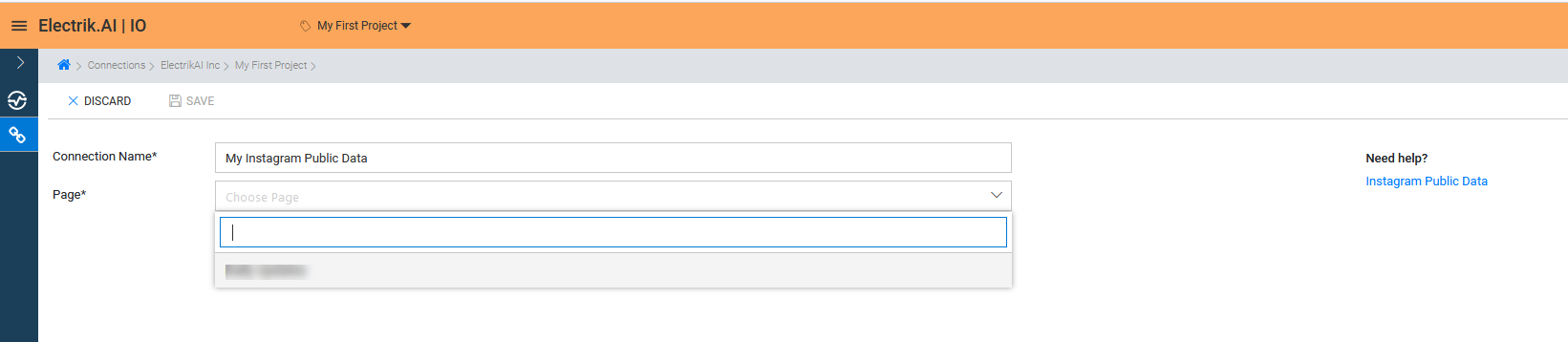
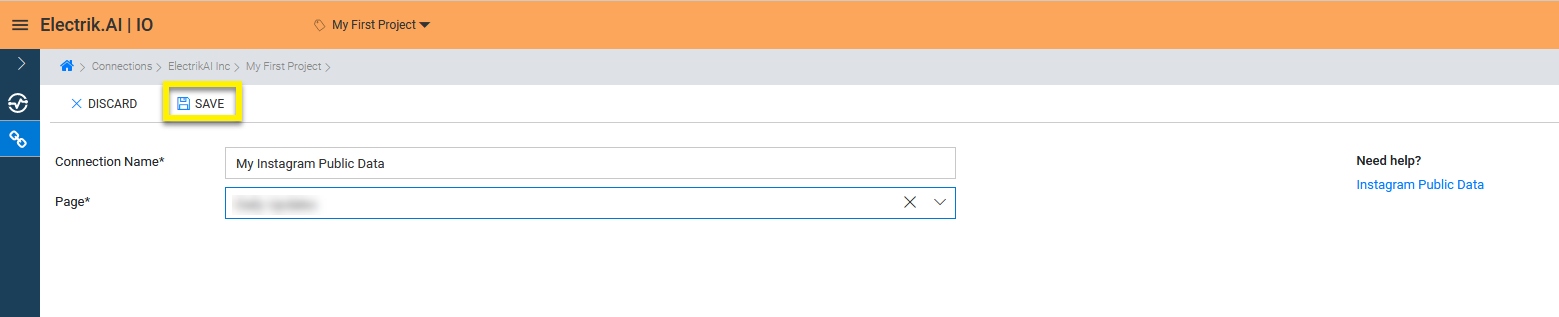
Step 9: Click on Save button on the top.
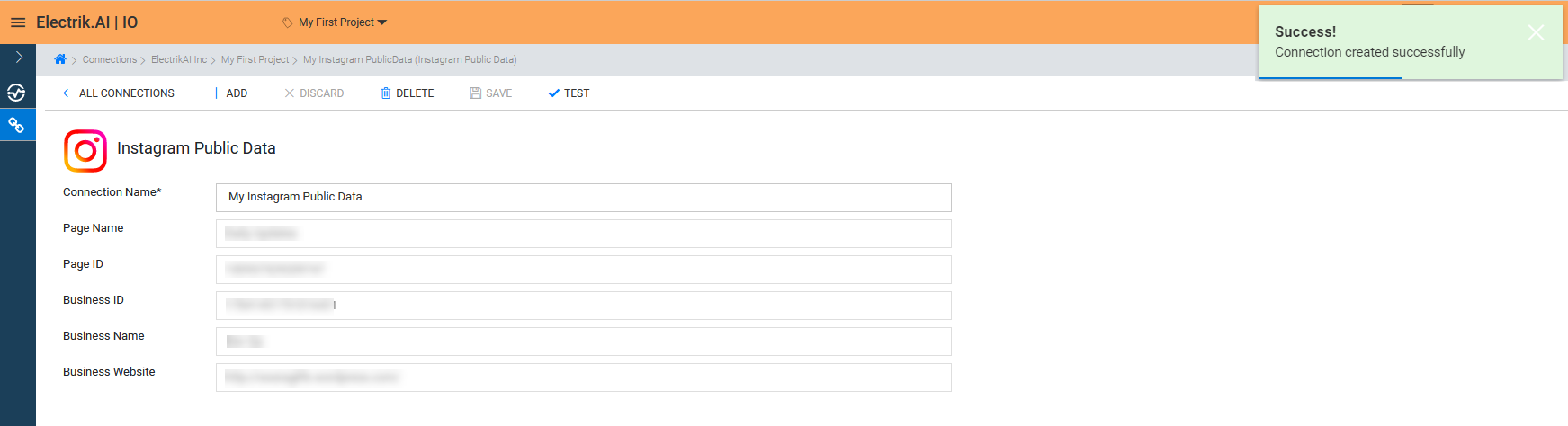
Congratulations, you have now successfully created an Instagram Public Data Connection in Electrik.AI.
What are the supported Data Destinations?
Electrik.AI supports the following destinations to export Instagram Public Data.




How to export Instagram Public Data?
Electrik.AI creates a data flow (or ETL process) that exports Instagram Public Data reports of your choice to a target database or data warehouse. This process runs daily at scheduled time and exports data.
Follow these steps to create a Data Flow from Instagram Public Data to Database
Step 1: Ensure you have the following prerequisites.
- Instagram Account User Id & Password.
- Facebook Account User Id & Password.
- Access to Facebook Page.
- Facebook Page must be linked to Instagram Business Account.
- Access to a Database of your choice (PostgreSQL, MySQL, Azure SQL, BigQuery.)
- Database Connection Details such as Host, Port, DB Name, DB User, DB Password.
Step 2: Sign-in into your Electrik.AI account.
Step 3: Select IO in Electrik.AI dashboard
Step 4: Click on Add button to create an Instagram Public Data Performance Data Extractor Flow.
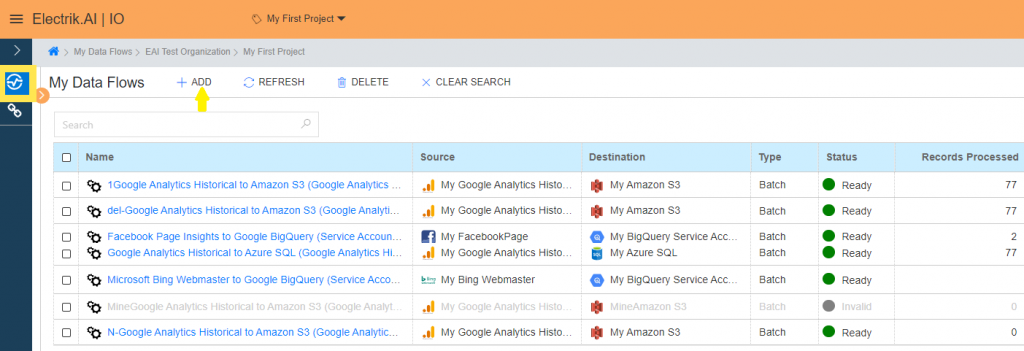
Step 5: Select Instagram Public Data Connection present in the list of available sources.

Step 6: Select your existing Instagram Public Data connection in Electrik.AI.

To Configure a new connection, refer to this link.
Step 7: Click on a destination of your choice from list of available destinations.
In this example we are choosing BigQuery.
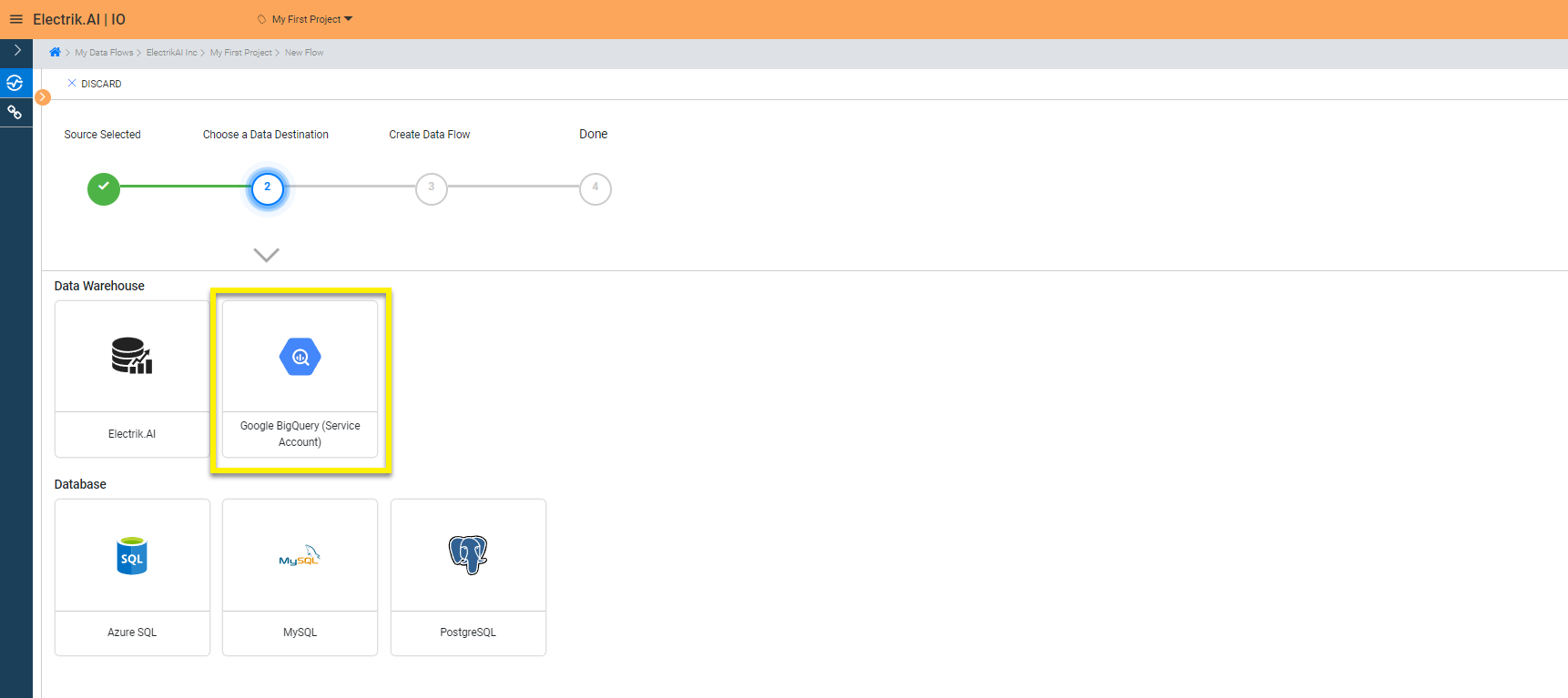
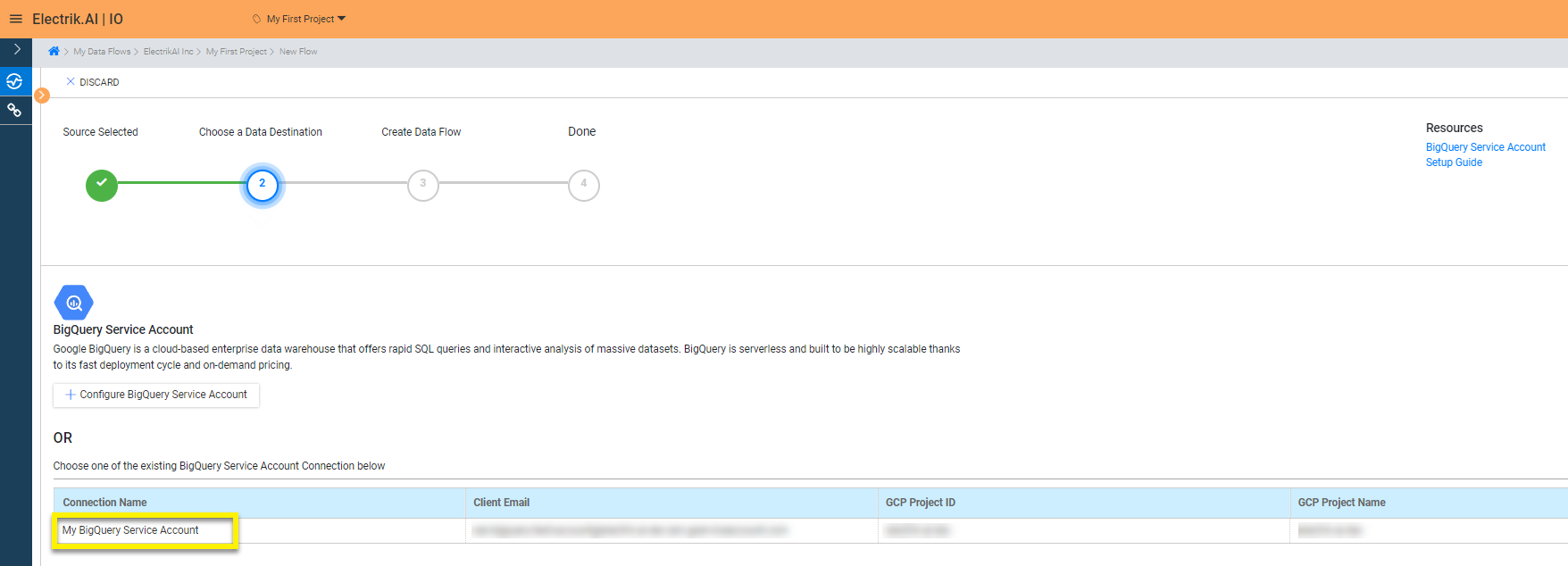
Step 8: Select your existing BigQuery connection in Electrik.AI.
To Configure a new connection, refer to this link.
Step 9:
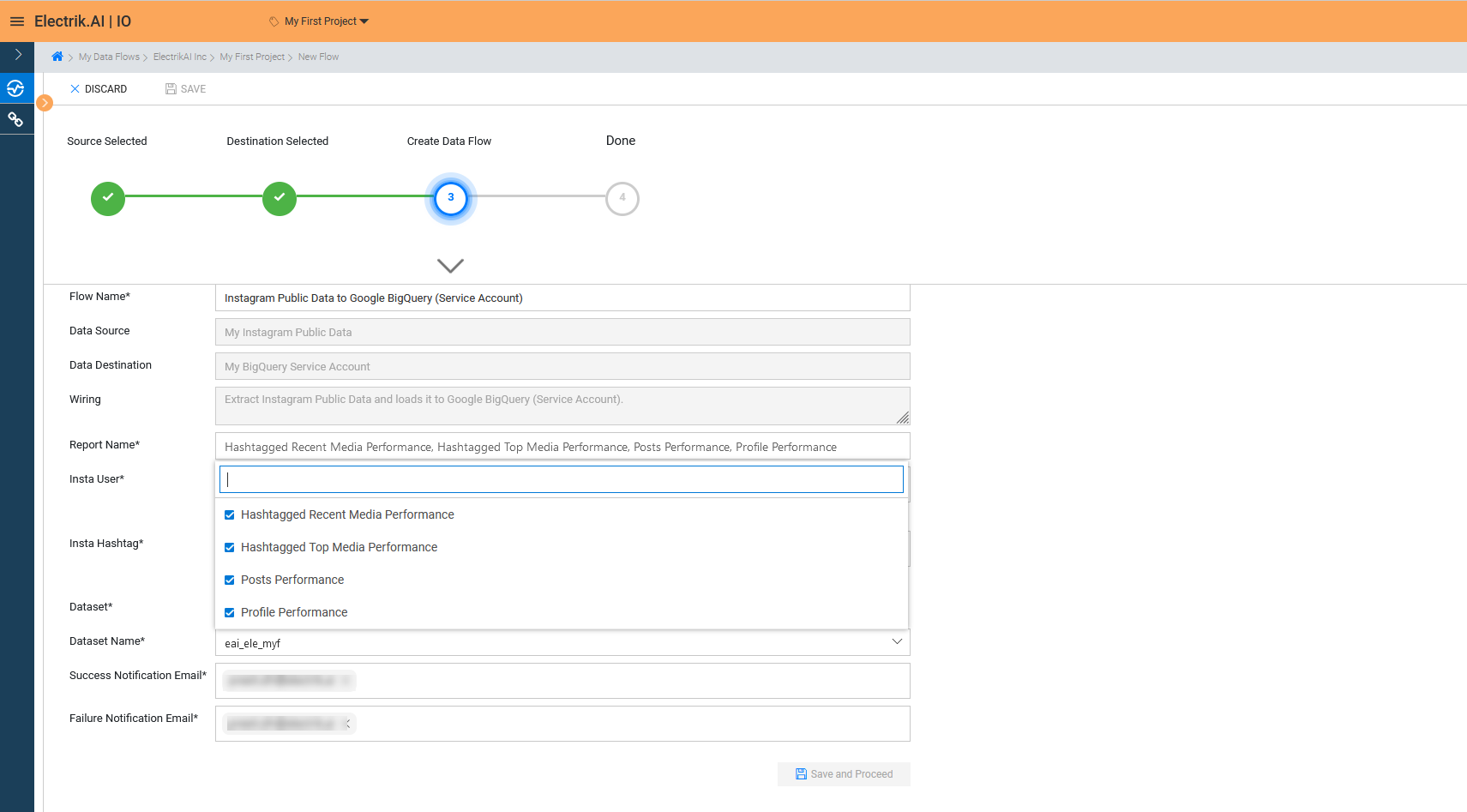
a. Choose the desired report to get the appropriate data. In this example we are choosing all.
b.
1. Provide the Instagram usernames whose posts or profile you want to get.
2. Provide Instagram hashtags for which you want to get the top and recent media performance.
2. Provide Instagram hashtags for which you want to get the top and recent media performance.
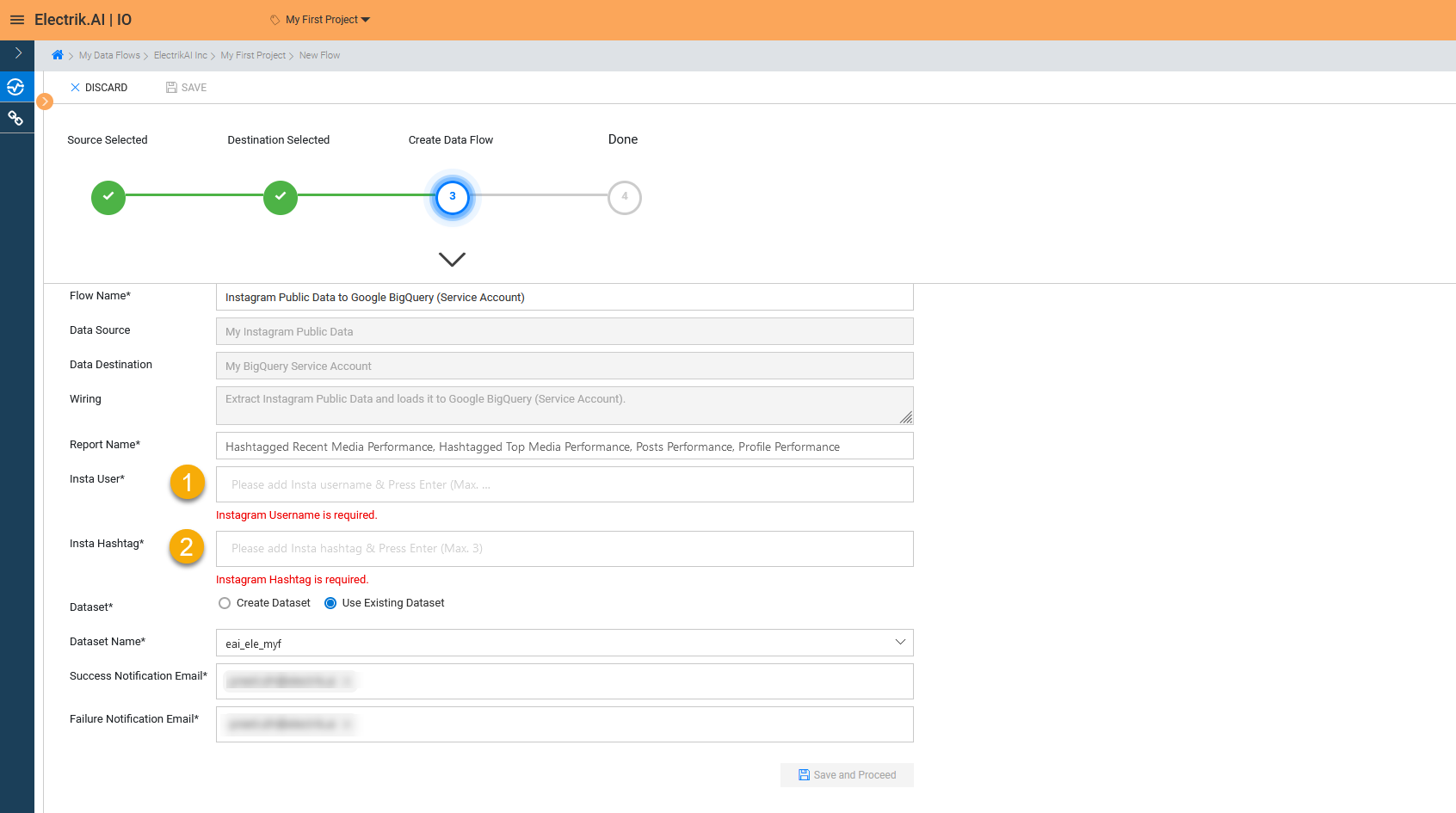
Note: At the most 3 hashtags, 3 usernames can be searched for in one flow execution, all the filters are editable and can be changed at any point of time.
c. Review the Data Source, Data Destination, Database Schema, Provide Success Notification Email, Failure Notification Email. Click “Save and Proceed” to continue.
Success Notification Email: Enter a valid Email ID to receive the Flow Success Email Notification.
Failure Notification Email: Enter a valid Email ID to receive the Flow Failure Email Notification.
Note: By Default, Electrik.AI uses the signed-in user’s Email Id.
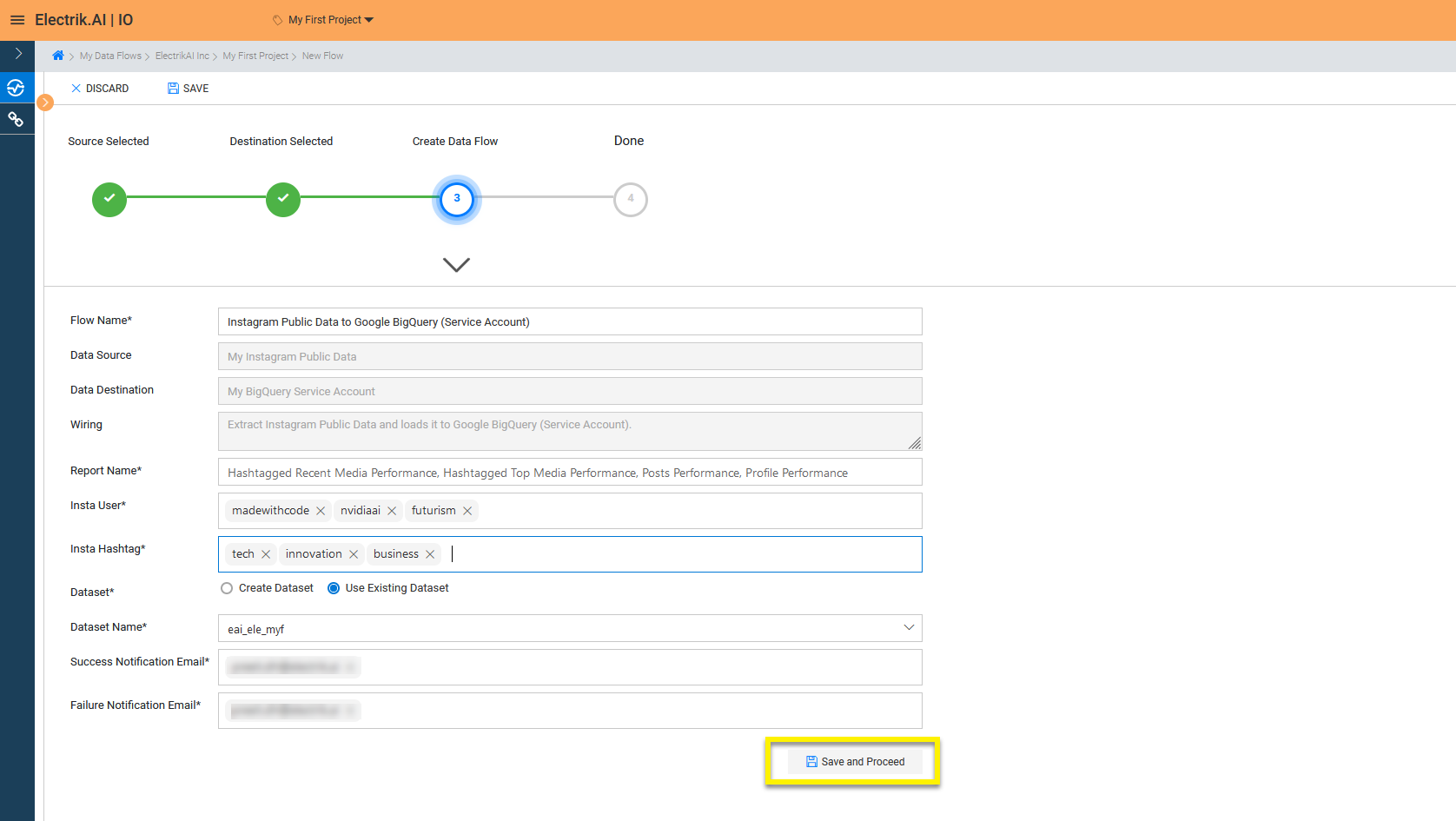
Note: By Default, Electrik.AI chooses an existing Data Set to load your Instagram Public Data Report. You can create a new Dataset in your bucket by selecting the “Create Data Set” radio button.
Congratulations, Flow is created. Please wait while you are redirected to Flow Details Screen.
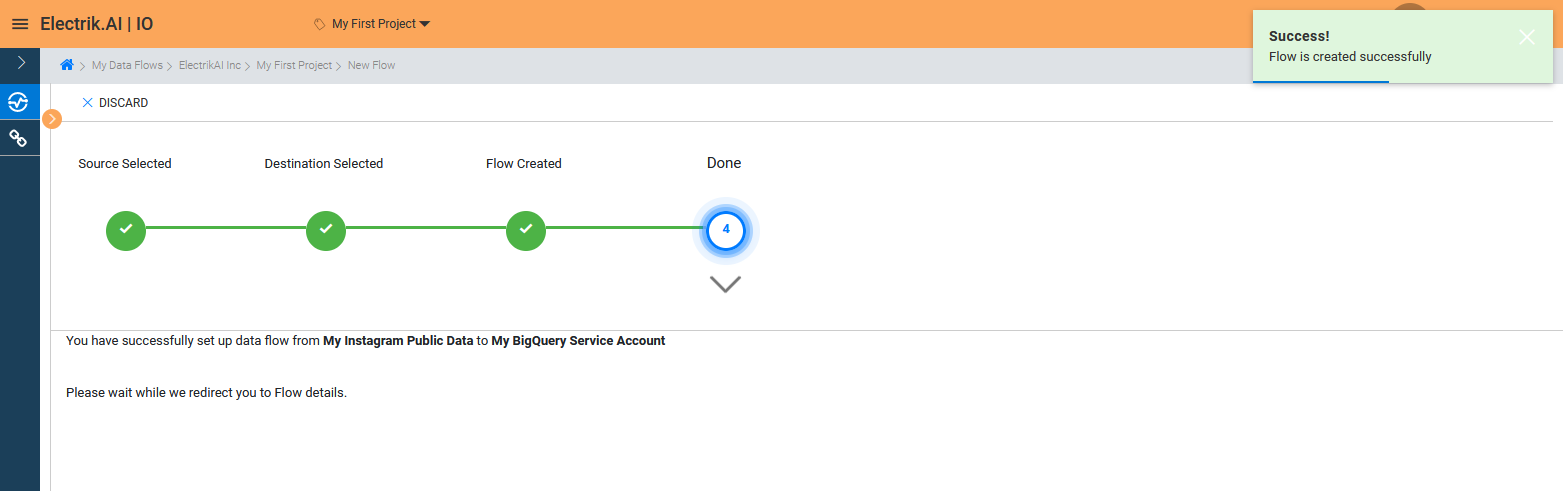
You have now successfully setup Instagram Public Data to BigQuery Data Warehouse flow in Electrik.AI.
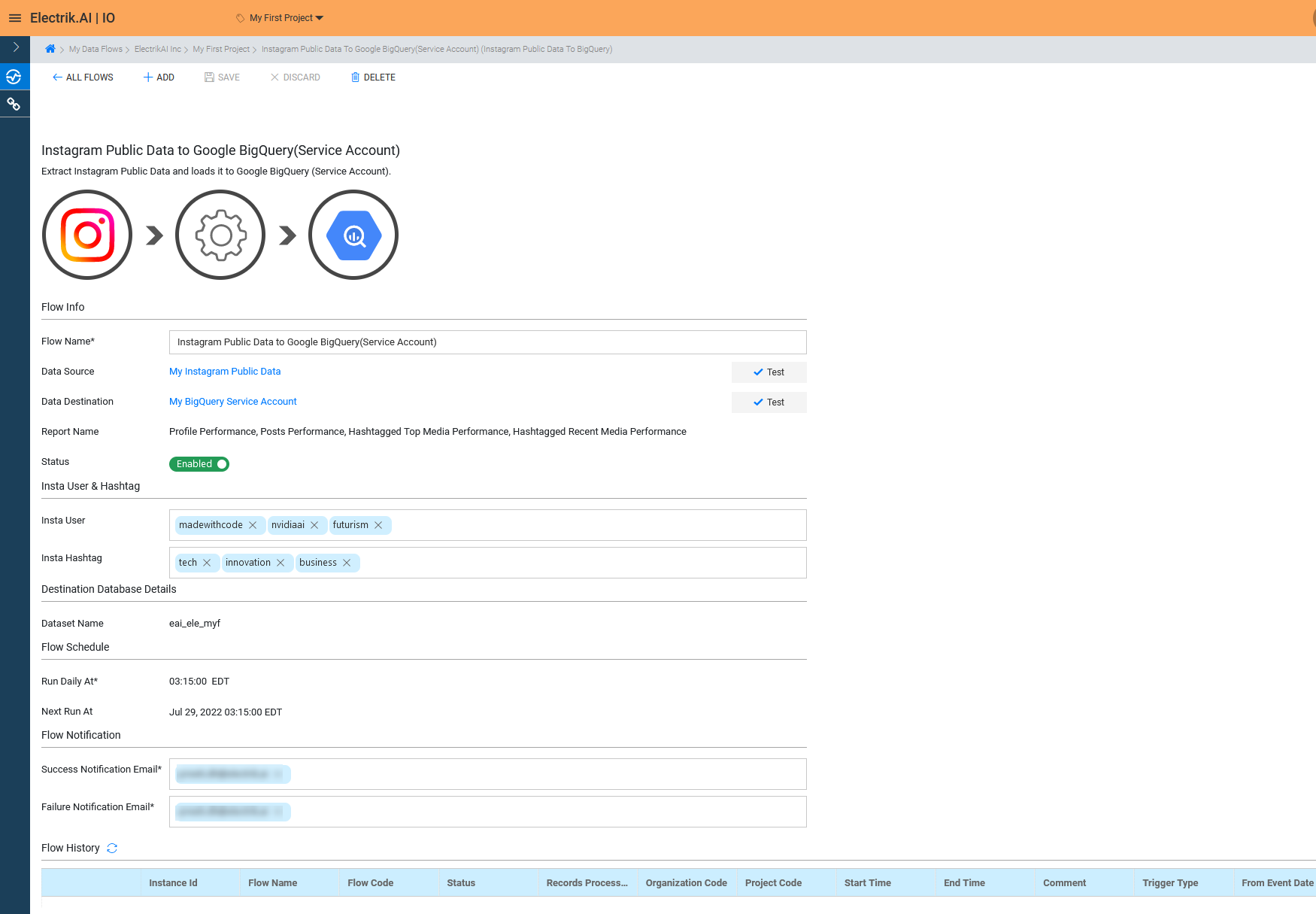
Your Instagram Public Data will start loading after 24 hours in your Data Set.