- After signing in to Electrik.AI, simply navigate to the Admin section by clicking on it from the Home Page.
- To access your projects, click on the “Projects” option in the Navigation bar.
- To enable CMi, click on the desired project.
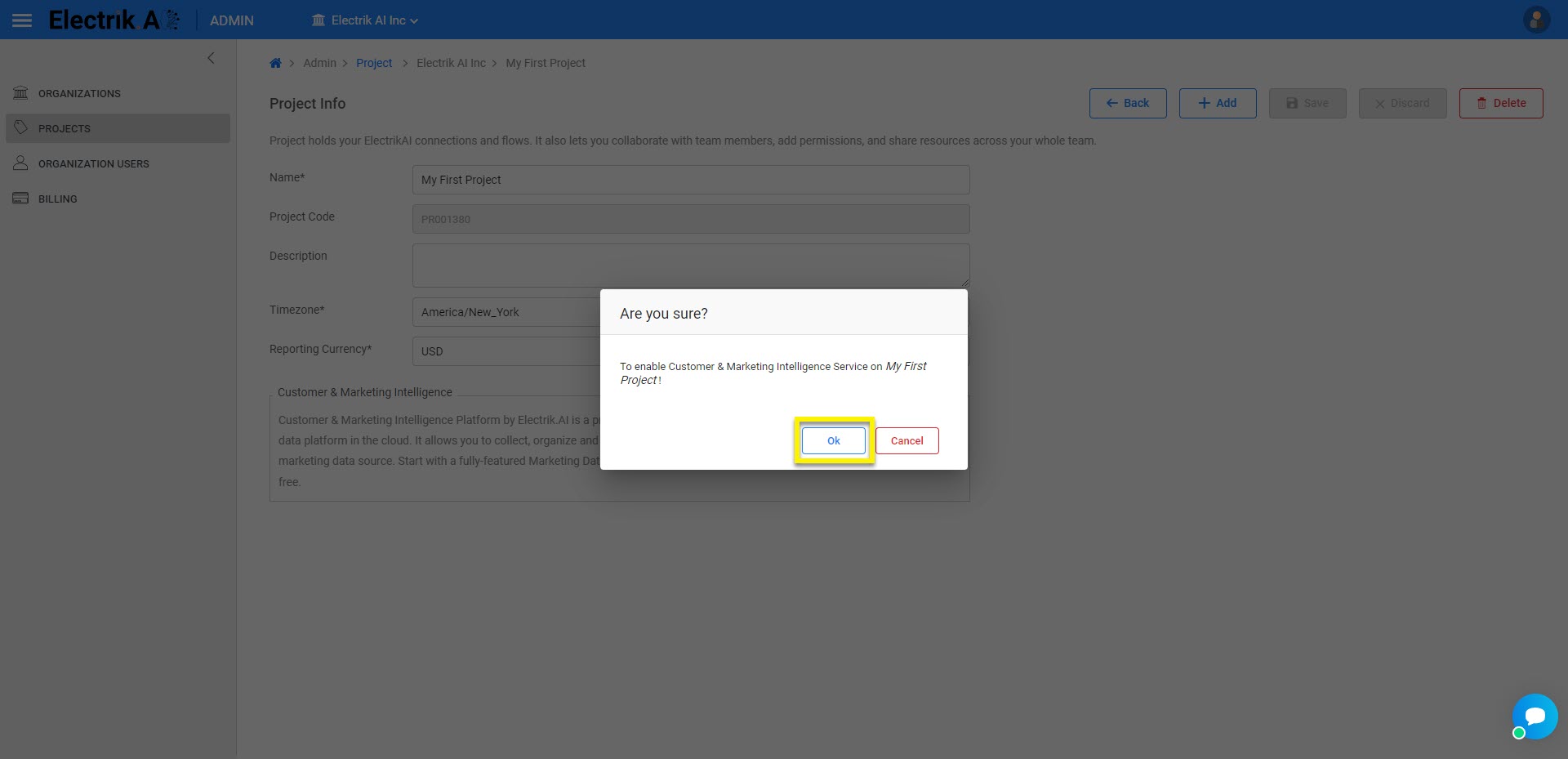
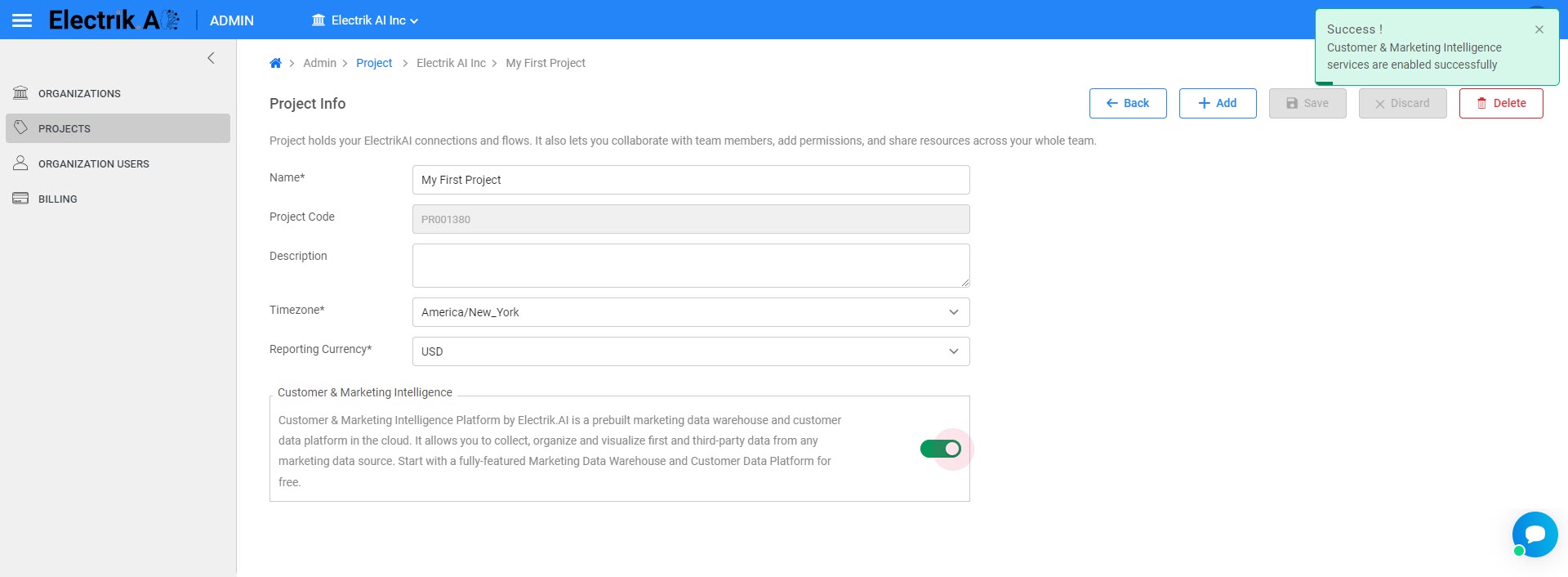
- Activate Customer & Marketing Intelligence by toggling the button to the “On” position.
Congratulations! CMI has been successfully enabled on your project. Detailed Steps Here.
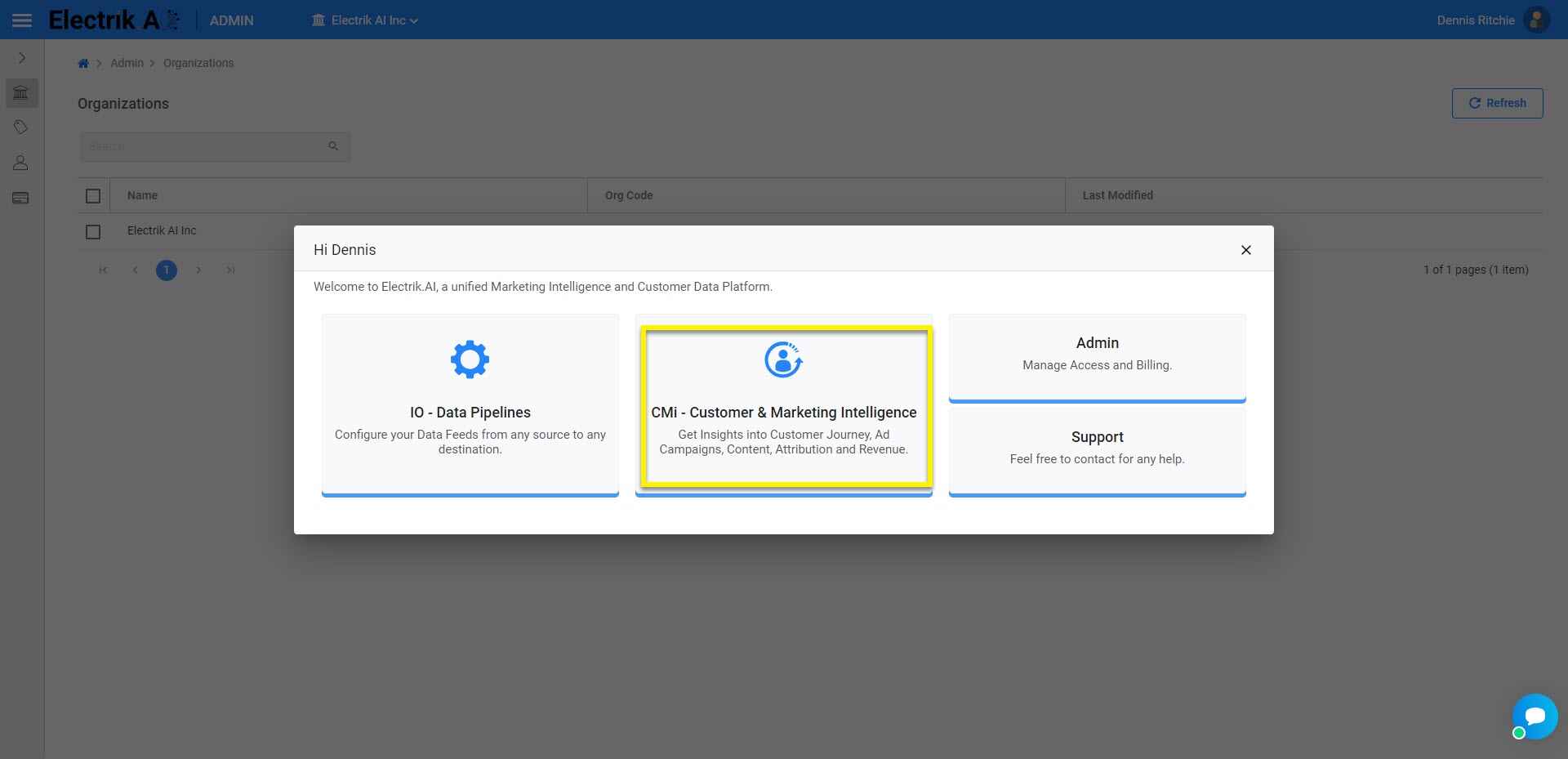
- After signing in to Electrik.AI. simply navigate to CMi by clicking on it from the Home Page.
- To generate insights, you need to set up data integration only once. This should be done during your initial use of the platform.
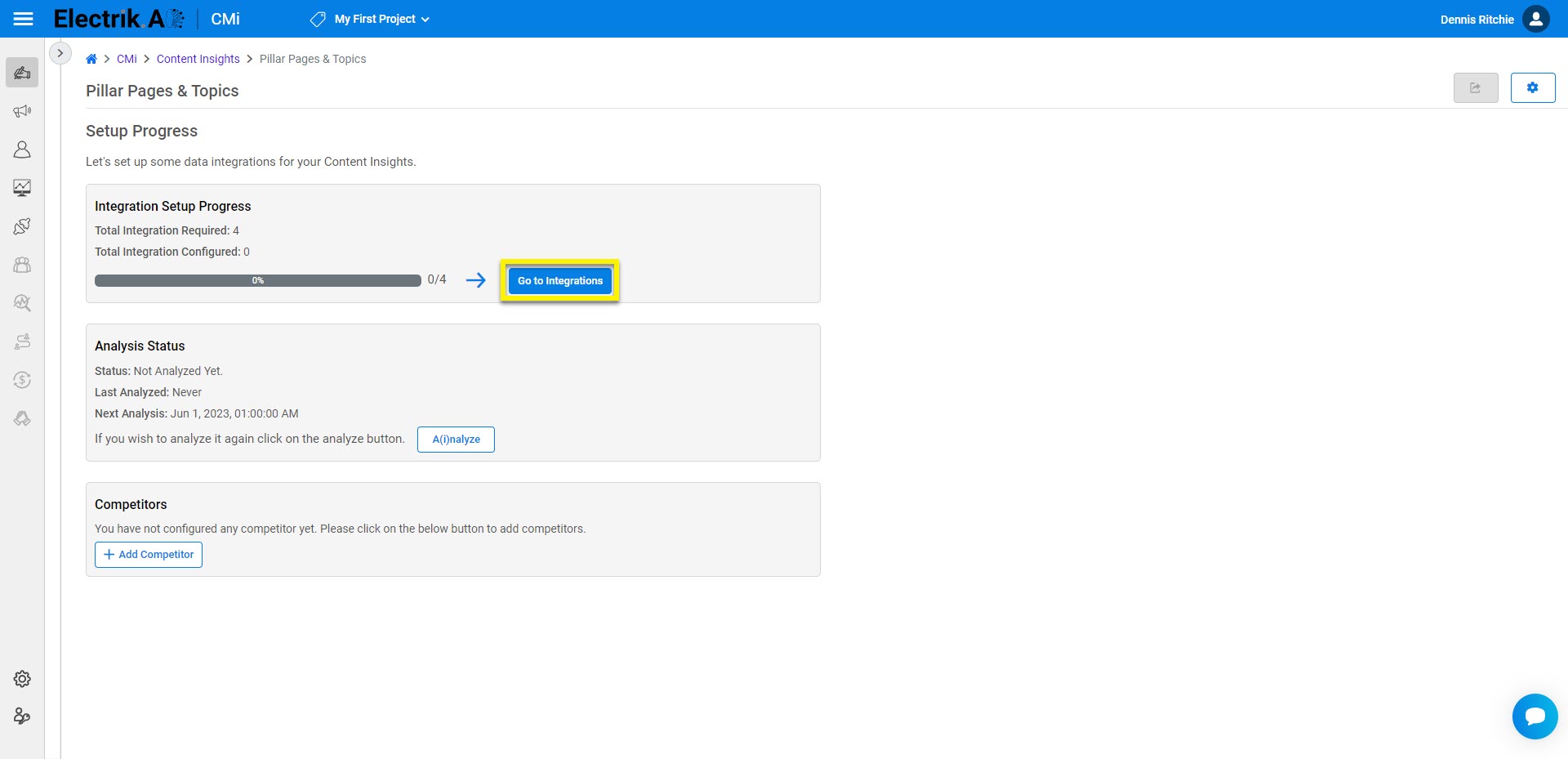
- Click on the Go to Integration.
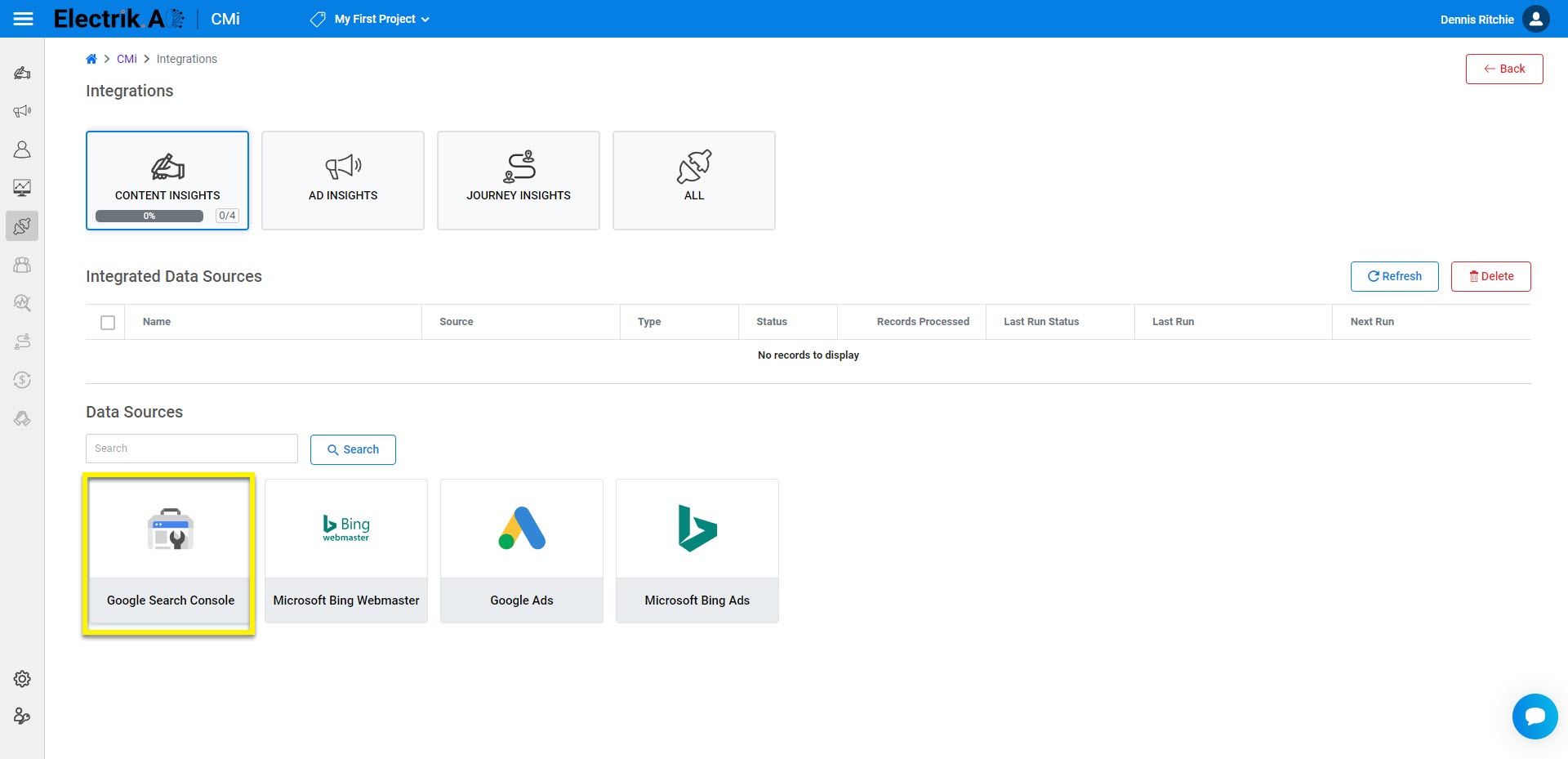
- To begin receiving insights, simply select the category that suits your needs, whether it’s Ads, Content, or Journey. You have the option to choose one or all of them depending on your preferences.
- Once you have chosen a category, select the most appropriate data source from the available options based on your specific needs and requirements.
- Setting up Google Search Console integration is the minimum requirement for generating content insights but setting up all integrations in the category will provide you with more diverse insights.
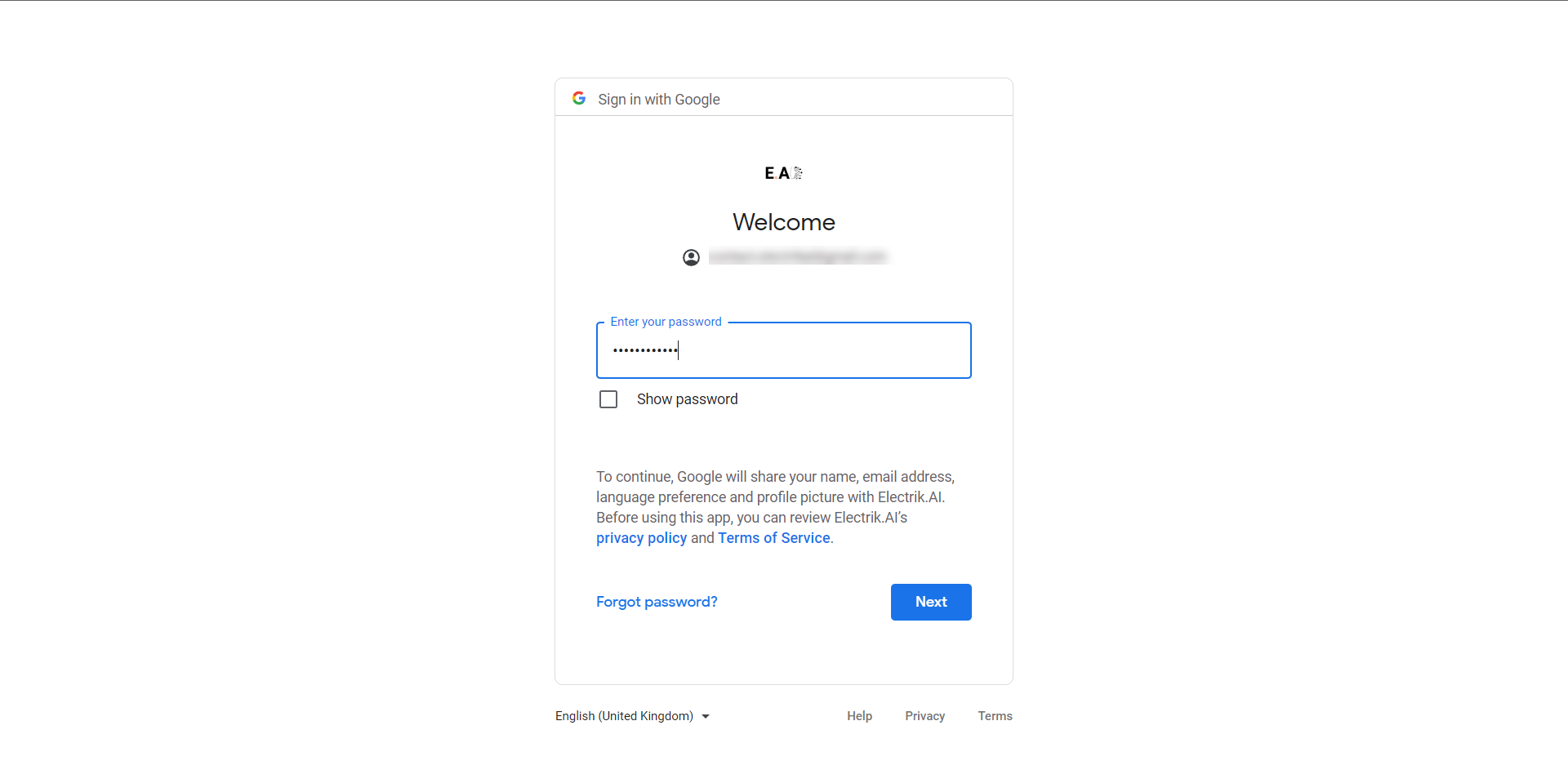
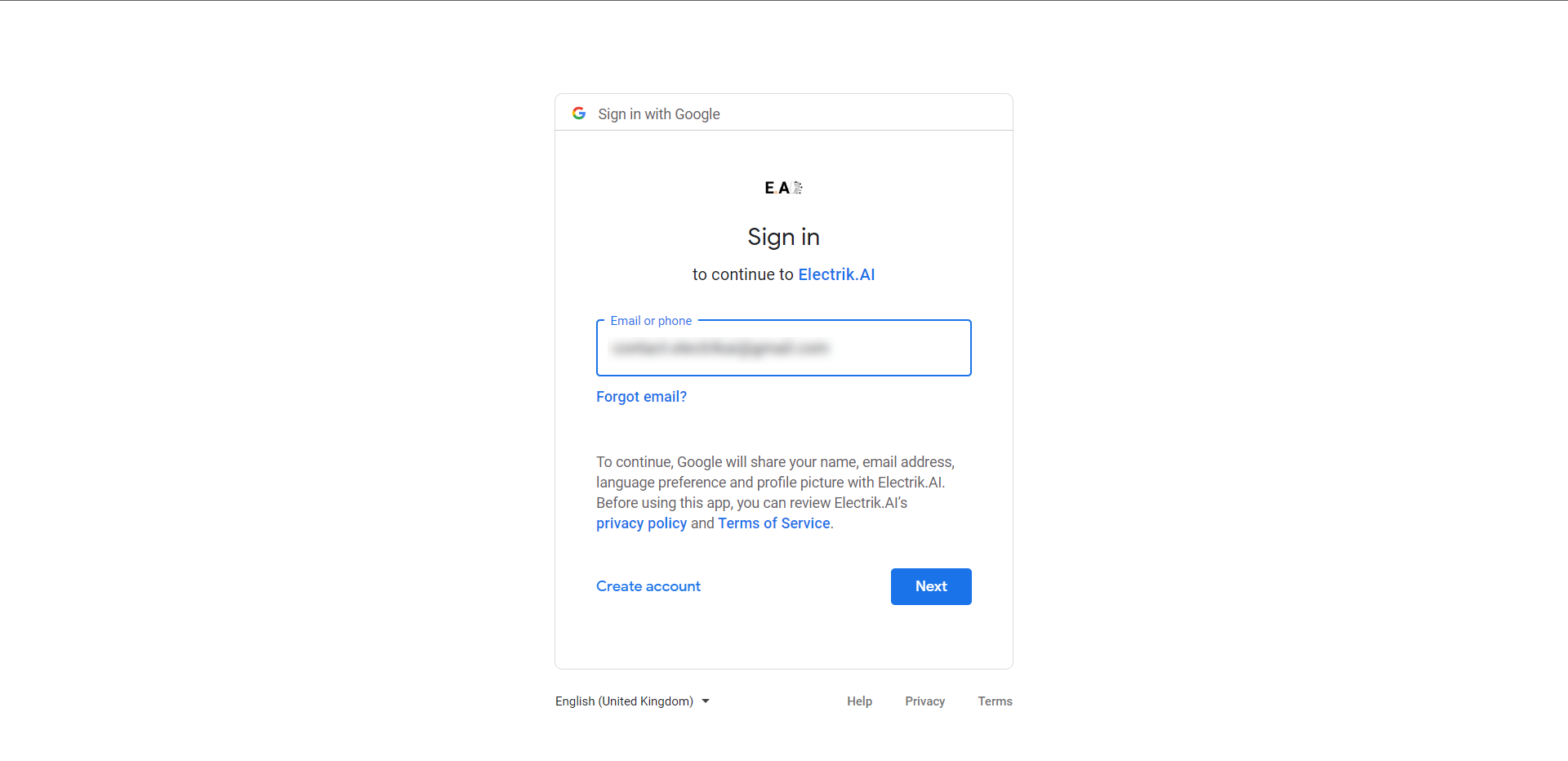
- To access the selected data source, provide your account’s user ID and password.
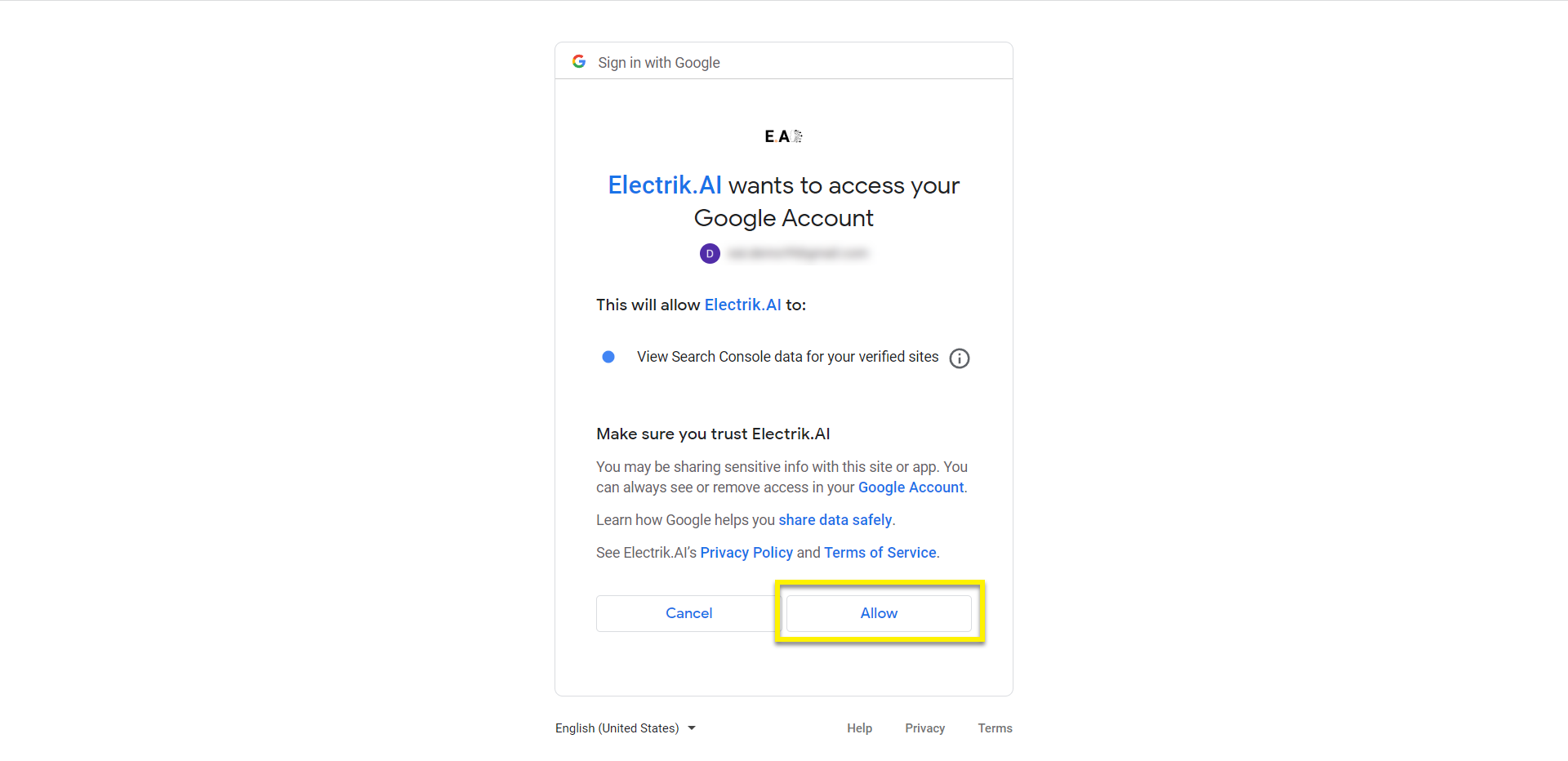
- Please grant Electrik.AI access to your account.
- Once you have made your selection according to the instructions provided on the screen, click ‘Save & Proceed’ to continue to the next stage.
Congratulations on successfully setting up the integration for your chosen data source in Electrik.AI!
Once the integration has been created successfully, you will receive a confirmation email. Please note that it may take up to 24 hours for your integration to begin generating insights. Upon successful execution of any one of the integration, you will receive an email containing further instructions. Detailed Steps Here.
Note: You can currently generate the Content Insights. We are working on launching other insights soon, so stay tuned for updates.
Step 1: Sign-In to Electrik.AI. Once you’re signed in, on the Home Page just click on the Admin icon.
Step 2: To access your projects, click on the “Projects” option in the Navigation bar.
Step 3: To enable CMi, click on the desired project.
Step 4: Activate Customer & Marketing Intelligence by toggling the button to the “On” position.
Step 5: Please confirm to enable Customer & Marketing Intelligence for your project, Click OK.
Step 6: Congratulations! you have successfully enabled Customer & Marketing Intelligence Platform Services for your project.
Step 1: Sign-In to Electrik.AI. Once you’re signed in, on the Home Page just click on the CMi icon.
Step 2: Click on the Go to Integration.
Step 3: Choose Google Search Console data source.
Step 4: Provide your account’s user ID and password.
Step 5: Please grant Electrik.AI access to your account.
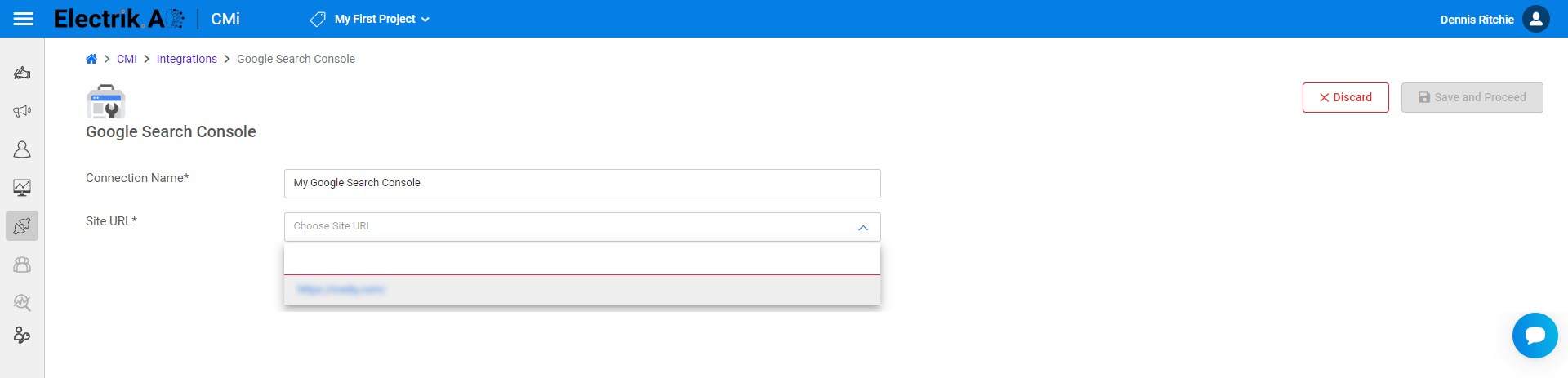
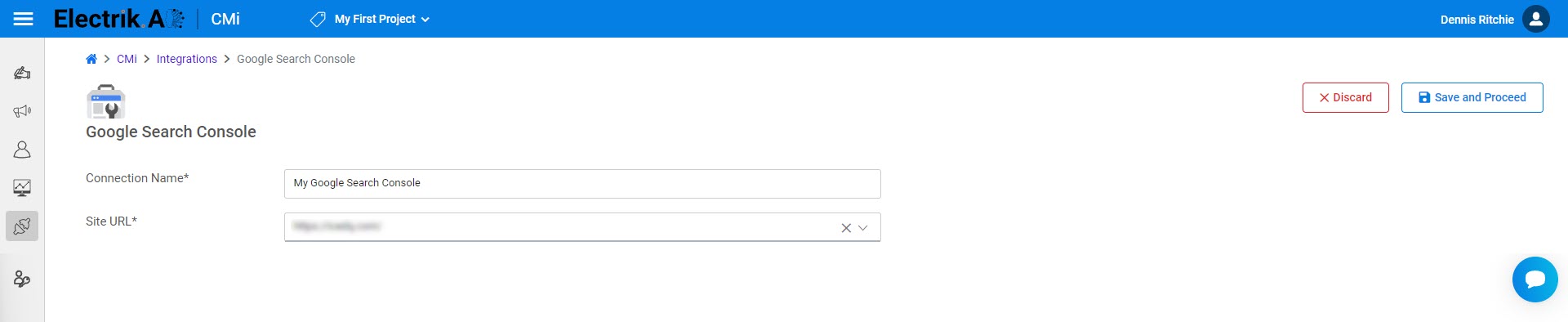
Step 6: Choose your Site URL, for which you want to get insights.
Step 7: Click the ‘Save & Proceed’.
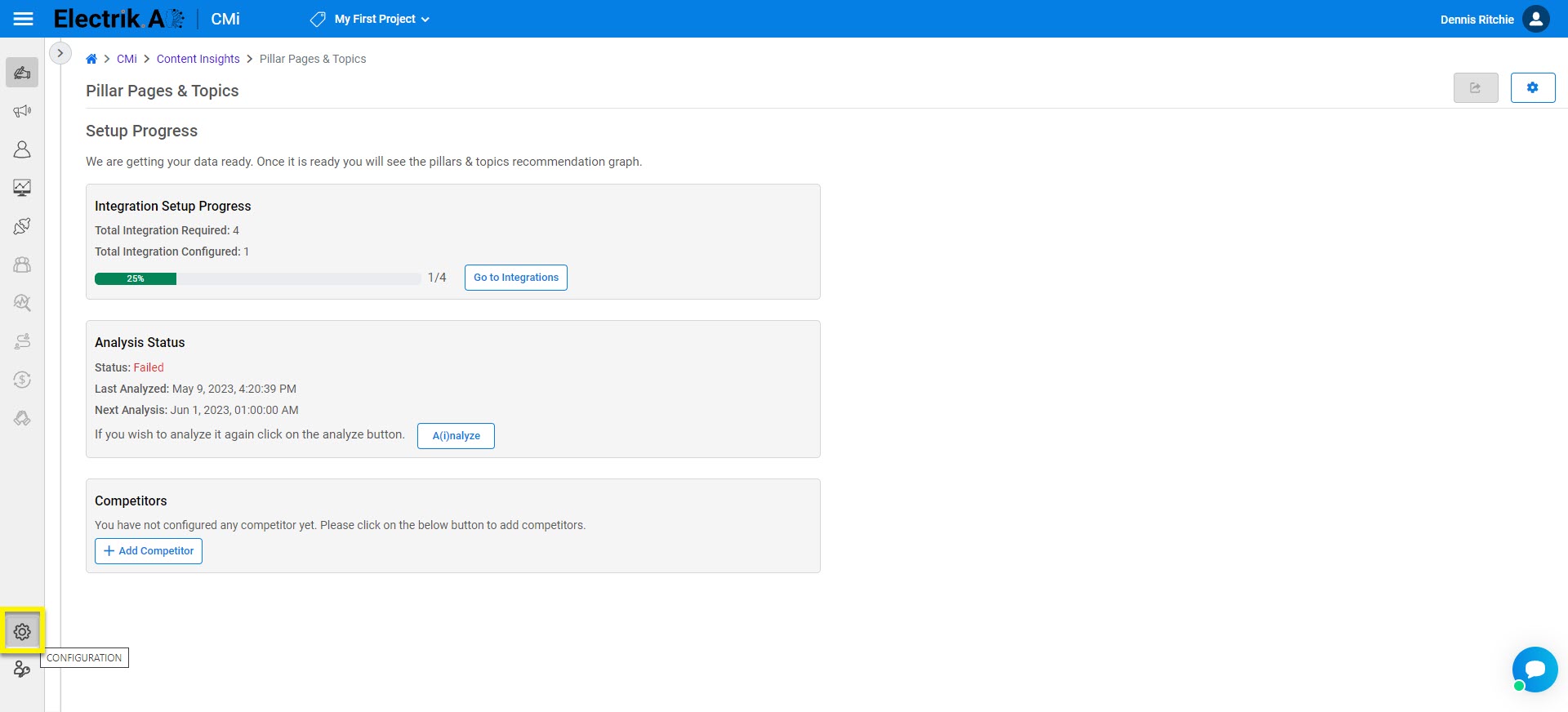
Step : Sign-In to Electrik.AI, On the Home Page, at the bottom left of the screen click on Configuration.
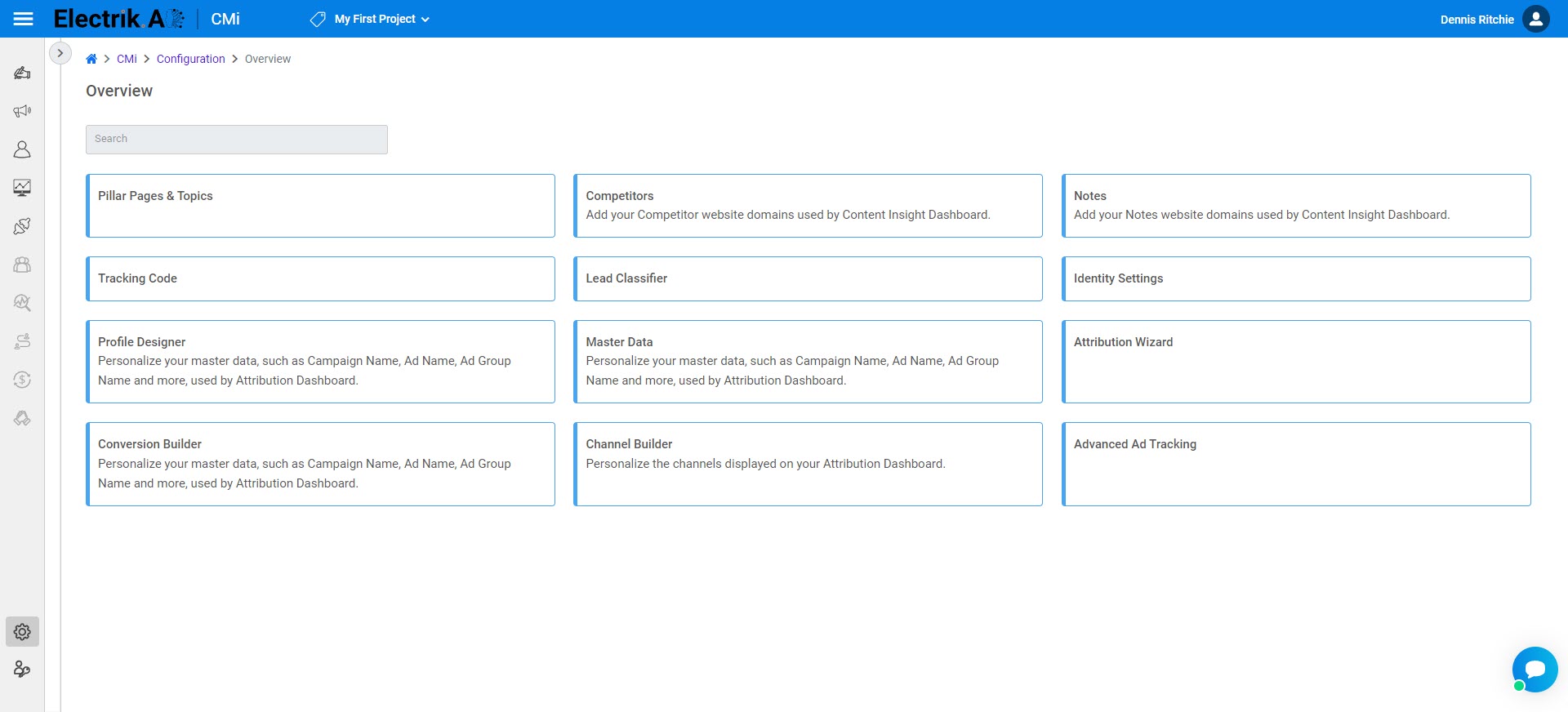
Step 2: Click on respective feature to set up or review the configurations.