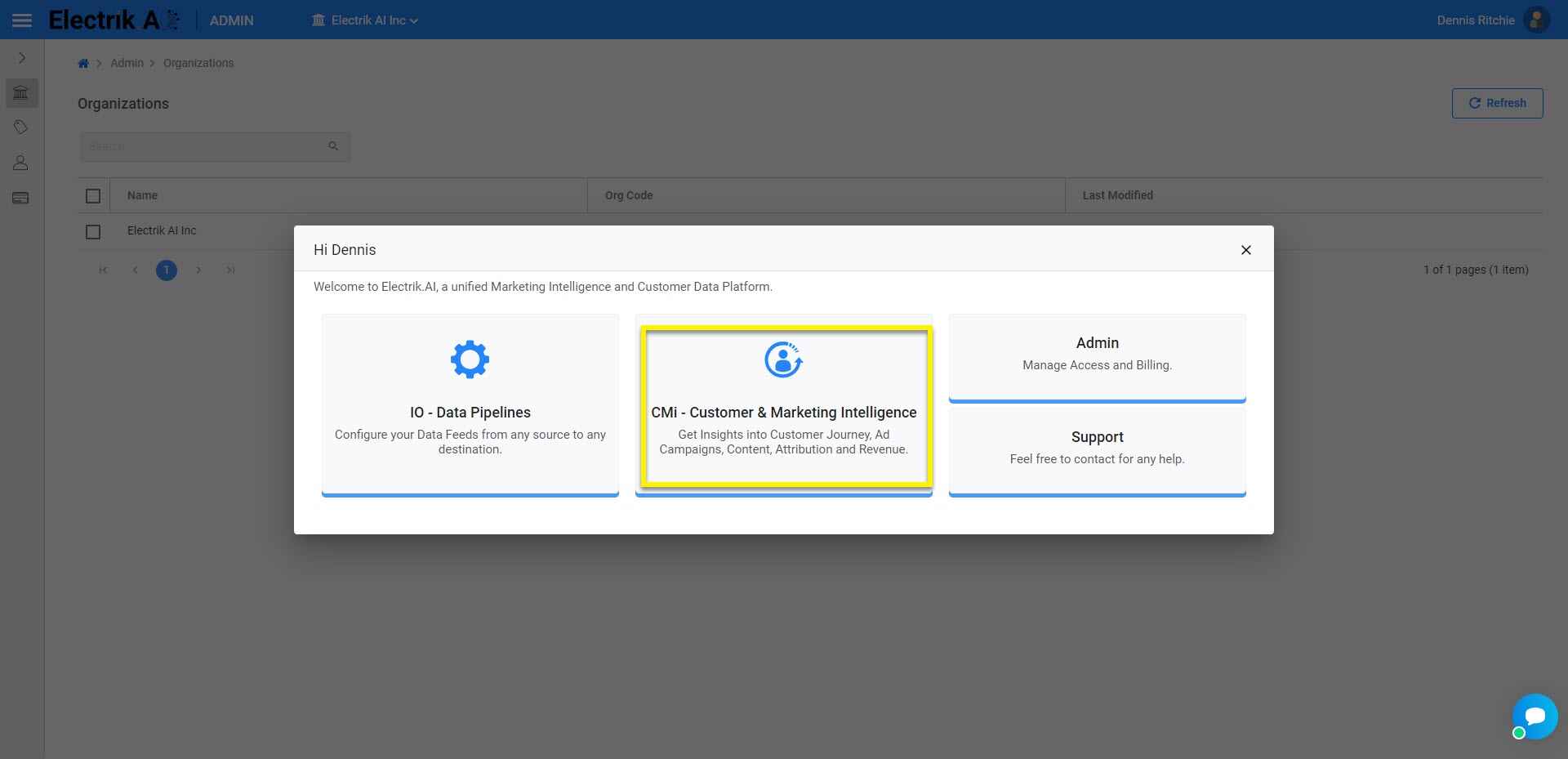
- After signing in to Electrik.AI. simply navigate to CMi by clicking on it from the Home Page.
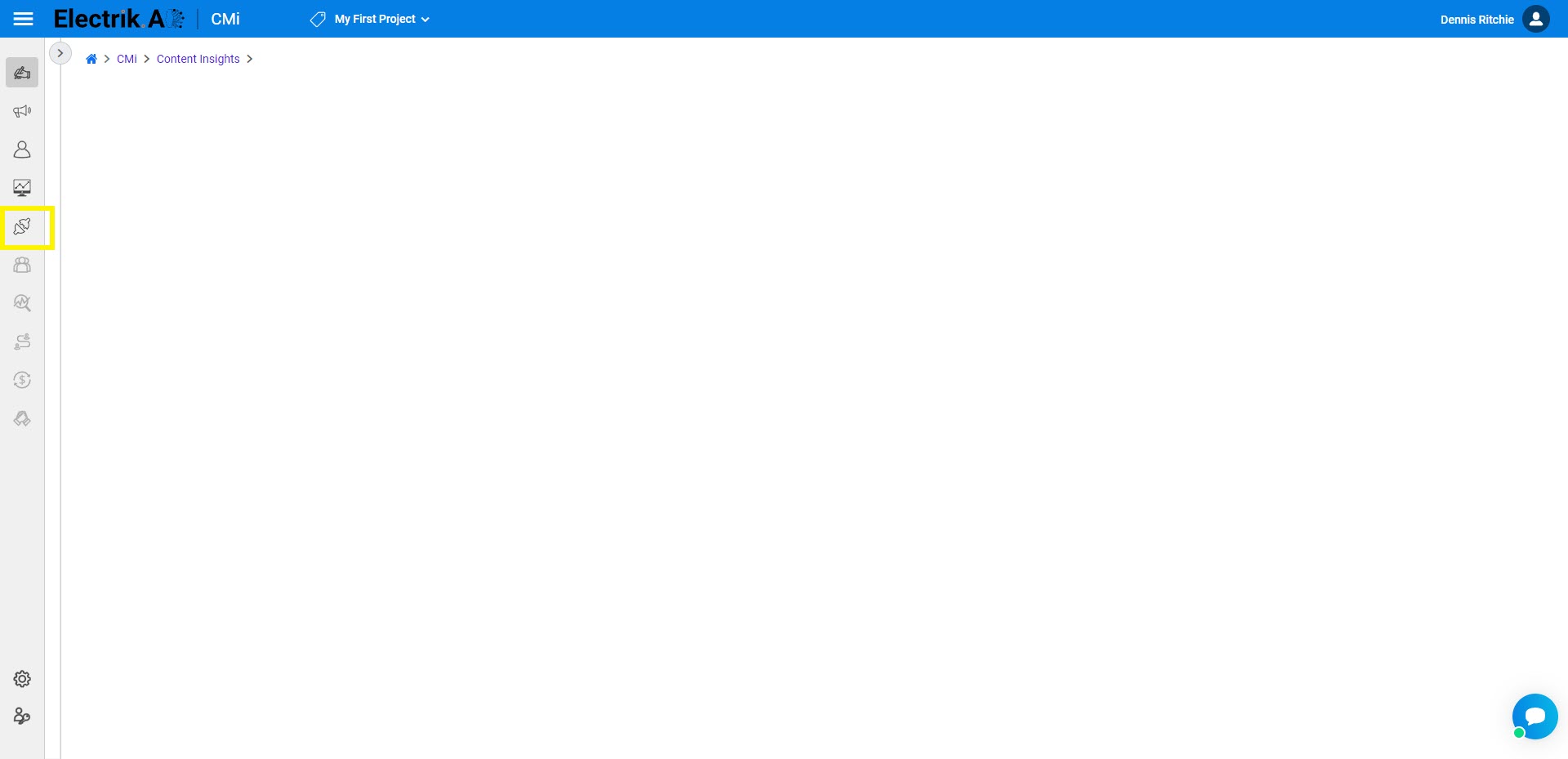
- Click on the “Integrations” option in the Navigation bar.
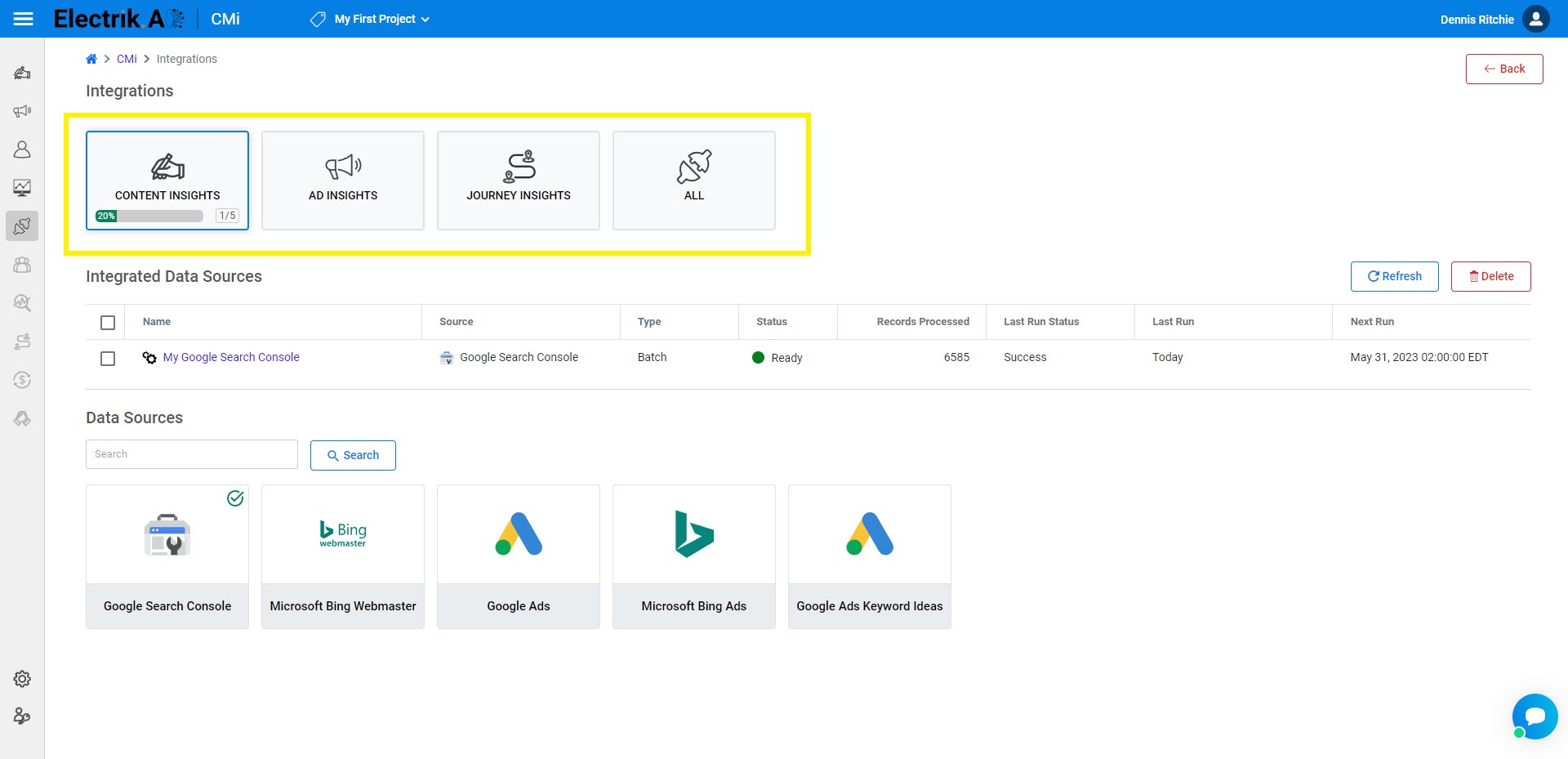
- Choose the Integration category.
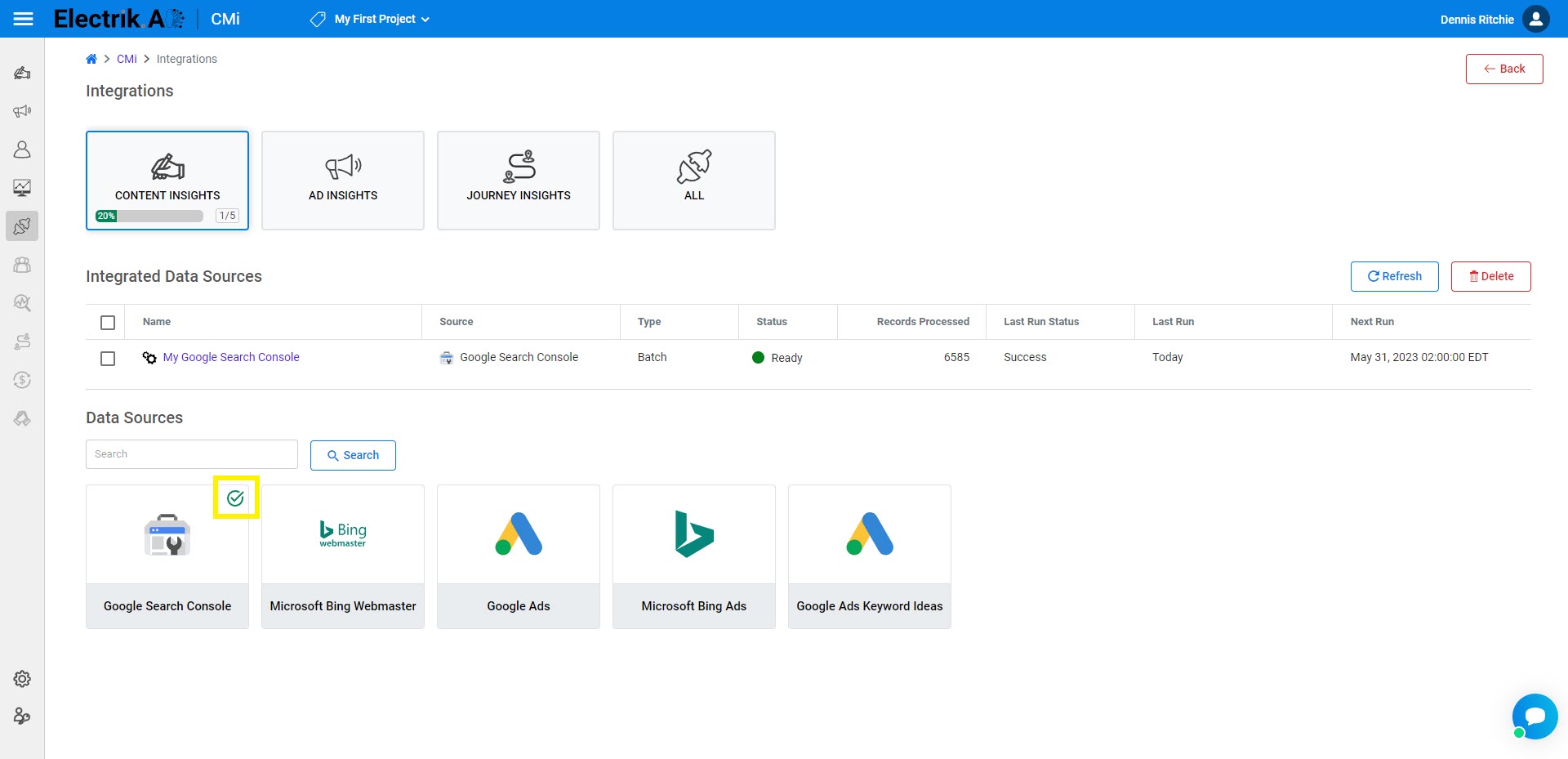
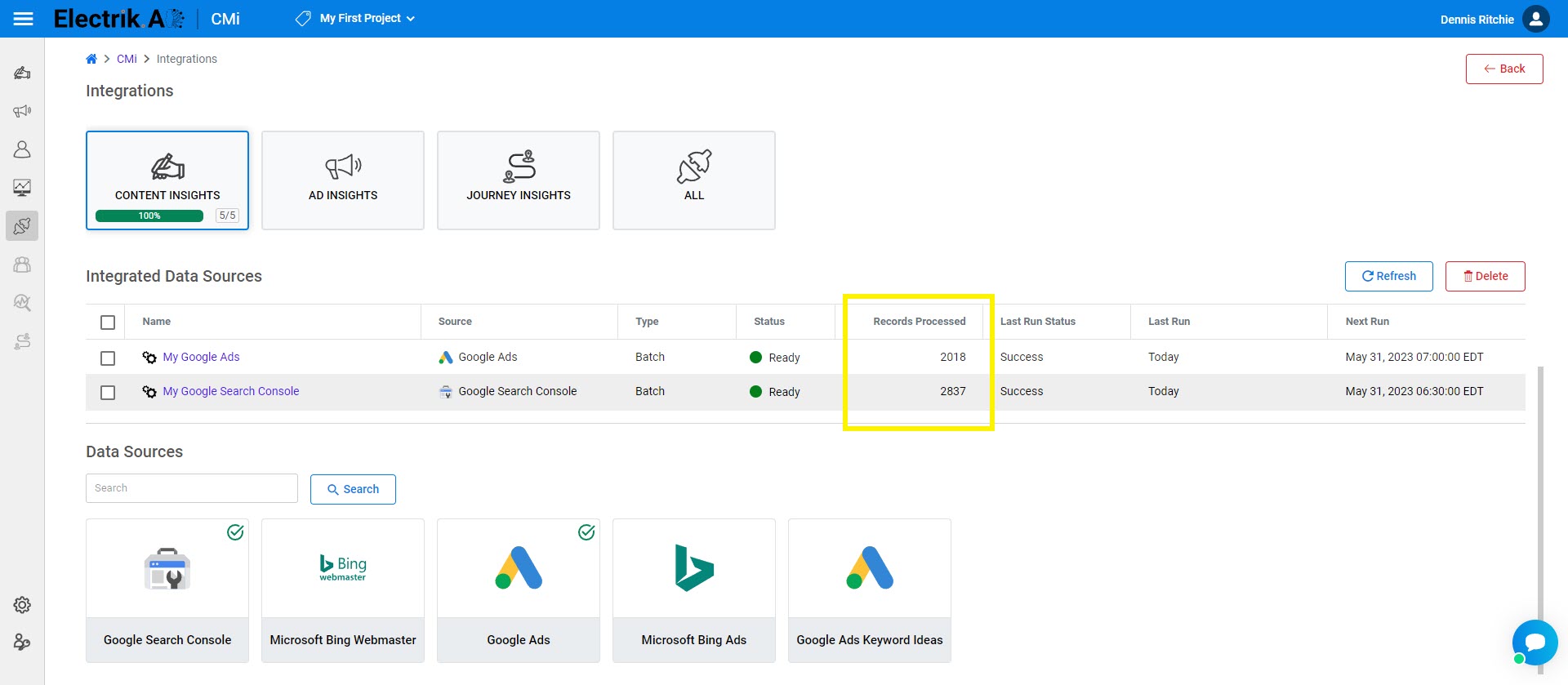
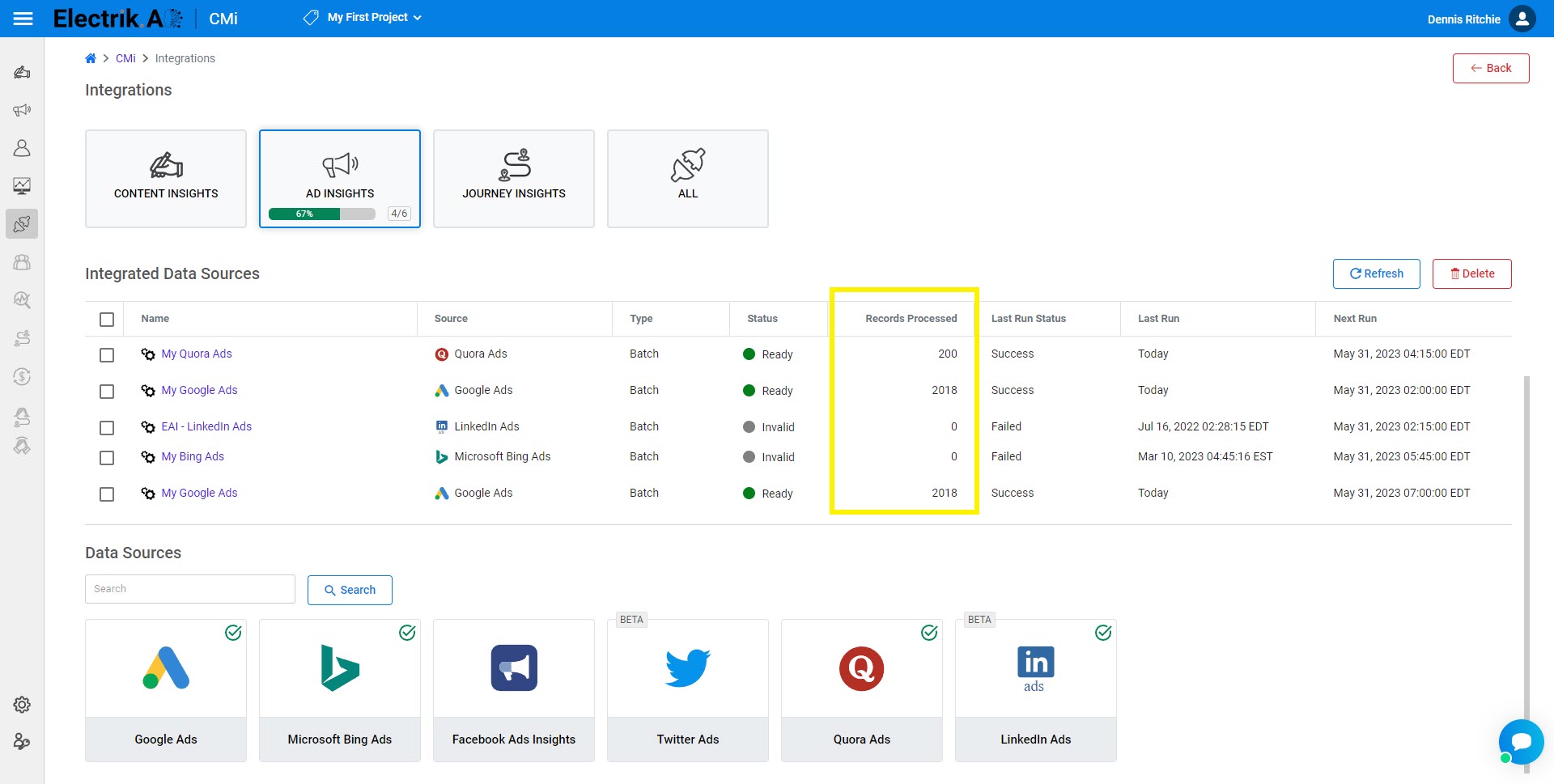
- As you complete each integration, a check mark will appear next to the data source name.
- Under each category for the corresponding integrated data source, you can also view the last execution details and processed records by the data pipeline.
- To obtain a complete overview of data flow execution details, navigate to the iO module by clicking on the data pipeline name.
CMi offers Electrik.AI as a Marketing Data Warehouse (MDW) serving as the ultimate destination for data flows. It seamlessly integrates data from diverse sources and establishes a unified data model, empowering your business with prebuilt reports and AI-driven insights for enhanced productivity and growth. Detailed Steps Here.
- After signing in to Electrik.AI. simply navigate to CMi by clicking on it from the Home Page.
- Click on the “Content Insights” option in the Navigation bar.
- Once you have received the email regarding data source integrations and analysis, you are all set to proceed.
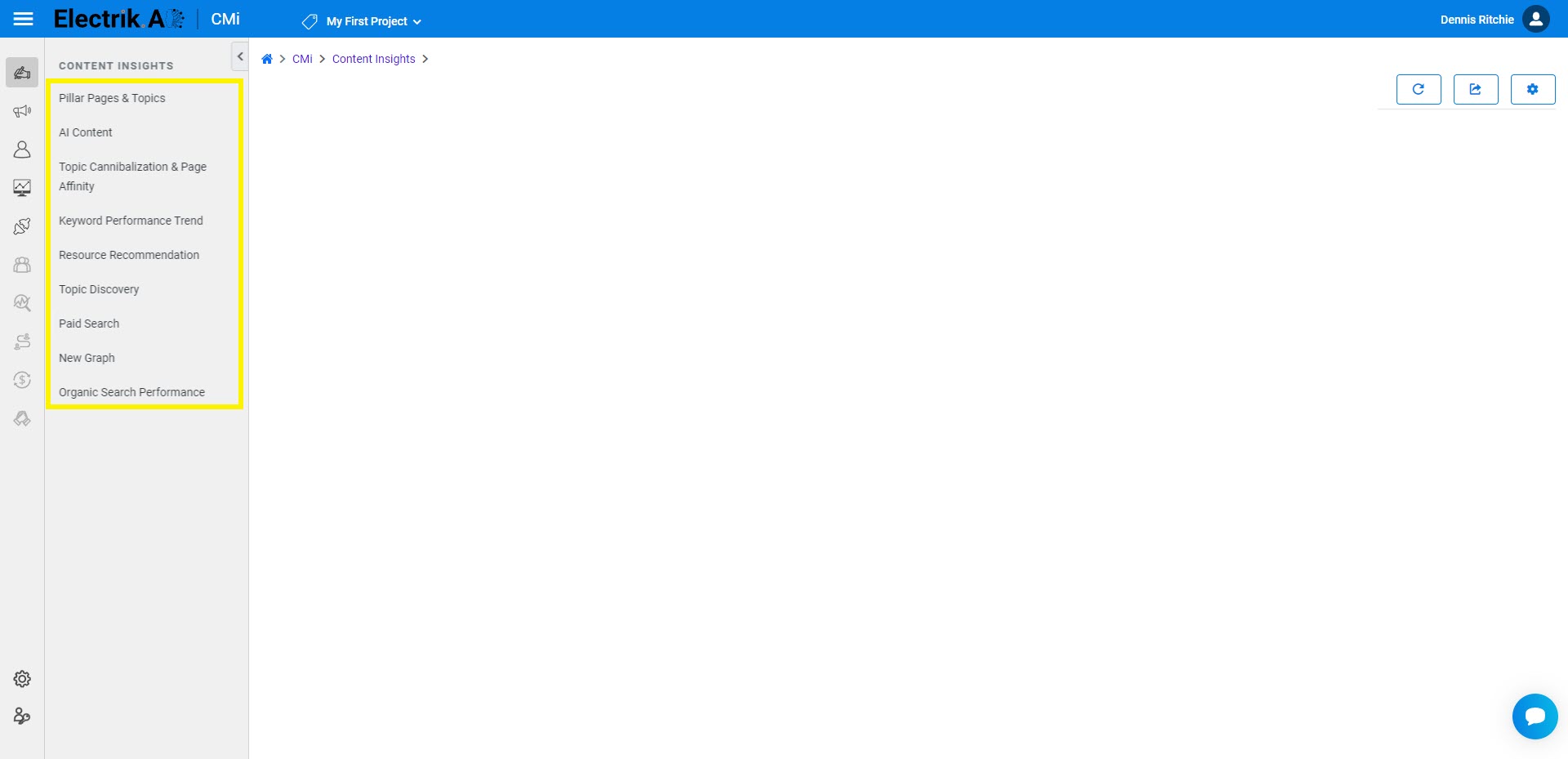
- Choose the “Pillar Pages & Topics” feature to access valuable topics(keyword) insights illustrated by the Directed acyclic graph.
- Choose the “AI Content” feature to view and download the AI driven content.
- Choose the “Topic Cannibalization & Page Affinity” feature to gain a visual representation of the search rankings and user engagements of your pages. This will be presented to you in the form of informative Sankey charts.
- Choose the “Paid Search” feature to view and download the AI driven content.
- Choose the “Resource Recommendations” feature to generate.
- Select the “AI Content” to generate.
- Select the “Organic Search Performance” to generate.
By utilizing content insights, you gain valuable information on how users are consuming, sharing, and engaging with your content. This analysis allows digital marketers to identify trends, pinpoint areas for improvement in their content strategy, and uncover new keywords/topics. To top it all, experience the convenience of utilizing AI-driven auto-generated content. Detailed Steps Here.
Step 1: After signing in to Electrik.AI. simply navigate to CMi by clicking on it from the Home Page.
Step 2: Click on the “Integrations” option in the Navigation bar.
Step 3: Choose the Integration category.
Step 4: As you complete each integration, a check mark will appear next to the data source name.
Step 5: Under each category for the corresponding integrated data source, you can also view the last execution details and processed records by the data pipeline.
Step 6: To obtain a complete overview of data flow execution details, navigate to the iO module by clicking on the data pipeline name.