


AdRoll is a marketing platform that runs retargeting and prospecting ads aiming social and web audiences. It also concentrates on sending personalized emails and provides remarketing across devices.
Docs
- AdRoll Data Export
- Adobe Analytics Data Export
- Bing Webmaster Data Export
- Criteo Ads Data Export
- Facebook Ads Data Export
- Facebook Page Insights Data Export
- Freshdesk Data Export
- Freshsales CRM Data Export
- Freshsales Suite (Freshworks) Data Export
- Google Ads Data Export
- Google Analytics Hit Data Extractor
- Google Analytics Historical Data Extractor
- Google Analytics Custom Report Extractor
- Google Analytics 4 Custom Report Extractor
- Google Analytics 4 Extractor
- Google Analytics 4 BigQuery (Service Account) Extractor
- Google Ads Keyword Ideas (Planner) Extractor
- Google Search Console Data Export
- HubSpot Data Export
- Jira Data Export
- LinkedIn Ads Data Export
- LinkedIn Page Analytics Data Export
- Microsoft Ads Data Export
- Microsoft Ads Keyword Planner Extractor
- Pinterest Data Export
- Pinterest Public Data Export
- Reddit Public Data Export
- Quora Ads Data Export
- SendGrid Data Export
- Shopify Data Export
- Stripe Data Export
- Taboola Data Export
- Twitter Ads Data Export
- Vimeo Public Data Export
- YouTube Analytics Data Export
AdRoll Data Export
What is AdRoll?
Connecting your AdRoll Source to Electrik.AI:
Step 1: Ensure you have following prerequisites to create a AdRoll connection on Electrik.AI:
a. AdRoll User Id and Password.
b. Access to AdRoll account.
Step 2: Sign-in to your Electrik.AI account. If you don’t have one, sign up for free using this link.
Step 3: Select IO – Data Pipelines on Electrik.AI’s dashboard.

Step 4: Select the Connections icon on the navigation panel to the left, then click the “Add” button on the top right corner.

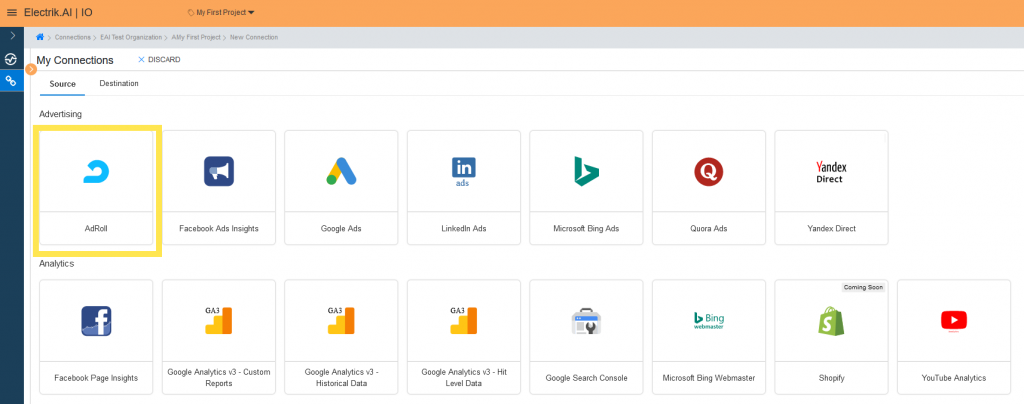
Step 5: Click on the “Source” tab and choose “AdRoll” connector.
Step 6: Provide your AdRoll account User Id and Password.

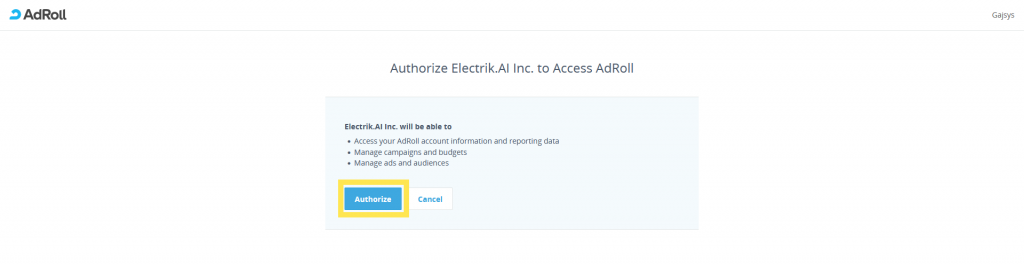
Step 7: Allow Electrik.AI to access your AdRoll account.
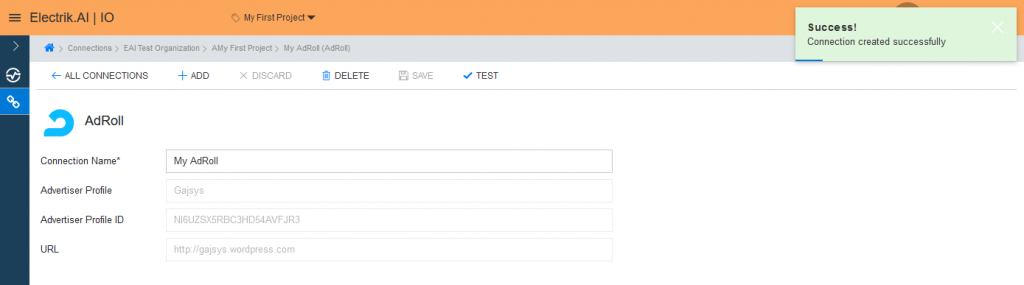
Step 8: Enter your AdRoll connection details and click Save.

Congratulations! You have successfully created a AdRoll connection on Electrik.AI.
What are the supported Data Destinations?
Electrik.AI supports the following data destinations to export your AdRoll data. A data destination is required by Electrik.AI to facilitate data export from various marketing data sources using our pre-built data pipelines.
Note: Electrik.AI itself is not a data destination.





Exporting your AdRoll Data:
Electrik.AI creates a Data Flow (or ETL process) that exports AdRoll data to a target database or data warehouse. This process runs daily at scheduled time and exports data for the previous day.
Follow these steps to create a Data Flow from AdRoll to a Database/Data Warehouse:
Step 1: Ensure you have the following prerequisites.
1. Access to AdRoll account.
2. AdRoll Account User Id and Password.
3. Access to a database/data warehouse of your choice (PostgreSQL, MySQL, Azure SQL, BigQuery).
4. Database connection details such as Host, Port, Database Name, Database User, Database Password.
Step 2: Sign-in into your Electrik.AI account.
Step 3: Select IO – Data Pipelines on Electrik.AI’s dashboard.
Step 4: Select the Flows icon on the navigation panel to the left, then click the “Add” button on the top right corner.
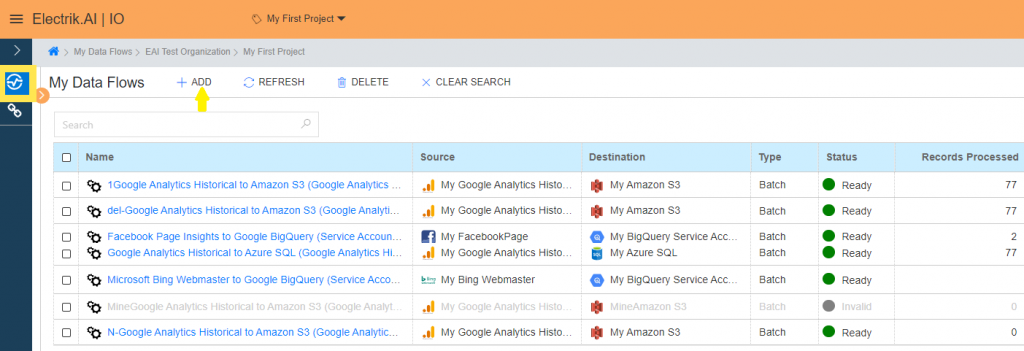
Step 5: Select the AdRoll connector in the list of available sources.

Step 6: Select your existing AdRoll connection in Electrik.AI.
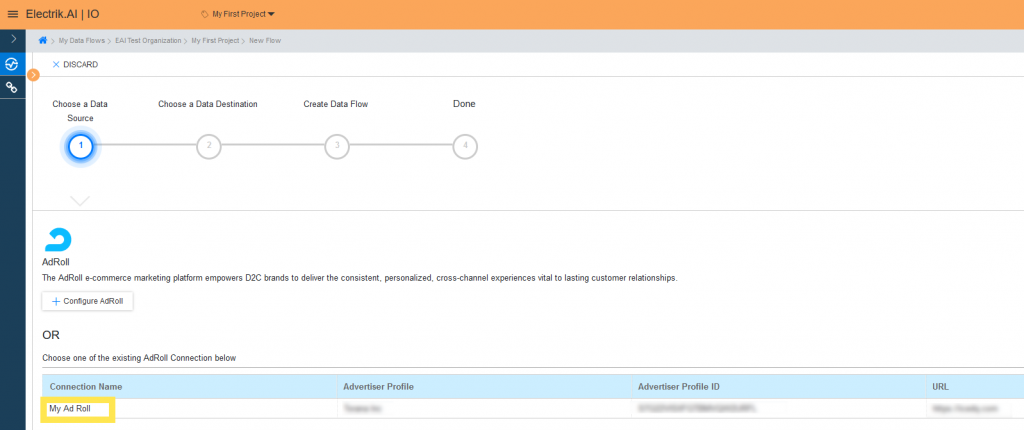
To Configure a new AdRoll connection, refer to this link.
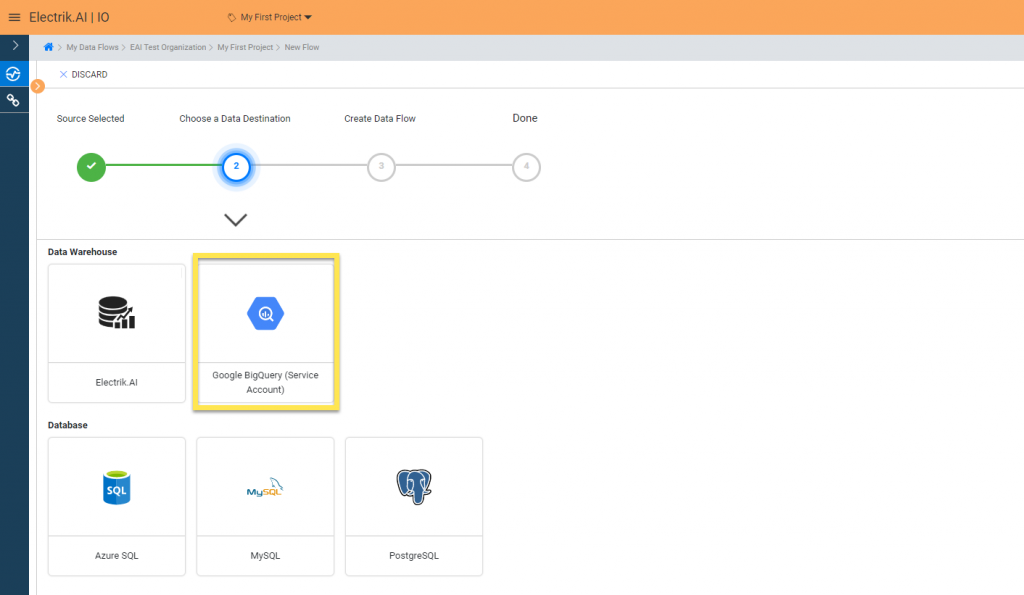
Step 7: Select a data destination of your choice from the list of available destinations. In this example, we will use BigQuery.
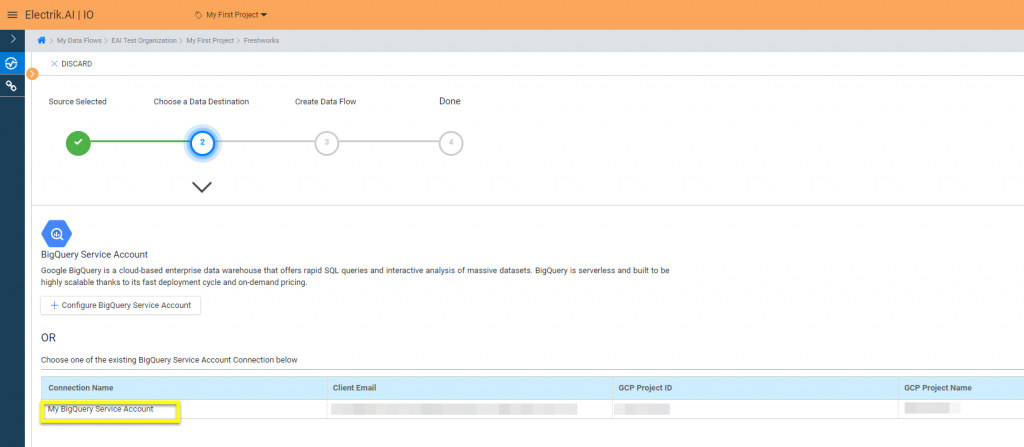
Step 8: Select your existing data destination connection on Electrik.AI.
To configure a new BigQuery connection, refer to this link.
Step 9:
a. Choose the reports required to get the appropriate data. In this example, we will choose the following reports as shown in the image below:
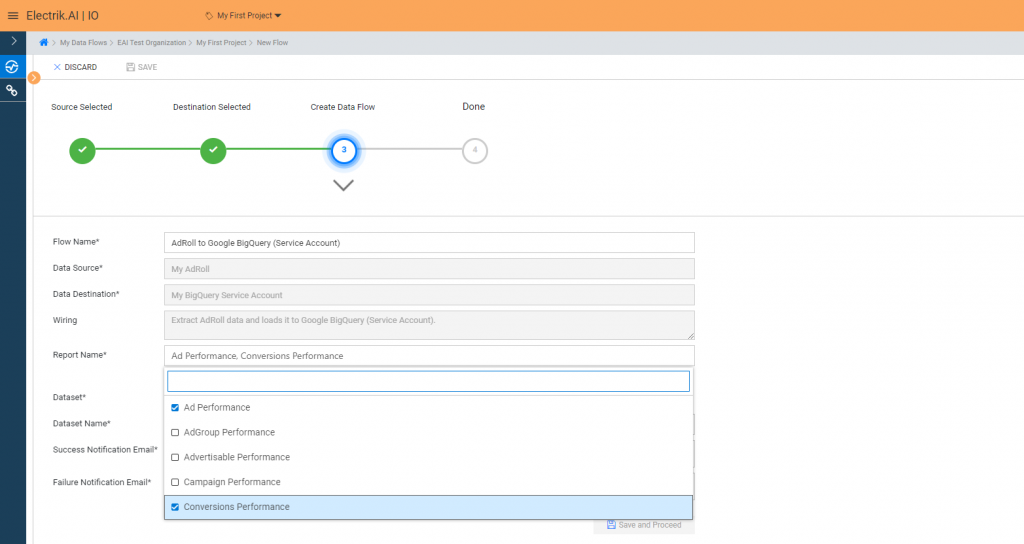
b. Review the Flow Name, Data Source, Data Destination, Dataset & Name, Report Name, and Provide Success & Failure Notification Email.
Success Notification Email: Enter a valid Email ID to receive the Flow Success Email Notification.
Failure Notification Email: Enter a valid Email ID to receive the Flow Failure Email Notification.
Note: : By Default, Electrik.AI uses the signed-in user’s Email ID.
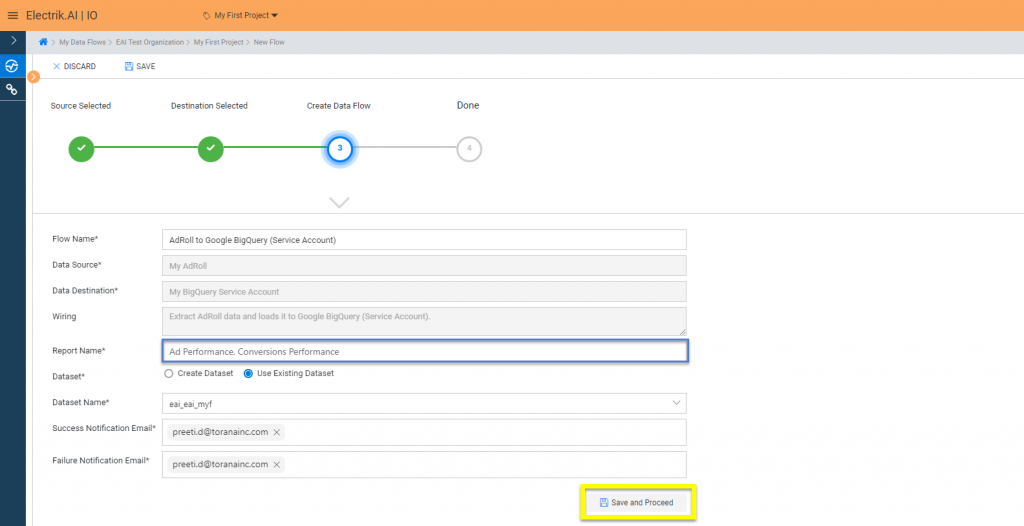
Note: By Default, Electrik.AI chooses an existing Database Schema to load your AdRoll Report. You can create a new schema in your database by selecting the “Create New Schema” radio button.
Congratulations! You have successfully created a data flow! Please wait while you are redirected to the flow details screen.
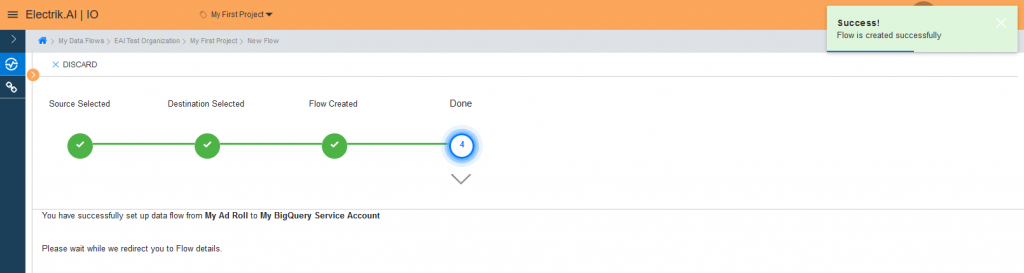
You have now successfully setup AdRoll to BigQuery Data Warehouse flow in Electrik.AI
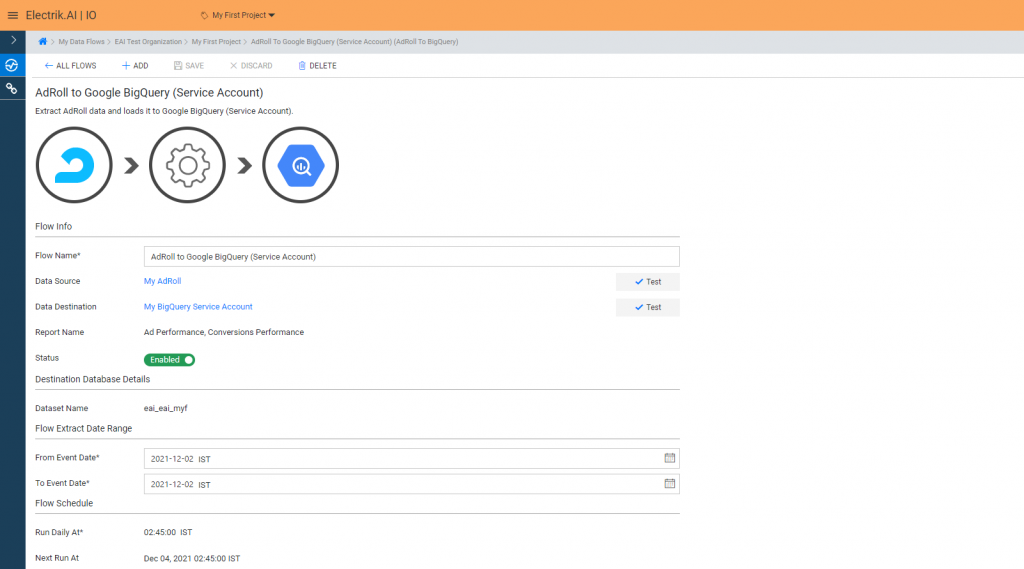
Your AdRoll will start loading after 24 hours in your data warehouse.
